7. Specify the margins by entering 0.3 in Printer Margins. Here, too, measurements are entered in centimeters.
8. Click OK to close the Custom Page Sizes dialog box.
9. In the CPaper Size list, click the size of the original. In this case, click 100*500, the size you registered.
10. In DOrientation, click the icon of the document in landscape orientation.
11. Click FOK to close the dialog box.
Print the banner
Follow the steps below to print the banner using the corresponding banner settings.
1. Choose Print in the application menu.
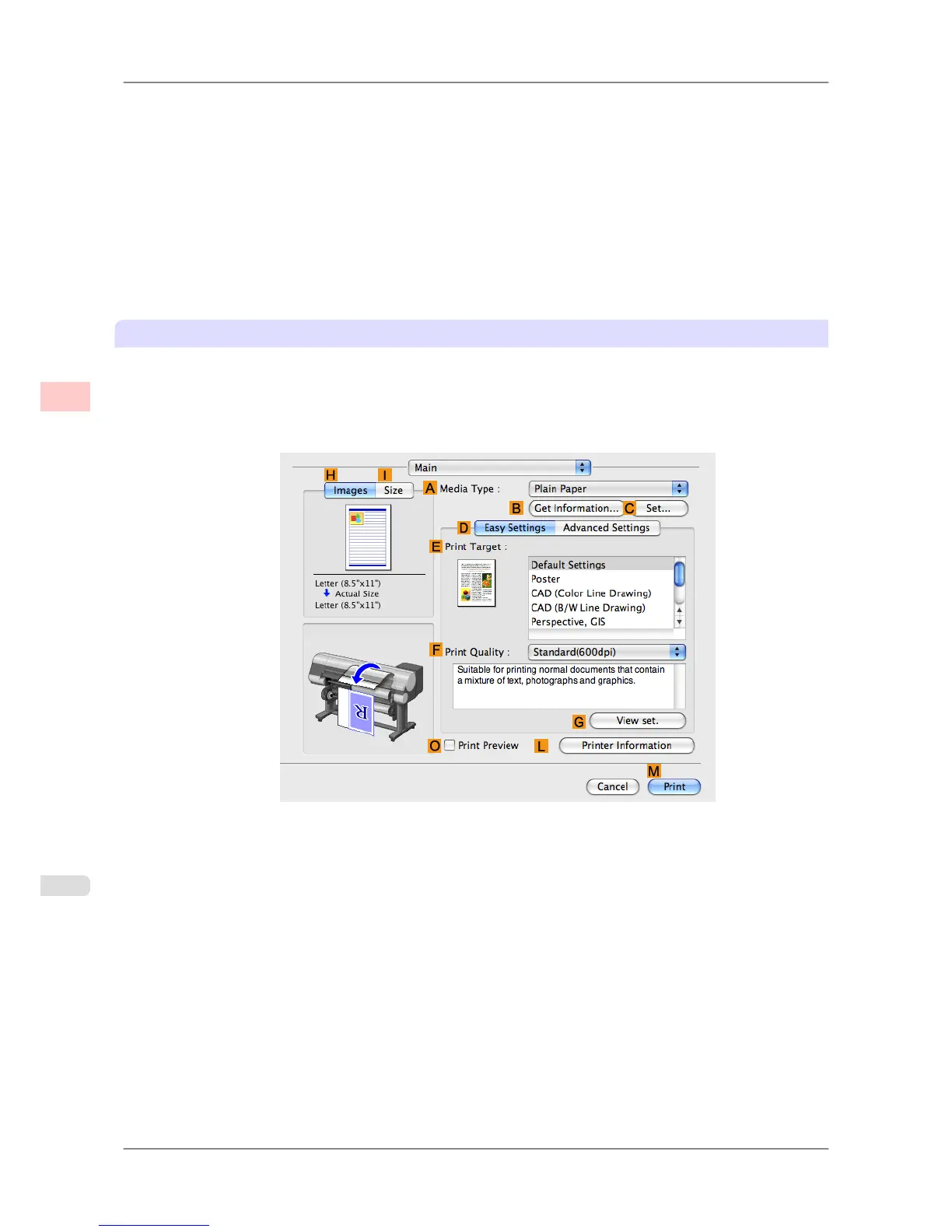
2. Access the Main pane.
3. In the A Media Type list, select the type of paper that is loaded. In this case, click Plain Paper.
4. Make your selection in the EPrint Target list.
5. Make your selection in the FPrint Quality list.
Enhanced Printing Options
>
Printing banners or at other non-standard sizes
>
Printing Vertical or Horizontal Banners (Large-Format Printing; Mac OS X) iPF825
3
116














 To Next Page