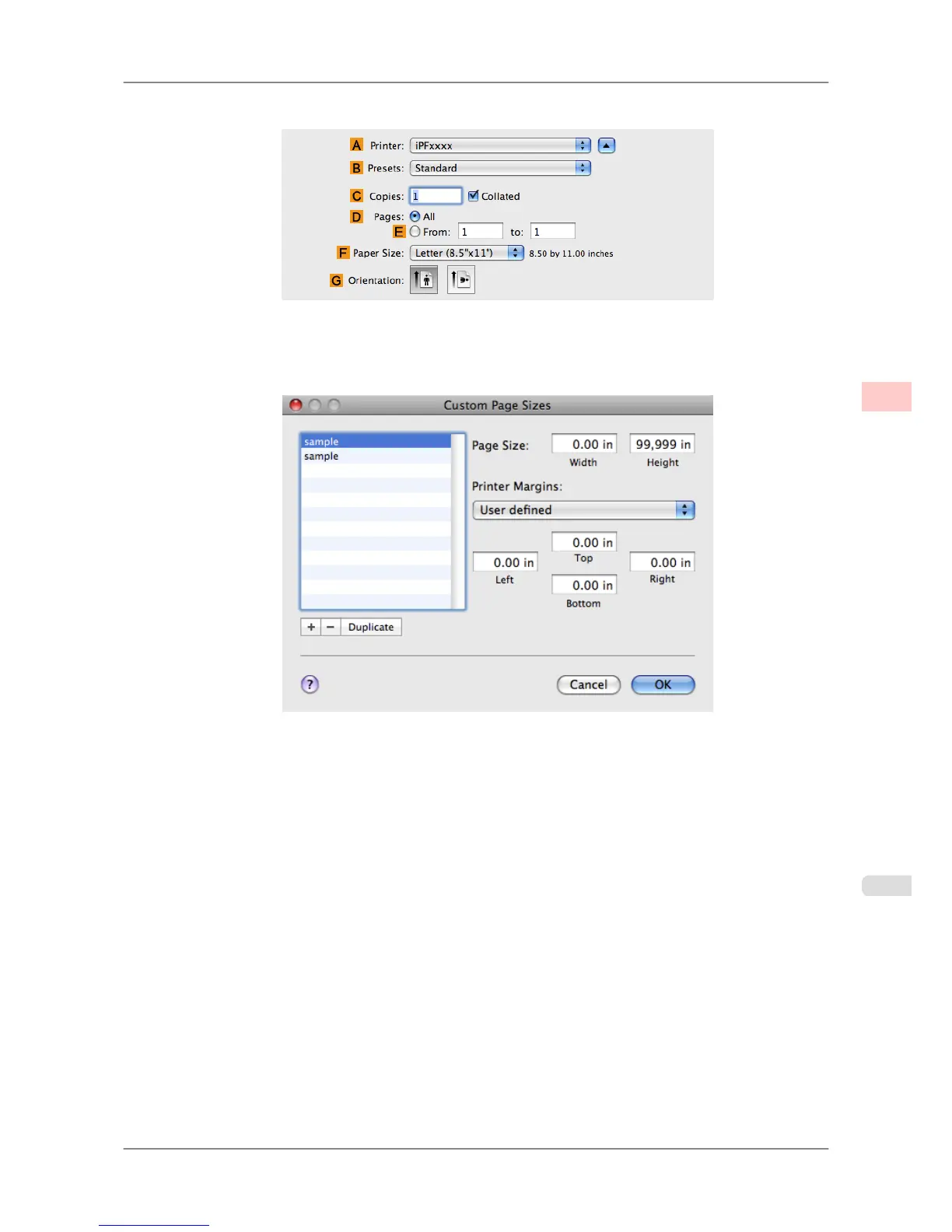
3. Choose Print in the application menu.
4. Select the printer in the APrinter list.
5. Click Manage Custom Sizes in the CPaper Size list to display the Custom Page Sizes dialog box.
6. In Page Size, enter the height and width of the original. Here, enter 43.00 cm in Height and Width.
7. In Printer
Margins, enter 0.5 for the top and side margins and 2.3 for the bottom margin. Here, measurements
are entered in centimeters.
8. Double-click Untitled in the list at left in the Custom Page Sizes dialog box and enter the paper name—in this
case, 430*430.
9. Click OK to close the Custom Page Sizes dialog box.
10. In the CPaper Size list, click the size of the original. In this case, click 430*430, the size you registered.
11. If you configured the settings using the Page Attributes dialog box, click F OK to close the dialog box, and
then select Print from the application software menu.
Enhanced Printing Options
>
Printing banners or at other non-standard sizes
>
iPF825 Printing on Non-Standard Paper Sizes (Mac OS X)
3
123














 To Next Page