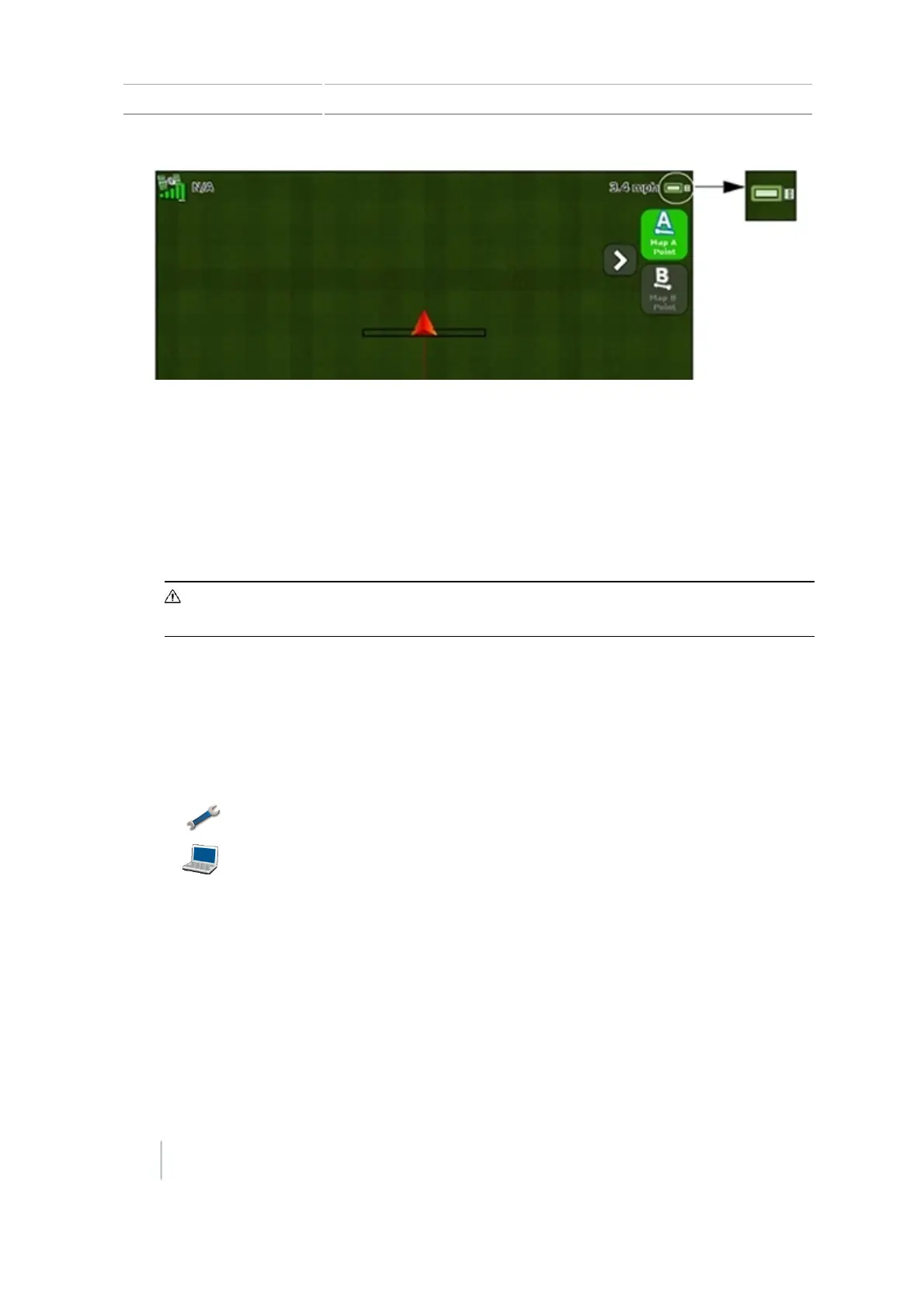
11 Data USB drive data transfer
The color of the USB icon indicates the current state of the USB drive:
ll Green: Connected
l Yellow: USB drive is connecting
l Red: No connection
Remove a USB drive
CAUTION – Do not remove the USB drive from the socket while the display is writing to or from the drive. This
will corrupt the data.
1. View the back of the display.
2.
Pull the USB drive out of the USB socket.
Retrieve or send data using the USBdrive
Note – You cannot send data to a USB drive that is over 90% full.
1.
Tap to go to the Settings screen.
2.
Tap to go to the Data screen.
3. At the Data screen, tap Manage Data.
4. At the Manage Data screen, tap USB.
5. To receive data from the USBdrive, at the USB screen:
a. Tap Retrieve Data.
b. At the Retrieve Data screen, tap Get Fields from USB.
184 CFX-750 Display User Guide Version 7.0, Revision A



 To Next Page