On-screen basics 3 Getting started
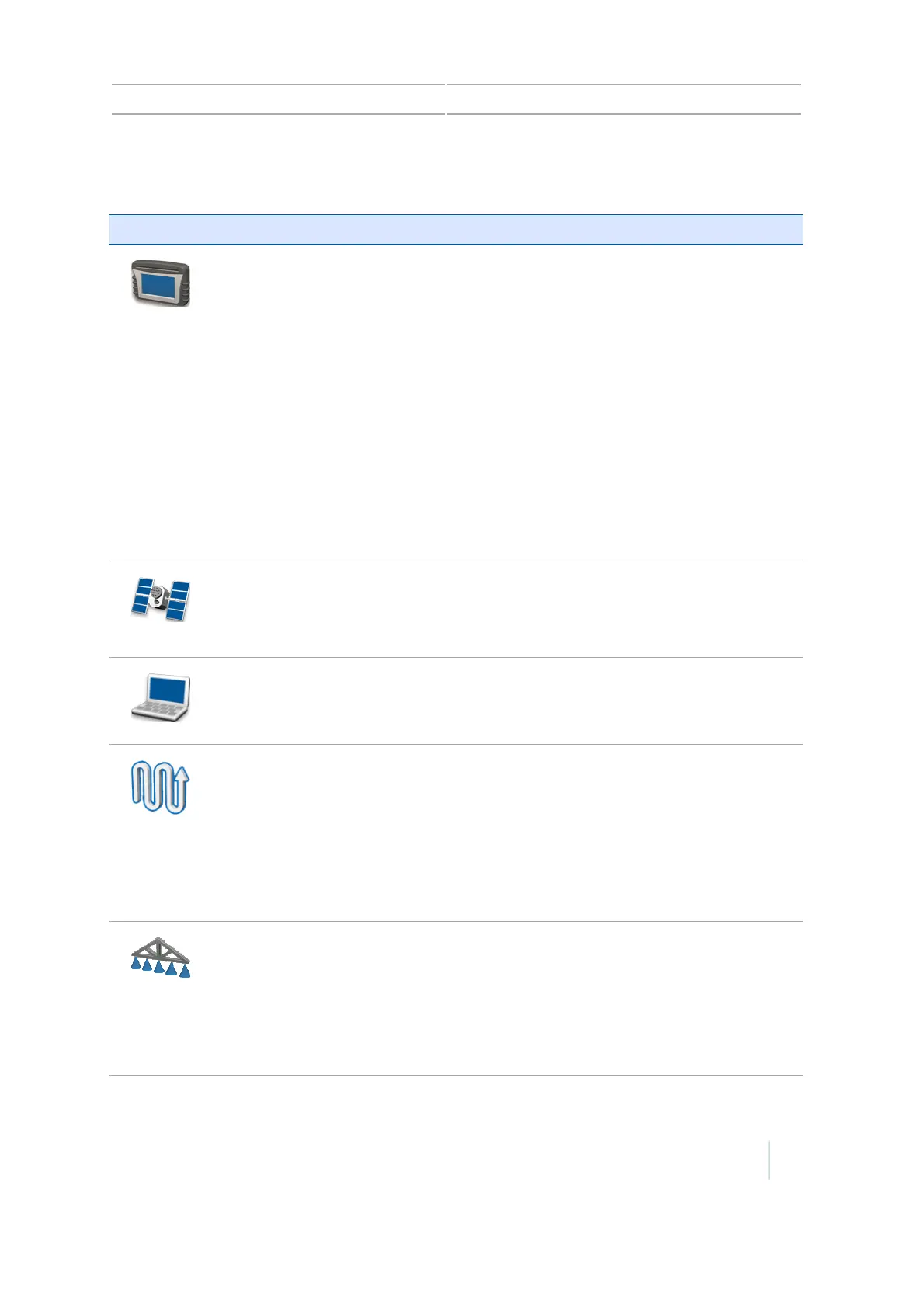
Buttons on the Settings screen
Tap... To go to... To complete functions, including...
System
screen
l Quick Start Wizard (see Quick start wizard, 188)
l Display settings (see Display settings, 189)
l Advanced settings (see Advanced display settings,
192)
l
l Save/Load Configurations
l Digital Output
l Advanced User Configurations
l NMEA Output
l Status (see Status, 196)
l About the Display (see About the display, 198)
l Restore Defaults (see Restore defaults, 198)
l Calibrate Touchscreen (see Recalibrate touchscreen,
198)
GNSS
screen
l Set up GNSS, position quality and advanced settings
(see GNSS setup, 166)
l View status of GNSS, satellite, DGPS (see GNSS setup,
166)
Data
screen
l Manage Data (see Data management, 178)
l Set up Office Sync (see Office Sync setup, 180)
Guidance
screen
l Turn Settings (see Guidance settings, 146)
l Coverage Settings (see Guidance settings, 146)
l Nudge Settings (see Guidance settings, 146)
l Mapping settings (see Guidance settings, 146)
l FreeFormRecording (see Guidance settings, 146)
l Headland/Infill Switching (see Guidance settings, 146)
l Boundary Setup (see Guidance settings, 146)
Implement
screen
Set up:
l Implement (see Field-IQ setup for implements, 119)
l Application Control (see Section Control setup, 130)
l Boom Height Control (see Field-IQ Boom Height
Control setup, 142)
l Yield Monitoring (see Yield Monitoring setup, 156)
Version 7.0, Revision A CFX-750 Display User Guide 51



 To Next Page