10 GNSS setup Correction services setup
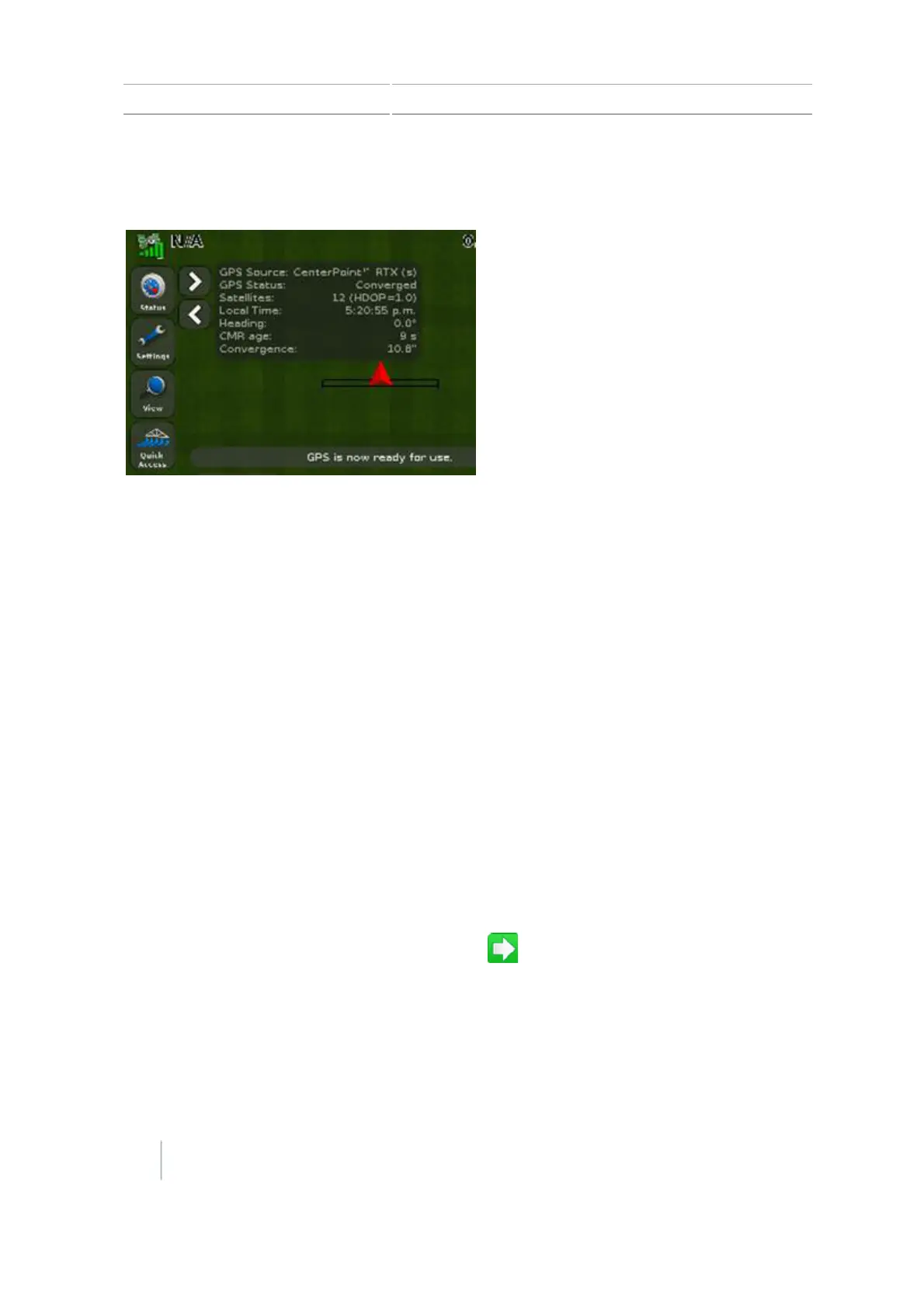
Example
At first:
l Convergence is a high value.
l The satellite icon is yellow,
indicating the system is not ready
to operate.
When the receiver converges to its
final accuracy, the status values will
change:
l Convergence has changed to the
value you set in the Threshold for
CenterPoint RTX (s) Favor
Accuracy screen of the wizard. In
this example, the threshold was
set to 11 inches.
l The satellite icon is now green,
indicating that the system is now
ready to operate.
Renew CenterPoint RTX subscription
To renew your CenterPoint RTXsubscription:
1. Ensure your Frequency and Baud Rate is already set up. (See Frequency and Baud rate in GNSS
setup, 166.)
2. Call Trimble Positioning Services.
3. Request a renewal of your subscription.
RangePoint RTX
To set the correction type to RangePoint RTX:
1. At the Settings screen, tap GNSS.
2.
Tap GNSS Setup, then tap RangePoint RTX. Tap .
3.
At the Satellite Settings screen, the frequency and baud rate are pre-selected for the US Central
beam. If necessary, you can change these values to track a specific Lband satellite. (See
Frequency and Baud rate in GNSS setup, 166.)
Note – Verify on this screen that a subscription for RangePoint RTX is active.
4.
At the Position Quality screen are options that enable you to operate even when the quality of
170 CFX-750 Display User Guide Version 7.0, Revision A



 To Next Page