13 Operations Yield Monitoring operation
Coverage logging
Coverage logging draws a solid block of color on the screen behind the vehicle to show the area that
you have applied. When you pass over an area for the second time, the color of the covered area
changes. This is useful for viewing overlaps.
Note – Field coverage is limited to 1000 acres for each event.
1.
To begin coverage logging, tap while you are driving.
2.
To finish coverage logging tap .
Note – There may be a delay between the time you start or stop coverage logging on screen and
the time the implement actually starts or stops coverage. To compensate for this you can add a
time delay to the drawing of coverage logging. See Yield Monitoring operation, 249.
Change coverage logging theme
1.
Tap to access the Yield Monitor Quick Access screen.
2. Tap Coverage Theme.
3.
Tap which theme you want:
ll Yield
l Moisture
l Overlap
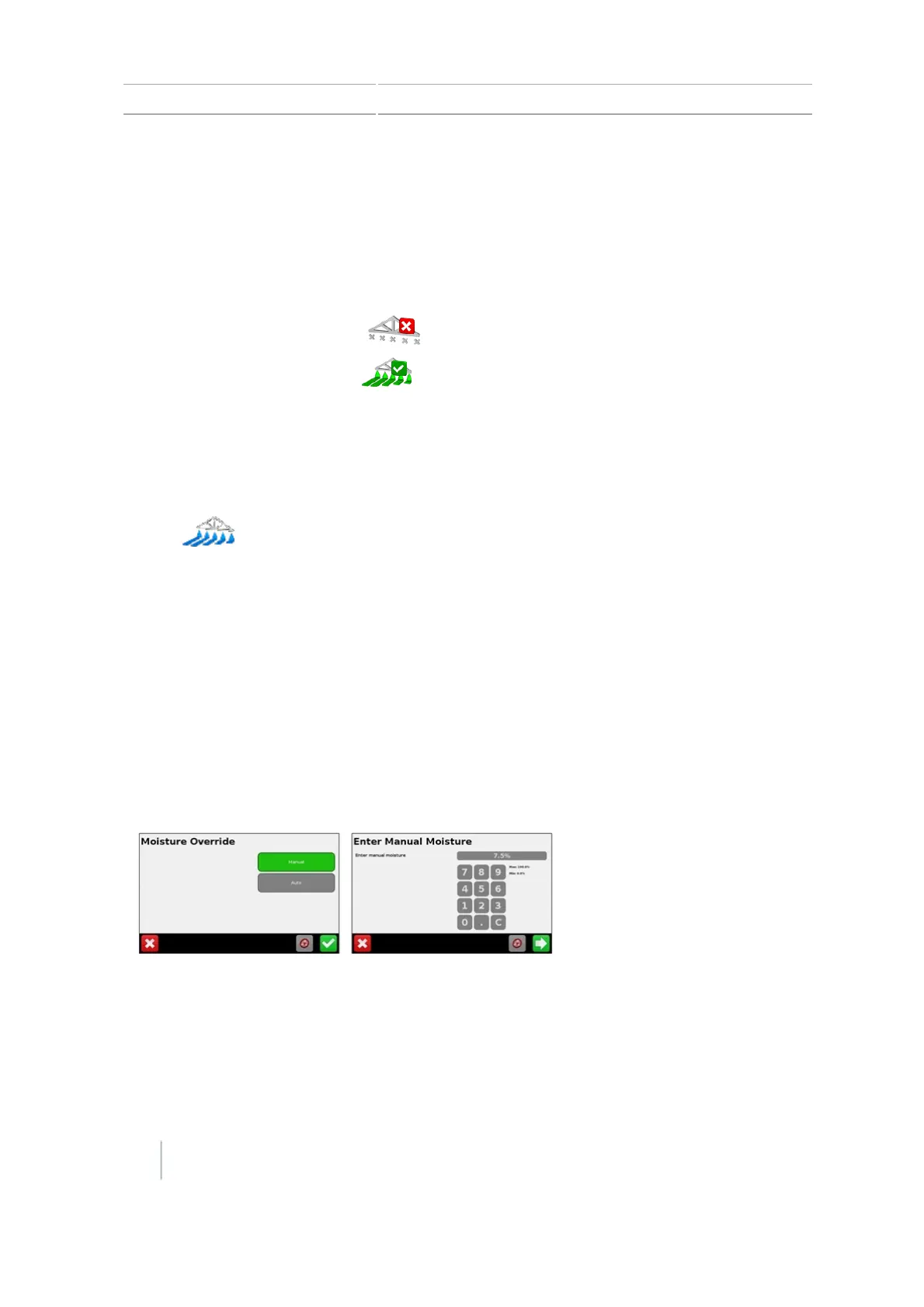
Apply constant moisture value
To turn off the automated moisture sensor readings and apply a constant moisture value to the
crop being harvested, tap Manual. Enter the percentage for manual moisture.
Enter test weight of crop
You can enter the test weight of the crop being harvested to maintain yield monitoring accuracy.
252 CFX-750 Display User Guide Version 7.0, Revision A



 To Next Page