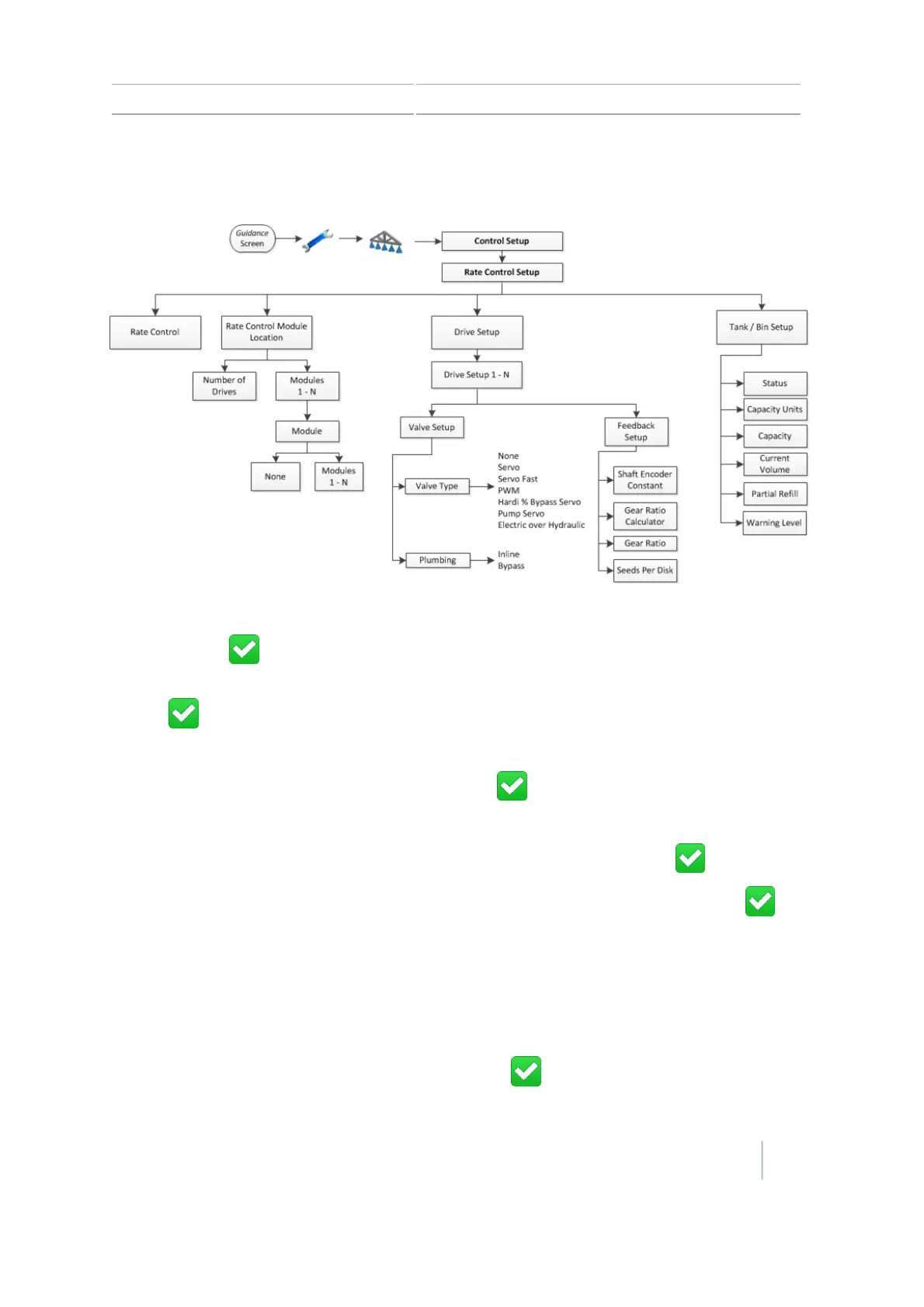
Control setup for a location 6 Field-IQ crop input control setup
Rate Control Setup
1. At the Rate Control Setup screen, tap Rate Control and then tap On to turn on the rate control
feature. Tap .
2. At the Rate Control Module Location screen, choose the number of drives at this location and
tap . The system displays a button for each module.
3. Complete the settings for each module:
a.
Tap Module. The Module screen displays. Tap .
b. Tap Modules. The Modules screen displays, with the serial number of each module.
c.
Tap the serial number of the module connected to that location and tap .
4.
At the Rate control Module Location screen, set the width of the selected location. Tap .
Note – If you have one drive only selected, you will only have one Module Setup to perform
and the width is then assumed to be the full implement width.
5. Complete the settings for each drive:
a. At the Drive Setup screen, tap Drive Setup for the serial number of the drive.
b.
At the Valve Setup screen, tap Valve Type and set the type of valve physically connected
to the module. When settings are complete, tap to return to the Valve Setup screen.
Version 7.0, Revision A CFX-750 Display User Guide 133



 To Next Page