3 Getting started Display basics
If you are not able to access the Advanced screen, you can use the buttons on the back of the
display to perform a reset.
1. Power down the display and then power it on.
2.
Wait until the status bar at the bottom of the startup screen is lighted to over 75% complete.
Note – This happens quickly. Be prepared to perform the next step.
3.
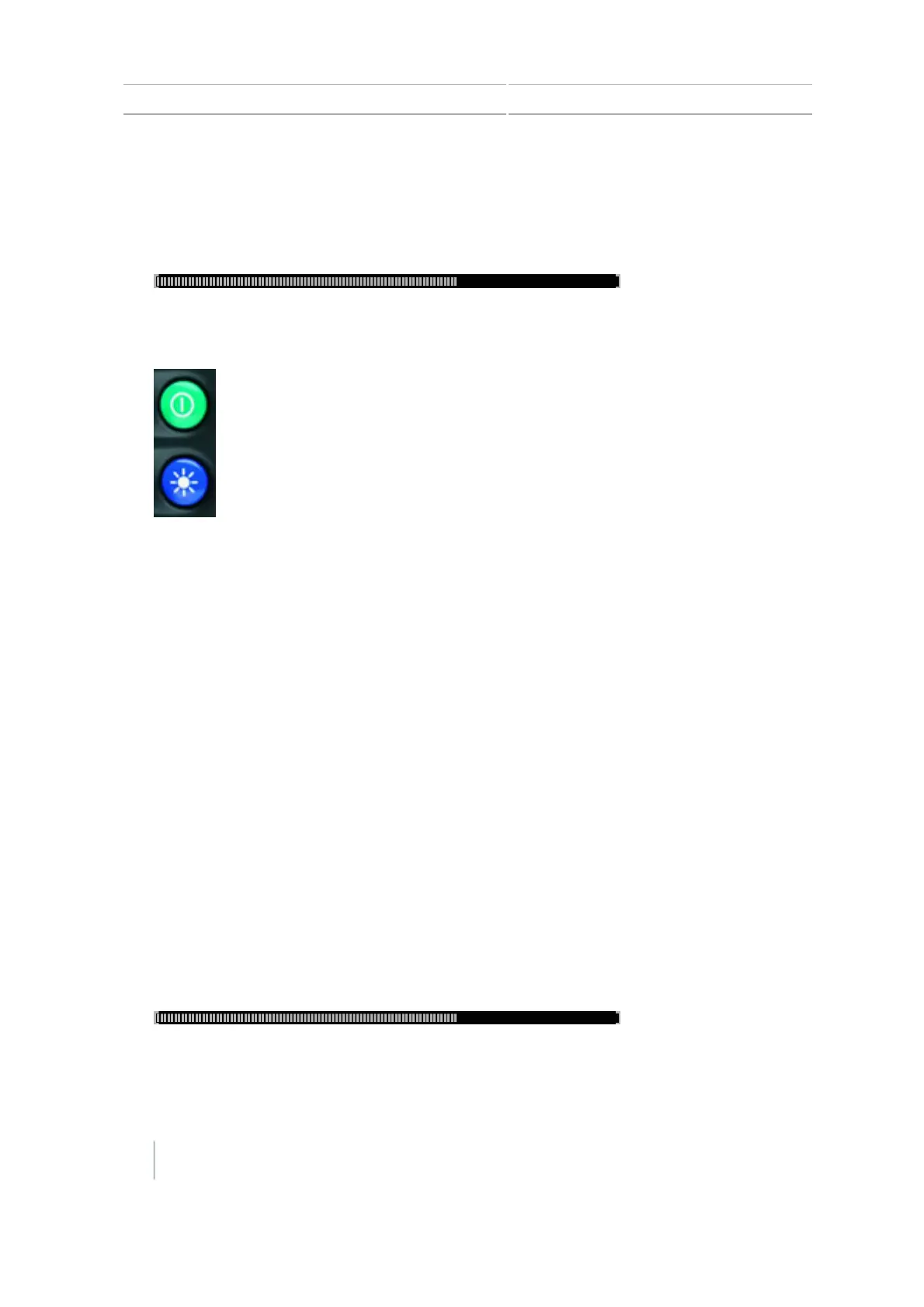
Press the power button and the top brightness control button at the same time.
4.
When you see another progress bar that counts up very slowly (one tick at a time), release the
buttons.
Note – A soft reset needs approximately 10 minutes to complete. Do not power down the
display for 15 minutes after you have reset the display.
5.
After the reset is complete, recalibrate the touchscreen (see Recalibrate touchscreen, 198).
Note – If at any time you see the light bar LEDs slowly moving back and forth, the buttons were
pressed too early. Power down the unit and repeat steps 1 through 4
Hard reset
A hard reset:
l Returns all settings to the factory defaults
l Deletes all saved data including any field data
To perform a hard reset on the display, see Hard Reset at Advanced display settings, 192.
If you are not able to access the Advanced screen, you can use the buttons on the back of the
display to perform a reset.
1. Power down the display and then power it on.
2.
Wait until the status bar at the bottom of the startup screen is lighted to over 75% complete.
Note – This happens quickly. Be prepared to perform the next step.
40 CFX-750 Display User Guide Version 7.0, Revision A



 To Next Page