13 Operations Map guidance and features
Feature mapping buttons
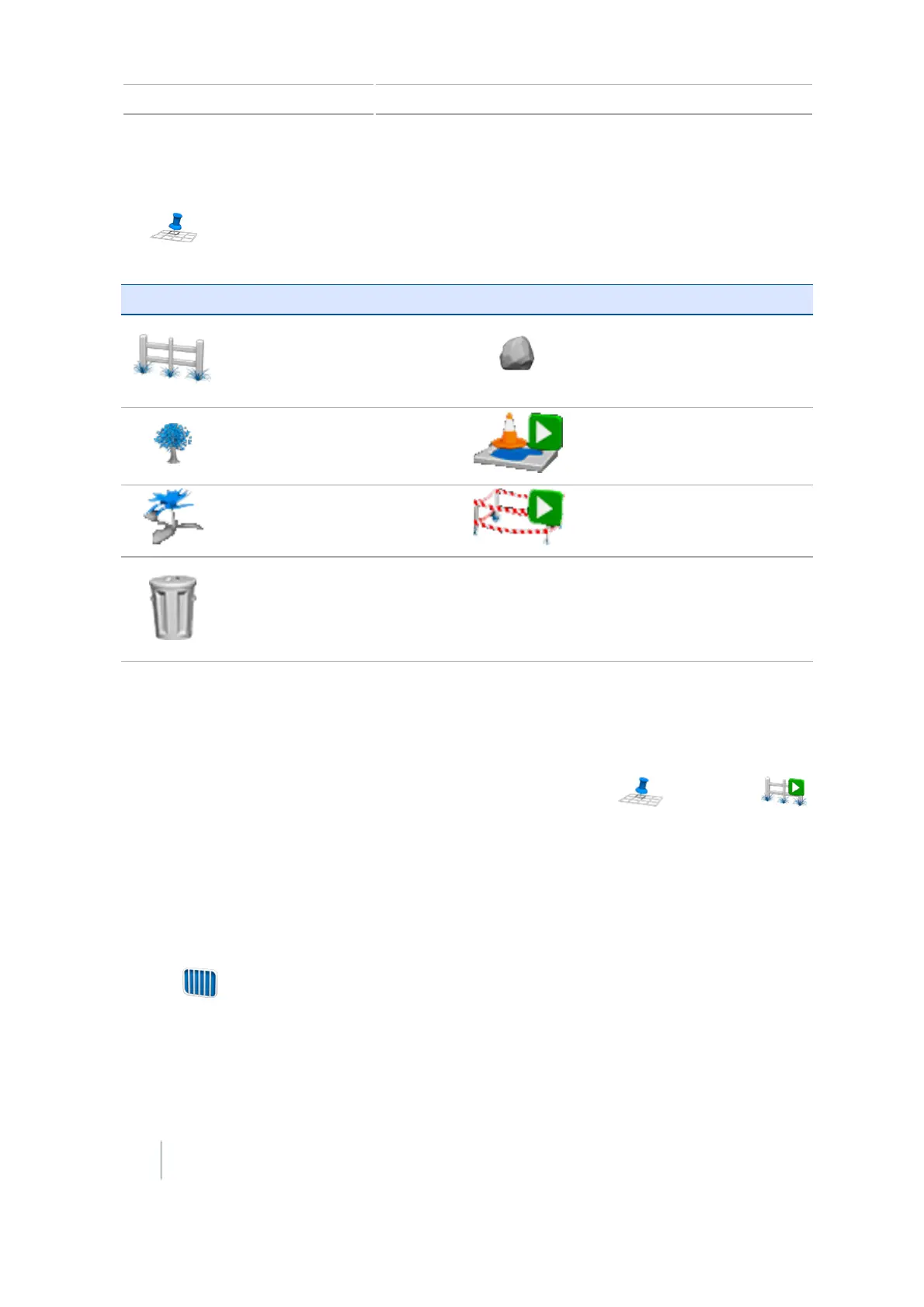
Tap to open the feature mapping buttons. You can map a line feature as well as set features
(points) where there are trees, rocks or areas in your field.
Button Feature Created Button Feature Created
Map line feature
Map rock (point feature)
Tree Area
Weed Restricted area
Delete feature
Line Feature
With Line Feature Guidance, you can select a previously determined line feature to use as a
guidance line.
1.
After setting up an AB line (see Feature mapping buttons, 214), tap and then tap .
2. Following the on-screen instructions, begin mapping the line.
3.
Map as many lines as required.
Note – If you have already created lines using the Farm Works Software® or using another
display, you can load these files. Select Settings / Data / Manage Data / USB / Retrieve Data /
Get files from USB. Ensure that the files are loaded into the same directory as the field that is
currently open.
4.
Tap . The Finished with Field screen displays.
5.
Tap No. The Create new or select old swath screen displays.
6. Tap Line Feature Guidance.
214 CFX-750 Display User Guide Version 7.0, Revision A



 To Next Page