13 Operations Boom Height Control operation
l For a section with only one sensor: The distance from the sensor to the ground or canopy
l For a section with multiple sensors: The average distance from the sensors to the ground or
canopy
A symbol on button (for example, a red arrow) shows:
l The direction that the section is moving to get closer to the target height
l How far the section is off target (indicated by color)
Note – The Engage button is green when any zone is engaged. The Engage button is yellow when
all sections are disengaged, but at least one is enabled.
Adjust target height and aggressiveness
You can adjust both the target heightand the aggressiveness.
1.
Tap Controls.
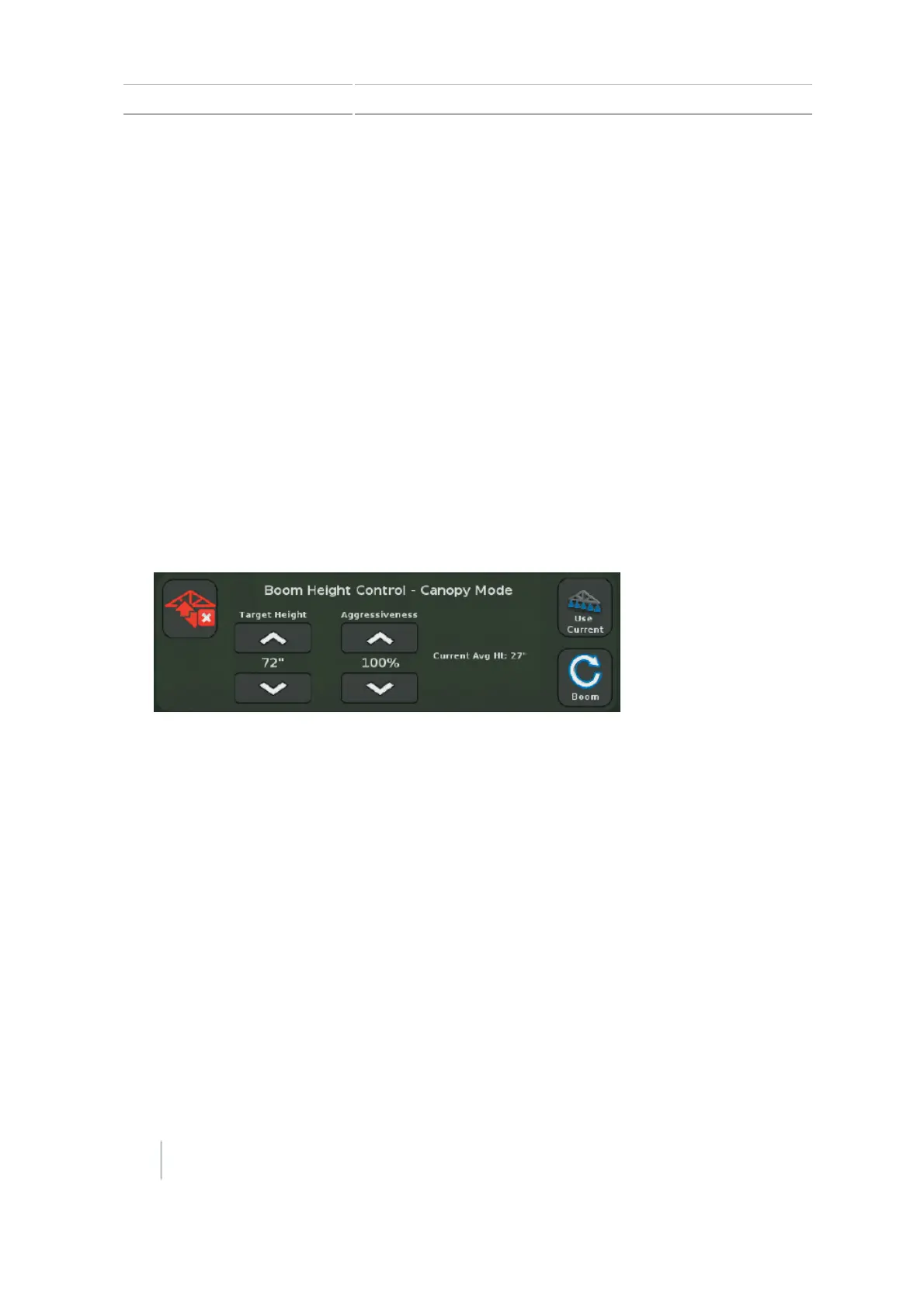
The Boom Height Control section of the screen changes to show the Target Height and
Aggressiveness controls.
2. To adjust the target height, tap the increase or decrease arrows below the Target Height
heading.
3. To adjust the aggressiveness of the system, tap the increase or decrease arrows below the
Aggressiveness heading.
4. To set the target height to the current boom height, tap Use Current.
5. To return to the sections view, tap Boom.
Disengage engaged zones
Single zone
1. To disengage a single zone, tap the button for that section. The button for the section changes
from green to yellow. Boom Height Control is no longer actively controlling the section, but is
still enabled.
246 CFX-750 Display User Guide Version 7.0, Revision A



 To Next Page