Creating and editing triggered points
ADM003GVAE1005 101
Creating and editing triggered points
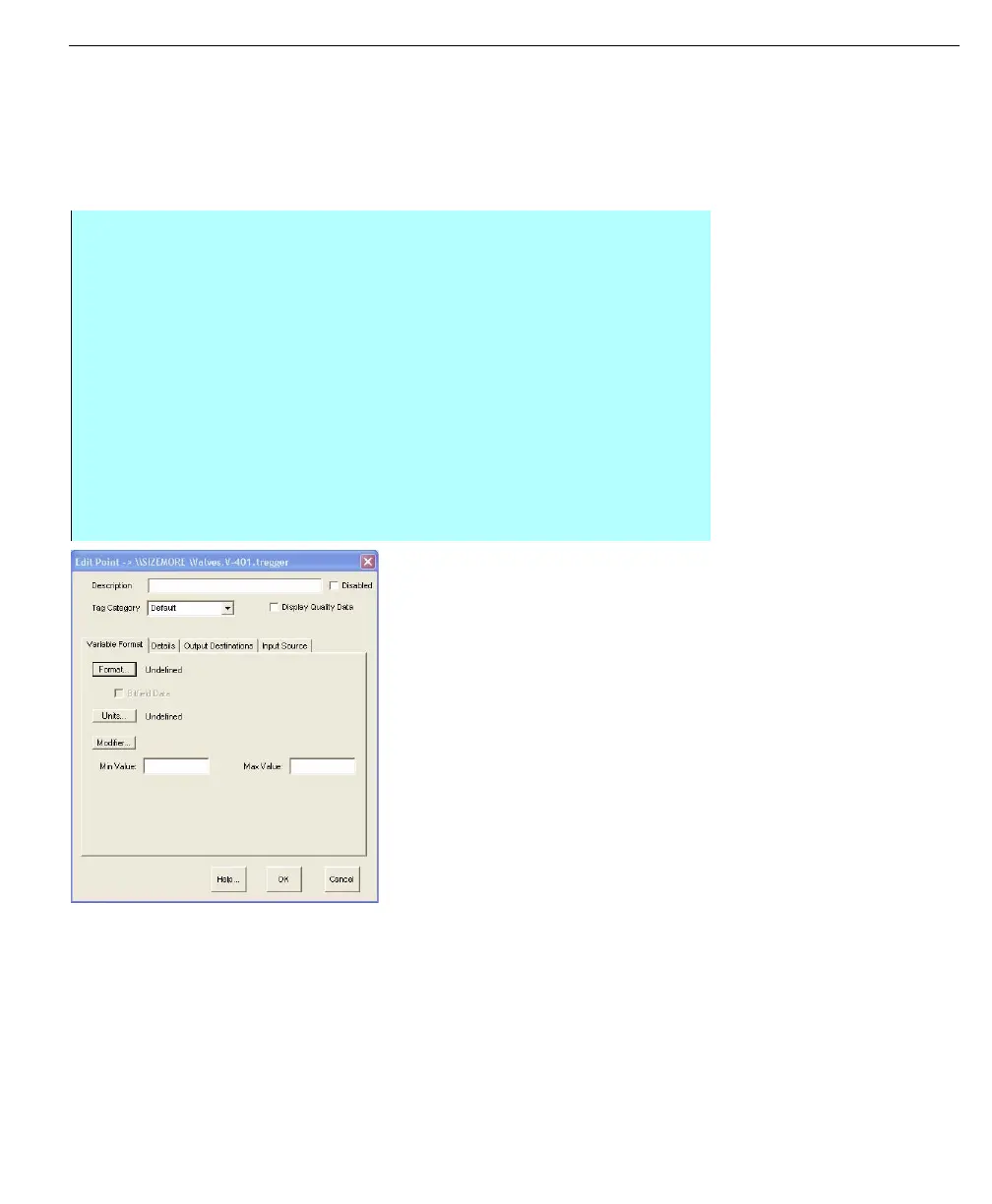
A Triggered Point serves as a monitor that views a single database point (such as
an input point from a gauge). You can set the trigger point to send to an output
point, OPC server or PLC when it observes a change in the point its monitoring.
Note! You must first select a point
format before the other attributes
can be addressed. Once selected,
the default minimum and maximum
values appear in the Minimum and
Maximum Value edit boxes if the
format is numeric.
Edit Point dialog box
(Triggered)
Step-by-Step
• Continued from the previous Step-by Step instructions, Creating Database
Points
• In the Edit Point dialog box the user selects a data format, data source(s),
engineering units, and other parameters. For a description of these
attributes, refer to the Edit Point dialog box - key field explanations table at
the end of this section, the brief instructions below, or the specific section
relating to that topic
• From the Edit Point dialog box - Type in the Description of the point
• From the Edit Point dialog box - Select a Tag Category, if applicable and
select whether you want to display quality data with the point
• If necessary, enter applicable Variable Format, Details, Output Destinations,
and Input Source information. See sections below and the Edit Point dialog
box table for more information



 To Next Page