Defining Movement Paths
ADM003GVAE1005 233
Adding a Meter Node
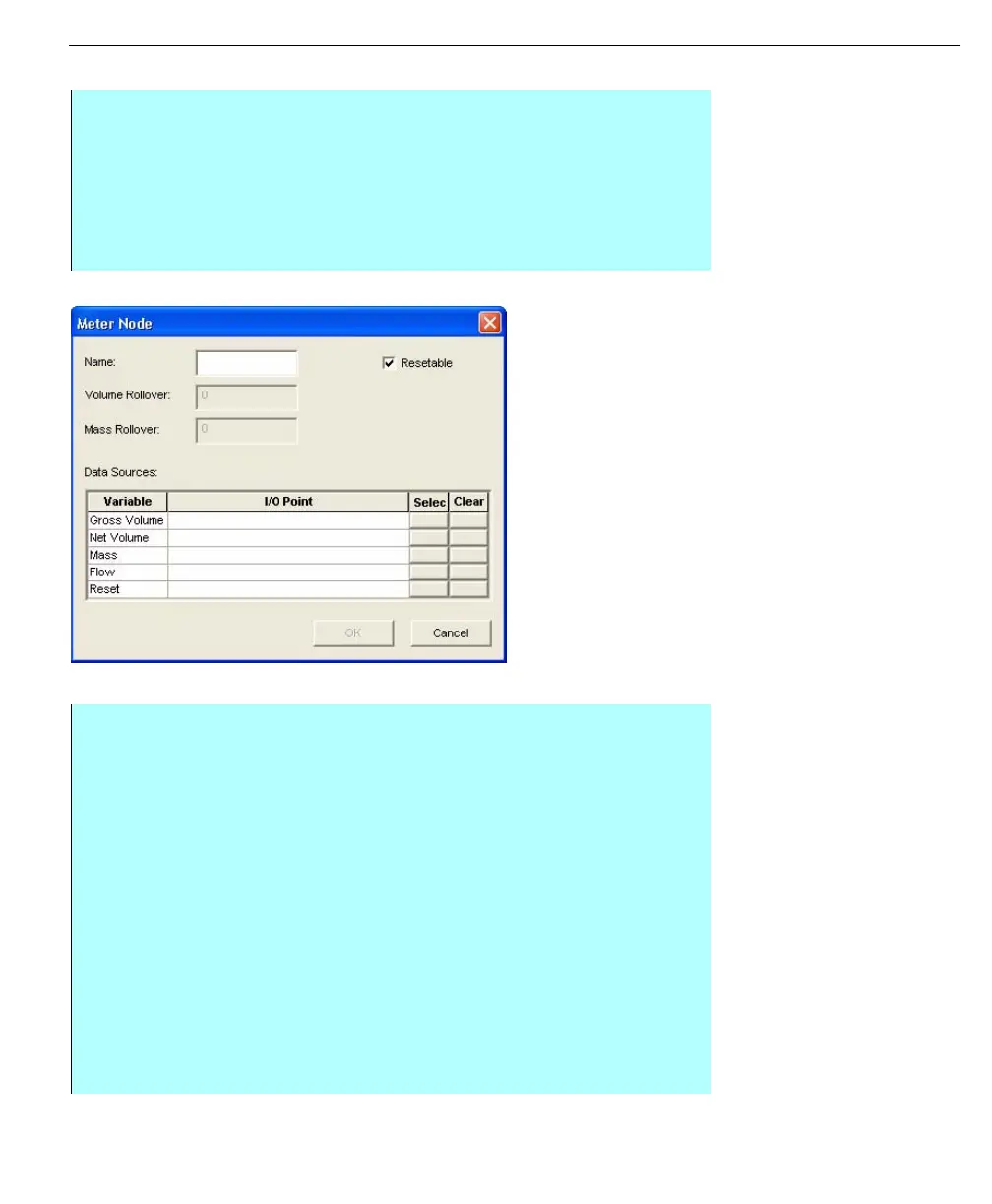
Meter Node dialog
Note! The reset data source is
typically connected to a
FuelsManager output point, which
is used to send a command to a
PLC/RTU to cause the flow meter
accumulator to be reset.
Note! Meter nodes should be
assigned to FuelsManager Input
type points. Connections are only
allowed to input points of data type
double. In addition, the input point
must be configured with
engineering units that match the
meter node variable being
connected (Volume units for
Gross/Net Volume).
Step by Step
• From the Movements dialog box, click Nodes. The Nodes dialog box
appears. This dialog box lists all the nodes available for selection. The
defined nodes are listed by name and type. From this dialog box you can
add, delete, or modify nodes in the movement system
• Click Add. The Node Type dialog box appears
• Select Meter and click OK The Meter Node dialog box appears
• Type the Name of the meter node
• Make the necessary settings for the meter node. Clear the Resetable
checkbox if you do not want the meter to be resetable
• Define what the maximum volume and mass the meter is capable of
counting to before rolling over to zero. Type these amounts in the Volume
Rollover and Mass Rollover fields. These parameters are only available if
the meter node is not resetable
• In the Data Sources grid, assign the meter node to its FuelsManager
database points by clicking the corresponding button in the Select column
• To clear meter node database point assignments, click the button in the
clear column, adjacent to the assignment you want to clear
• Use standard point selection processes to select database points
• After assigning the points, Click OK on the Meter Nodes dialog box
• Click Save on the Nodes dialog box. The system saves the meter node to
the movement system
• Click Close. The system returns you to the Movements dialog box



 To Next Page