Creating and editing tank points
ADM003GVAE1005 127
Strapping/water table information
Note! The Product Strapping Table
can be configured in the registry to
include or exclude the Water
Volume.
FuelsManager allows each tank point to be configured with both a Product
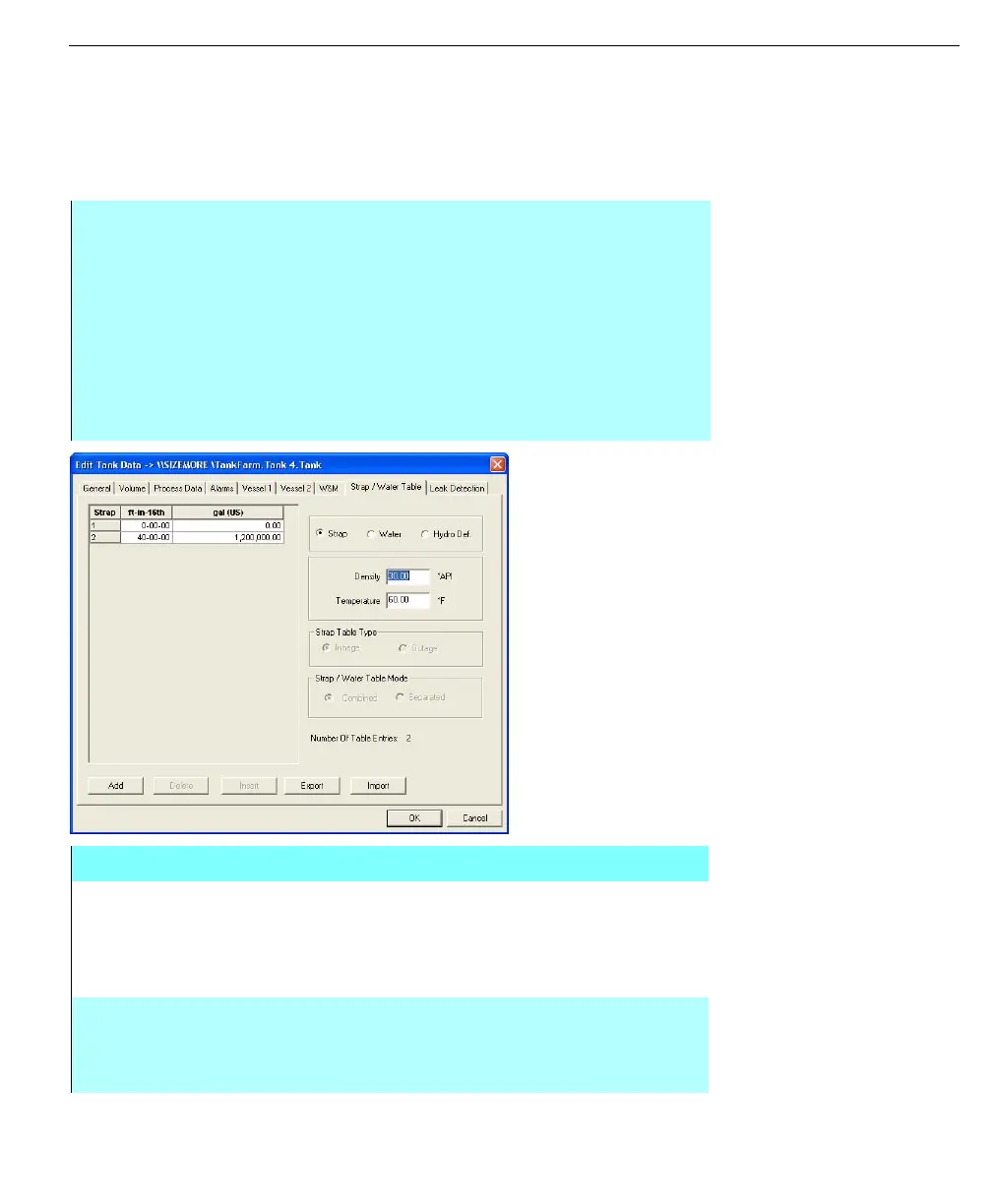
Strapping Table and a Water Table. Follow the steps below to fill out the Strap/
Water Table information
Note! The Polynomial Sphere tab
replaces the Strapping Table tab
when the user selects the Tank
Geometry option - Polynomial
Sphere.
.
Edit Tank Data dialog
box - Strap/Water table
tab
Step-by-Step
• Select the Add or Insert button to enter the tank strapping table directly into
the grid, or use the Import button to import strapping table data from a
FuelsManager formatted strapping table text file (*.TST)
• Choose either Strap Table or Water Table. The table grid display will adjust
to either choice
• Enter the strapping table density and temperature in the Density and
Temperature fields.
• Select the strapping table type (innage or outage) in the Strap table Type
group
Edit Tank Data dialog box - Strap/Water Table tab
STRAPPING
TABLE GRID
COLUMNS
These columns display the current tank strapping table
information; in addition, the user can edit any particular
entry by clicking on and editing the appropriate cell. The
column headings reflect the current level and volume
engineering units for the tank
STRAP TABLE,
WATER TABLE,
HYDRO DEF
This selection allows choice of the table type, and alters the
table grid display to list either the Strap, Water, or Hydro
definition tables. Selection of Water and Hydro Def tables
will disable the Strap table Type fields



 To Next Page