FuelsManager Defense
232 Administrator Manual
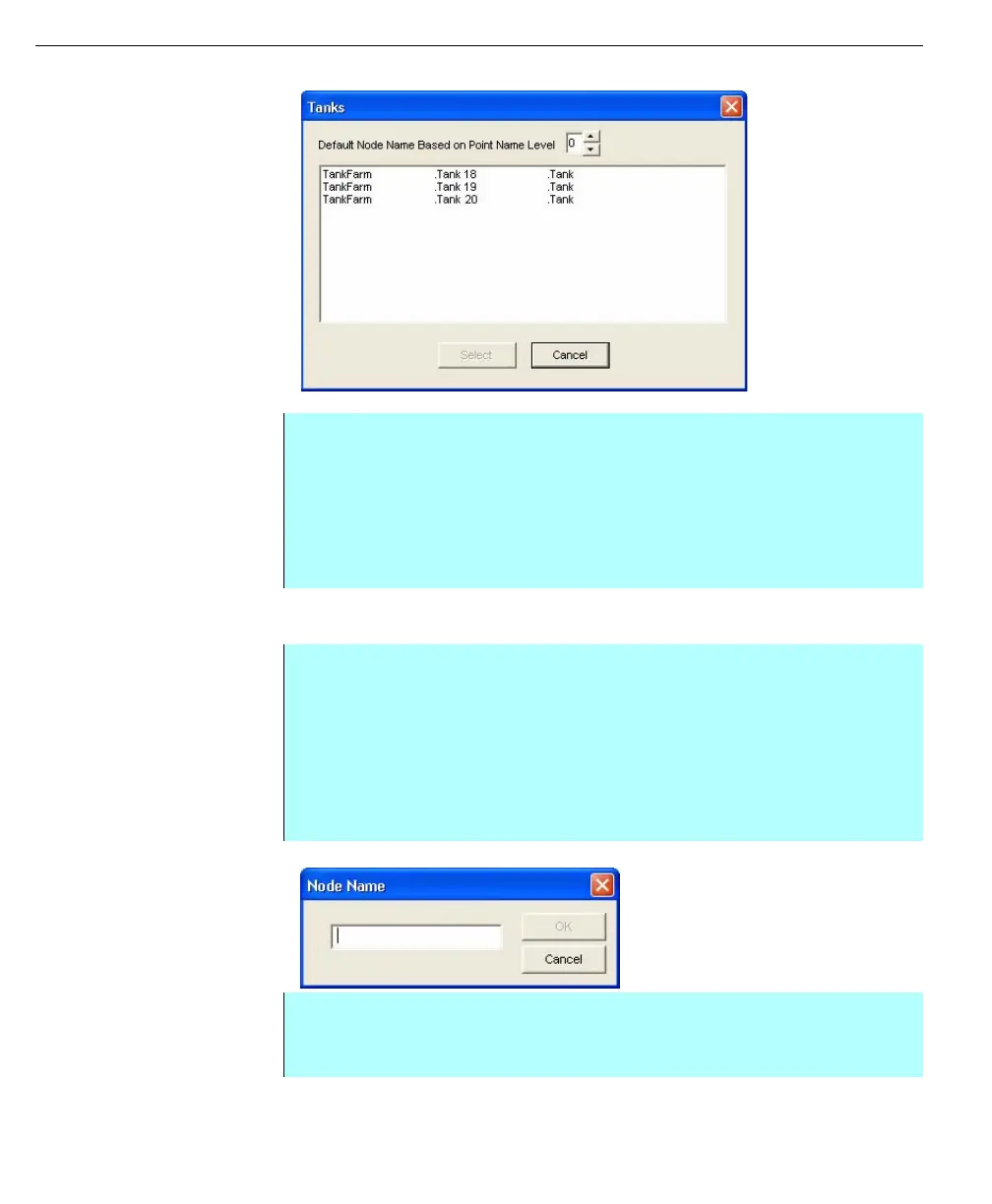
Tanks dialog for
Movements
Note! Each node name must be
unique for the selected default
node name based on the point
name level. In the example given,
all level 0 points are named
'Tankpoint' - this would NOT result
in a unique node name, a better
tank point name level selection
would be Level 1.
Adding a Unit Node
Note! Each Node name must be
unique.
Node Name dialog
• Select the database level on which the node name will be based from the
Default Node Name Based on Point Name Level selection
• Select one or more database points and click Select. Use the <Ctrl> or
<Shift> key to select multiple nodes. The system returns you to the Nodes
dialog box
• Click Save. The system saves the nodes you added
• Click Close. The system returns you to the Movement dialog box
• From the Movements dialog box, click Nodes. The Nodes dialog box
appears. This dialog lists all the nodes available for selection. The defined
nodes are listed by name and type. From this dialog box you can add,
delete, or modify nodes in the movement system
• Click Add. The Node Type dialog box appears
• Select Unit, the Unit can be any Destination or Source node such as a pier,
barge, or pipeline
• Click OK. The Node Name dialog box appears
• Type in the Unit Node name and click OK
• Click Save. The system saves the unit node to the Movement system
• Click Close. The system returns you to the Movements dialog box



 To Next Page