Visual Dynamic Tools
ADM003GVAE1005 189
Use template mode
In this mode the user can select any input, output, or triggered point that is at the
same database level as the tank point
i.e. Assuming a database structure of:
• Area31.Tank1.TankPoint(tankpoint)
• Area31.Tank1.ValveStatus(input)
• Area31.Tank1.PumpStatus.(input)
• Area31.Motor.BearingTemp(input)
The input points Area31.Tank1.ValveStatus and Area31.Tank1.PumpStatus can
be added to a tank detail via the Use Template mode. The input point
Area31.Motor.BearingTemp cannot be added to the tank detail.
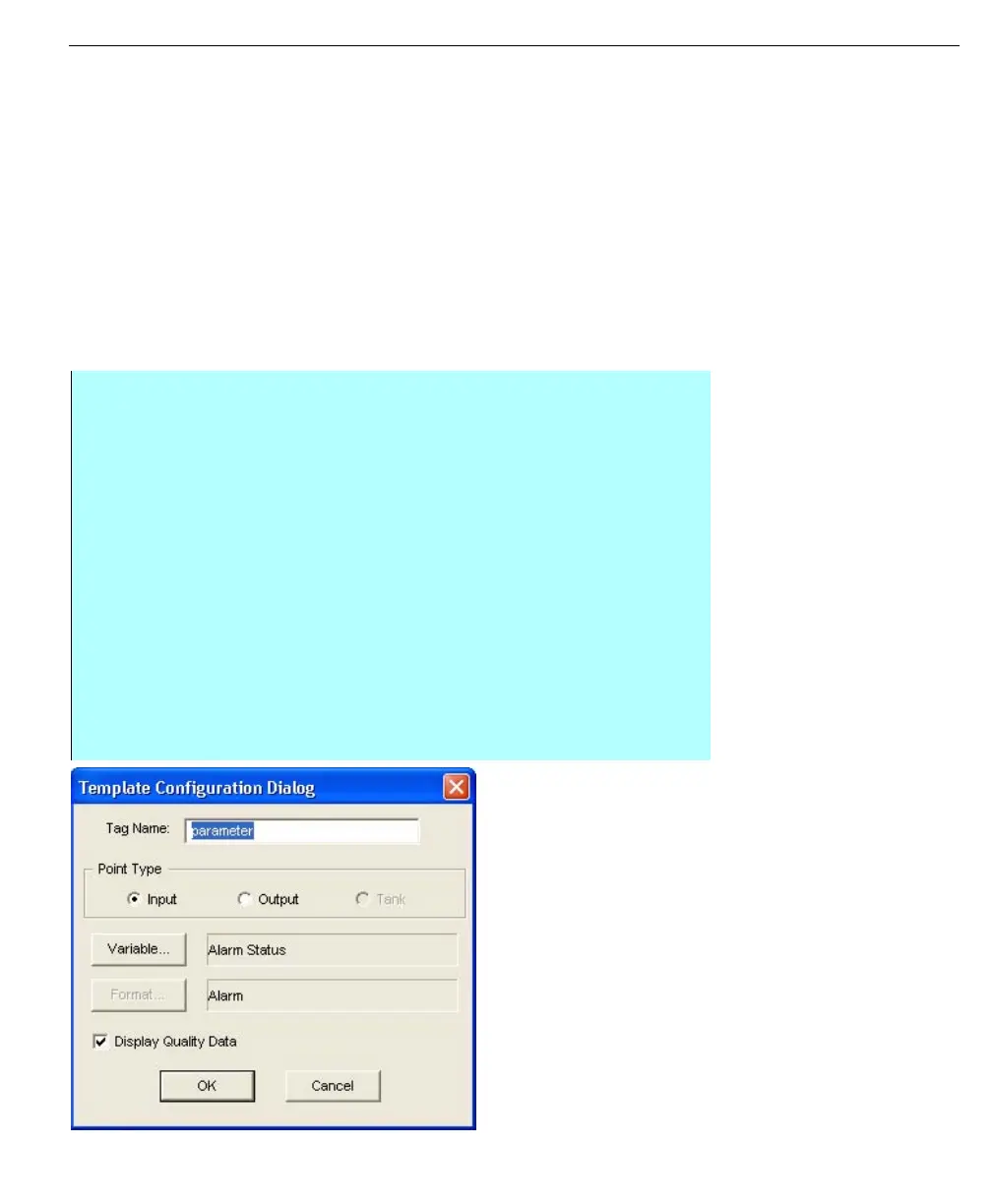
Note! The Tag Name field in the
Template Configuration dialog box
is case sensitive, you must enter
the Level 0 tag name exactly as it
appears in the database.
Template Configuration
dialog box
Step-by-Step
• From the File menu, click Detail Data, from the sub-menu select the Use
Template option
• Click on the Hand selector icon in the toolbar and then select the desired
value.
• Select the Attributes command from the Edit menu
• The Value Attributes dialog box appears
• Click Select next to the Variable entry
• The Template Configuration dialog box appears
• In the Tag Name edit box, enter the Level 0 database name Input or Output
point as it appears in the system database. In our previous example, you
would enter Valve Status or Pump Status
• In addition to the Tag Name, the user also selects either the Input or Output
point type, selects which parameter should be displayed (i.e., Process
Value, Engineering Units, etc.), and selects the data format of the parameter
• Click OK



 To Next Page