FuelsManager Defense
160 Administrator Manual
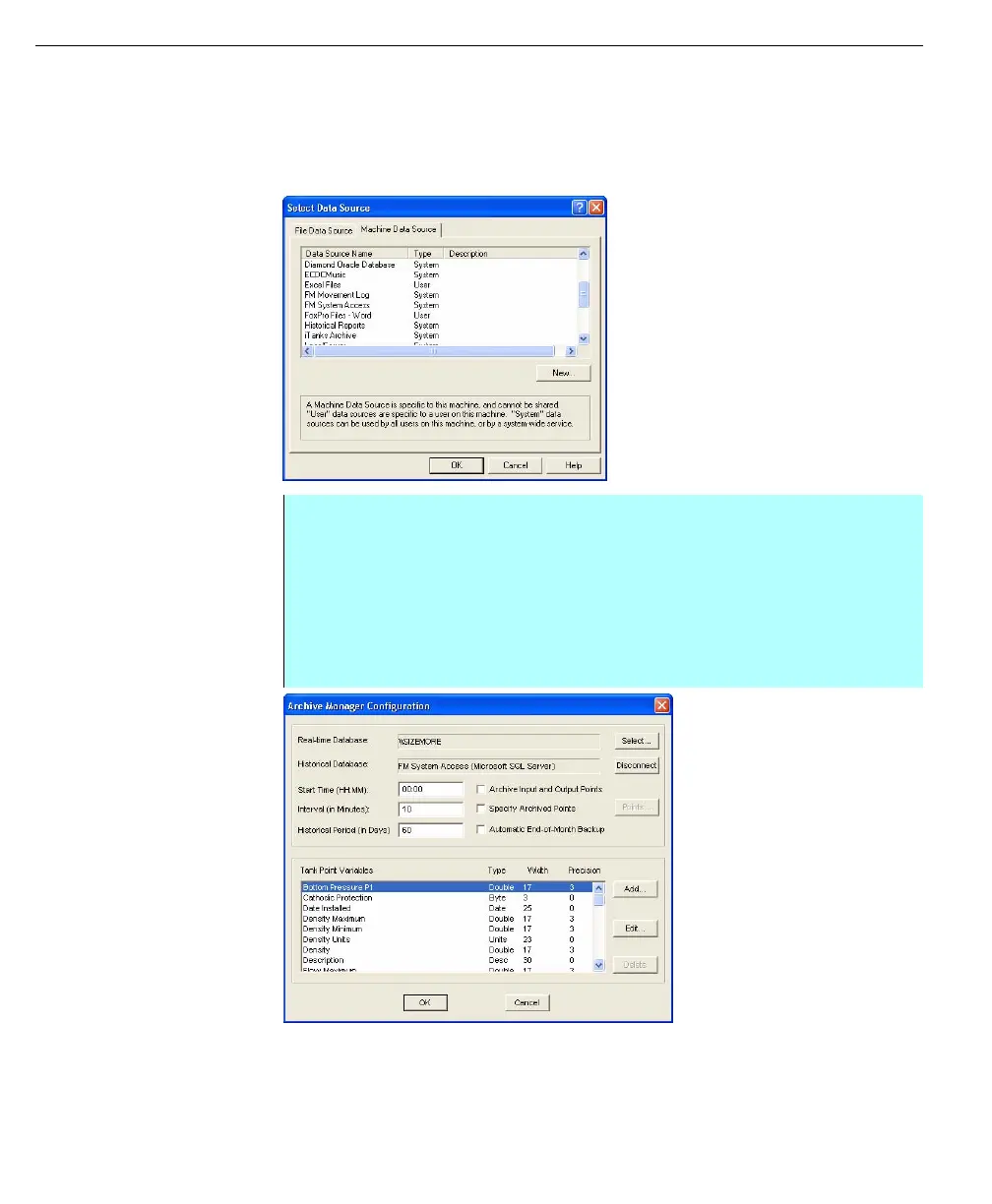
The default FuelsManager installation creates a machine Data Source called
FMSystem Access--This is Preconfigured to point to the ODBC data source
selected during installation; a Microsoft SQL or Access database
Select Data Source
dialog box
ArchiveManager
Configuration dialog
box
Disconnecting from an archival data source
To disconnect ArchiveManager from an archival data source, click Disconnect.
The system disconnects from the archival data source and clears the Historical
Database display field.
• Select a Data Source from the list of existing options or click New to add a
new data source to the list
• Enter the login information. The information entered depends on the ODBC
data source selected. There may be additional configuration dialog boxes to
be completed. For further information, refer to Windows ODBC Help
• Click OK. The system returns you to the Archive Manager Configuration
dialog box showing the Data Source you selected in the Historical Database
display field. The system also changed the Connect button to Disconnect



 To Next Page