Draw application
ADM003GVAE1005 183
Inserting a bitmap
The Bitmap tool is used to insert a *.BMP file. Bitmaps can be used to represent
equipment such as tanks, pumps, valves, and pipeline segments; to include
images such as company logos and emblems; or to include digital photographs
such as plant overviews.
Note! FuelsManager includes
various Bitmaps that were used to
create the predefined Tank Detail
and Tank Group displays. These
are located in the Detail folder and
Graphics folder respectively.
Additional bitmaps can be located
in the \Templates folder on your
FuelsManager CD.
Note! Custom Bitmaps must first
be added to your project directory.
Insert the bitmap in the directory
used to store all graphic and
symbol files. Most configurations
store the graphics in the
FMProject\Graphics subdirectory.
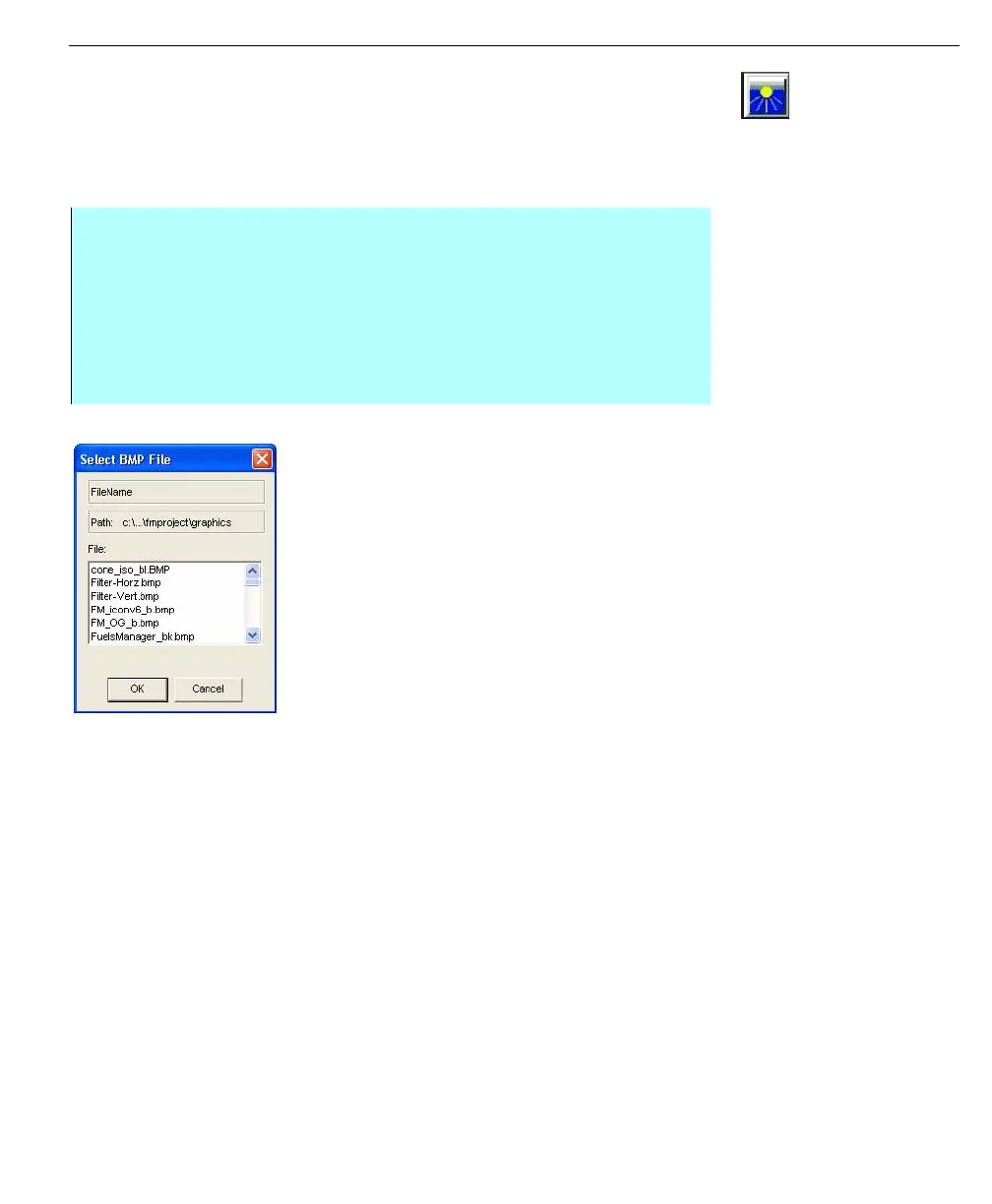
Select BMP File dialog
box
Step-by-Step
• Select the Bitmap tool (or select Add and click Bitmap). Click on area of
insert to define corner
• Drag the cursor to define an area within which the symbol will be located
and release the mouse button
• The Select BMP File dialog box appears
• Click on the desired file and click OK. The bitmap is displayed. The user is
able to size the bitmap by clicking and dragging on the graphic



 To Next Page