FuelsManager Defense
78 Administrator Manual
Assigning an alarm graphic
Alarm/event category
Users can assign alarms to alarm categories (see the Security section). Alarm
categories filter alarms so that only users with permissions to view the category
are notified of alarms assigned to the category. This eliminates users having to
address alarms outside of their control.
Event definition
The user can select a numerical or non-numerical point value for event processing
as well as the advisory option that notifies an Operator of a change.
At the bottom of the dialog box, a section specifically for enabling Events is
displayed.
The user can type in a deadband value to compare to the current value. If the
numerical point value changes by that amount, it will be recorded as an event.
This capability also applies to non-numerical values. For example, if a database
point value changes from “On” to “Off” it will be recorded as an event. Selecting
the Advise on Event option causes a message box to be displayed.
Build An alarm process
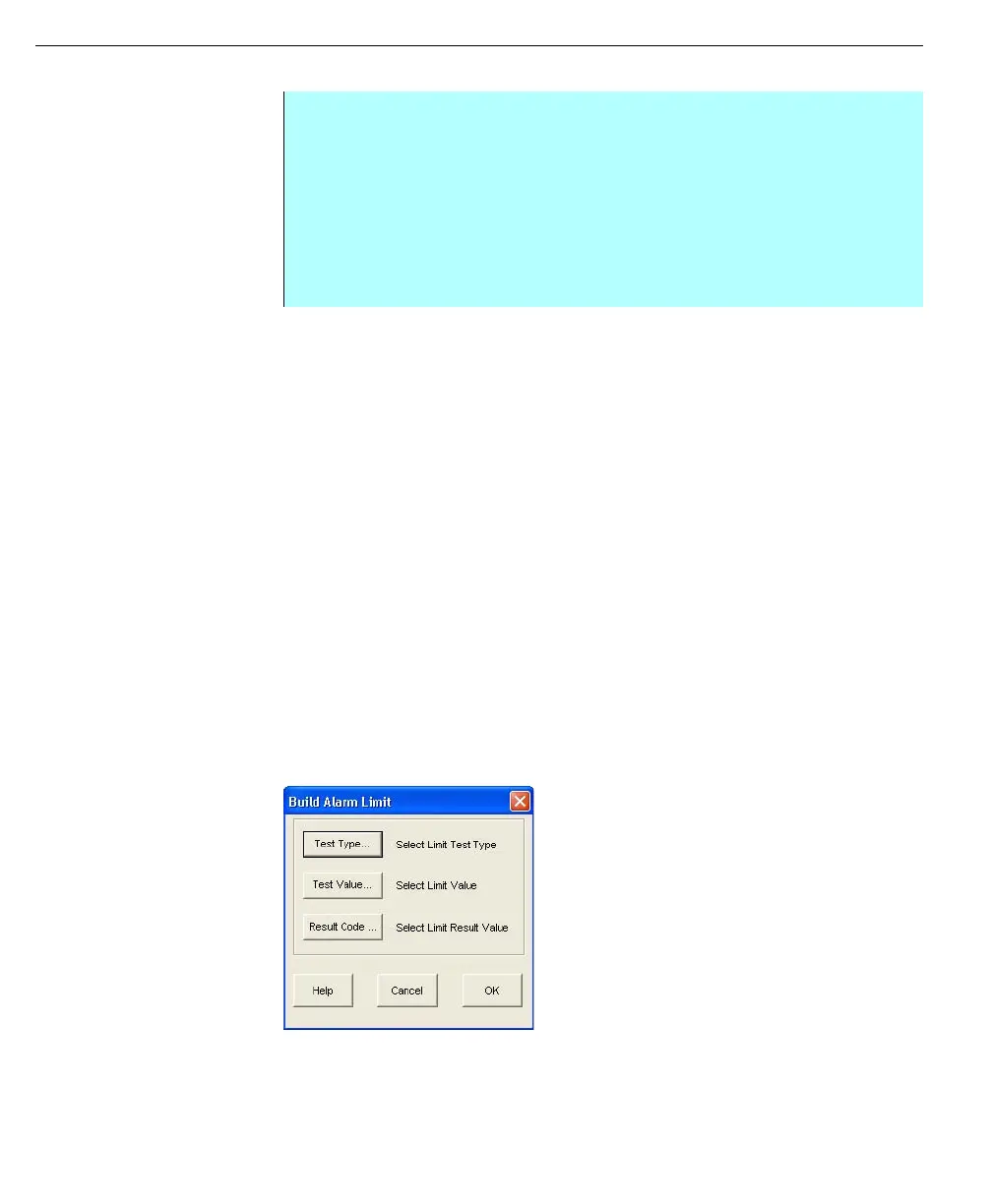
The test condition specifies the test limits to be performed on a point’s value. An
Alarm Definition may be assigned to each database point with up to 16 alarm tests
to be performed on the associated database value. Four parameters must be
defined for the test condition, whether the user types in the test condition or uses
the Build button for a semi-automated process
Build Alarm Limit
dialog box
Step-by-Step
• Click Select in the Alarm Graphic frame in the Alarm Assignments dialog
box. The Graphic Files Configuration dialog box appears
• Type in the name of the graphic file created by Draw Graphics in the Edit
dialog box and click Add. Or select a file from the list of Graphics files
defined in the Setting System Parameters section
• Select the name of the graphic file to assign to the alarm and click OK. The
Alarm Assignments dialog box appears with the graphic file listed in the
Alarm Graphic dialog box



 To Next Page