FuelsManager Defense
168 Administrator Manual
Draw application
The FuelsManager Draw application is used to develop or edit process graphic
displays and symbols displayed in the Operate program. Draw is used to create
graphic objects, to define displays, dynamic condition codes and symbols.
Draw enables the user to create custom graphic screens in addition to editing the
tank detail graphics included in the FuelsManager package.
Note! The Draw feature is only
available in the FuelsManager
Professional Edition. The Standard
Edition will not allow access to this
feature. For additional information
about upgrading to the
Professional Edition and above,
please contact your Varec
representative.
Make sure that the DatabaseManager is not in SHUTDOWN mode. Otherwise,
the user will not be able to access the database dialog boxes used to define
values. Refer to the Setting Subsystem Run Modes section of the Administrative
Operations chapter for instructions on setting the DatabaseManager mode.
Opening Draw
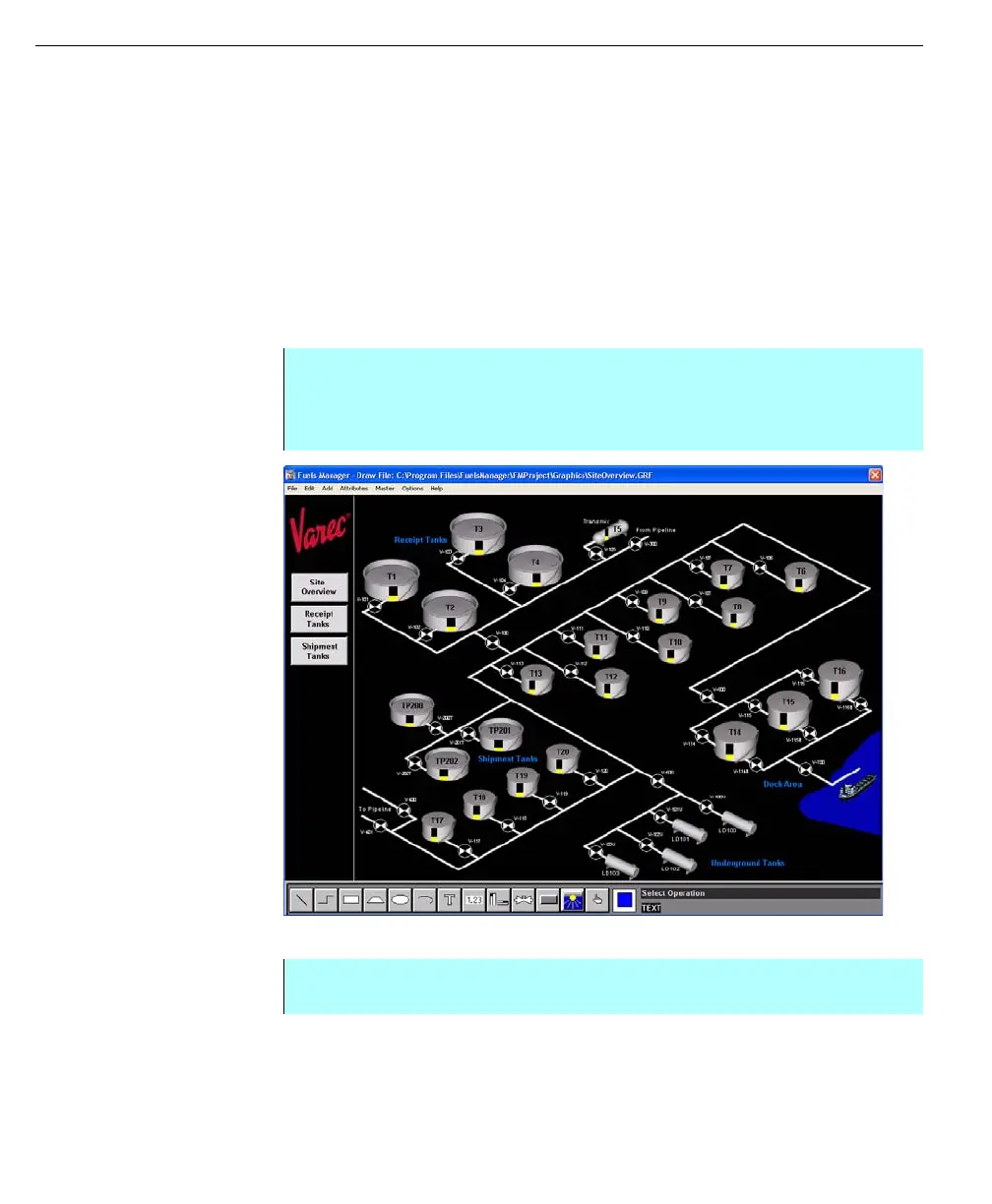
Custom Site Overview
Graphic created using
Draw application
Exiting Draw
An introduction to creating graphics
When creating a new graphic or symbol there are many options available to the
user. To offer a general understanding of Draw’s capabilities, a basic procedure is
provided. The following procedure offers a rough outline of what steps (not
necessarily in order) to take in creating a graphic.
Step-by-Step
• From the FuelsManager Configuration application, select the Draw Graphics
command from the User Interface menu
• The Draw application window appears
Step-by-Step
• Select Exit Draw from the File Menu



 To Next Page