FuelsManager Defense
184 Administrator Manual
Visual Dynamic Tools
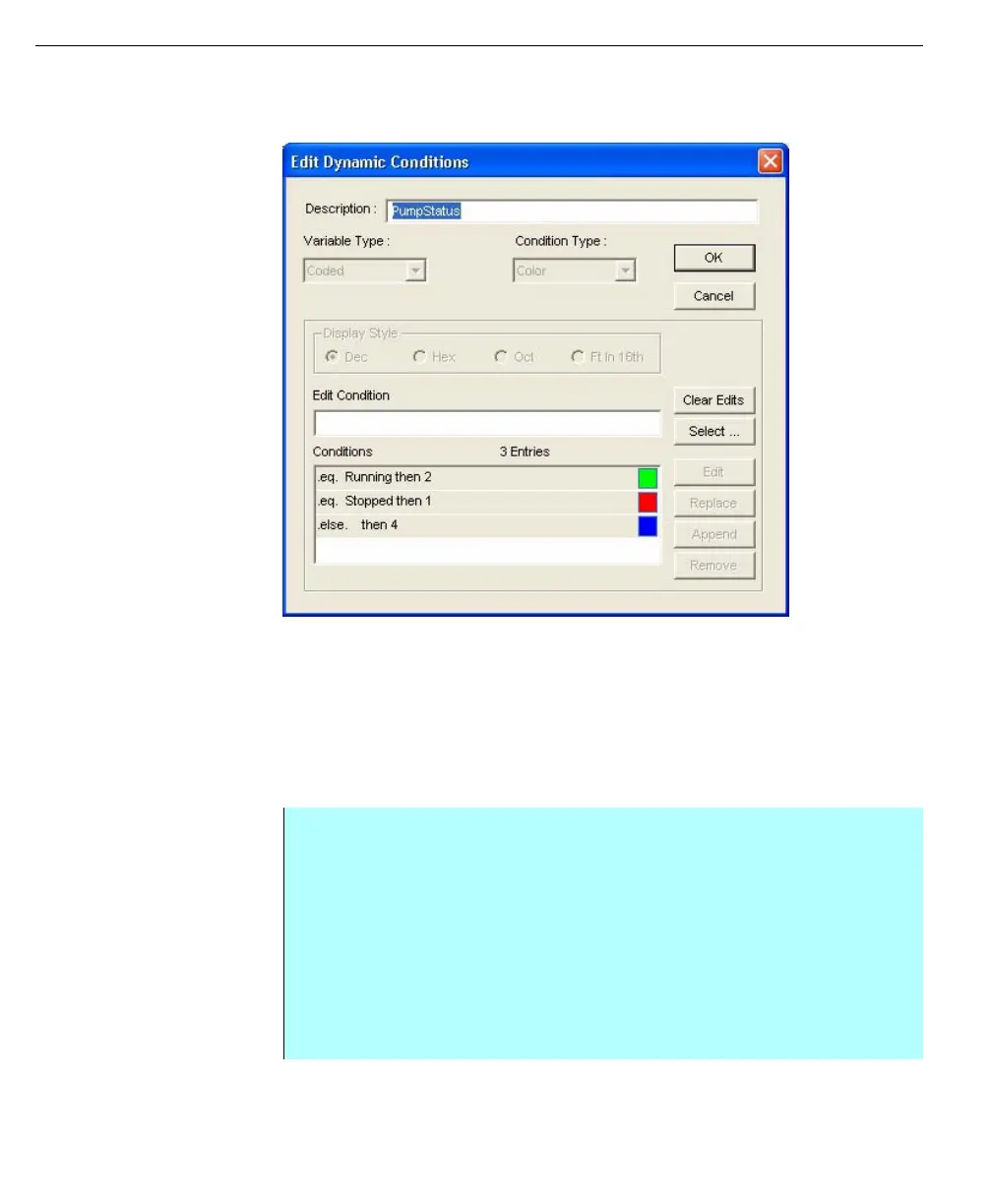
Edit Dynamic
Conditions dialog
The user can use Draw’s Dynamic Conditions, Attribute Conditions, and Object
Conditions to update the graphic based on changes in data to appropriately
represent site events, alarms, and other activity.
Defining a Dynamic Condition
Dynamic Conditions define the components of a condition. You can add up to 20
codes that represent the conditions that will be represented in the conditional
graphic.
Step-by-Step
• Select Condition Index from the Master menu to open the Select Global
Dynamic Conditions dialog
• Click New to open the Edit Dynamic Conditions dialog
• Type a Description for the first condition
• Select the Variable Type.
• Select the Condition Type
• The Display Styles availability are dependent on the Variable Type selected.
• Click the Select button to open the Build Condition Code dialog. The
available Code types is based on the Variable Type selected earlier



 To Next Page