Report
ADM003GVAE1005 203
Note! The Select Database
System dialog box appears upon
exiting the Summary Setup dialog
box if databases were not
selected. After the database or
databases are selected, the user is
automatically placed in table
creation mode.
Creating a table in a summary report
Since a Summary report is of a spreadsheet format, only one table is required.
Table Format dialog
box
Column Totals In the Column Totals section, the user selects how to
display column totals of each numerical point variable. The
default setting is no totals. If one or both of the table Sorting/
Grouping buttons are chosen, the user has the option of
displaying the total for each product or database system. If
a total option is selected, three rows appear in the table. If
the “No Column Totals” option is selected, only two rows
appear in the table.
Outline table Selecting the Draw Outline table checkbox displays a table
outline when the report is printed or viewed in Operate.
Summary report Setup dialog box
Step-by-Step
• If you are not in table creation mode, select Edit, click Add, and click table
or...
• Click where you want the table to be placed to display the Tabular Format
dialog box; otherwise
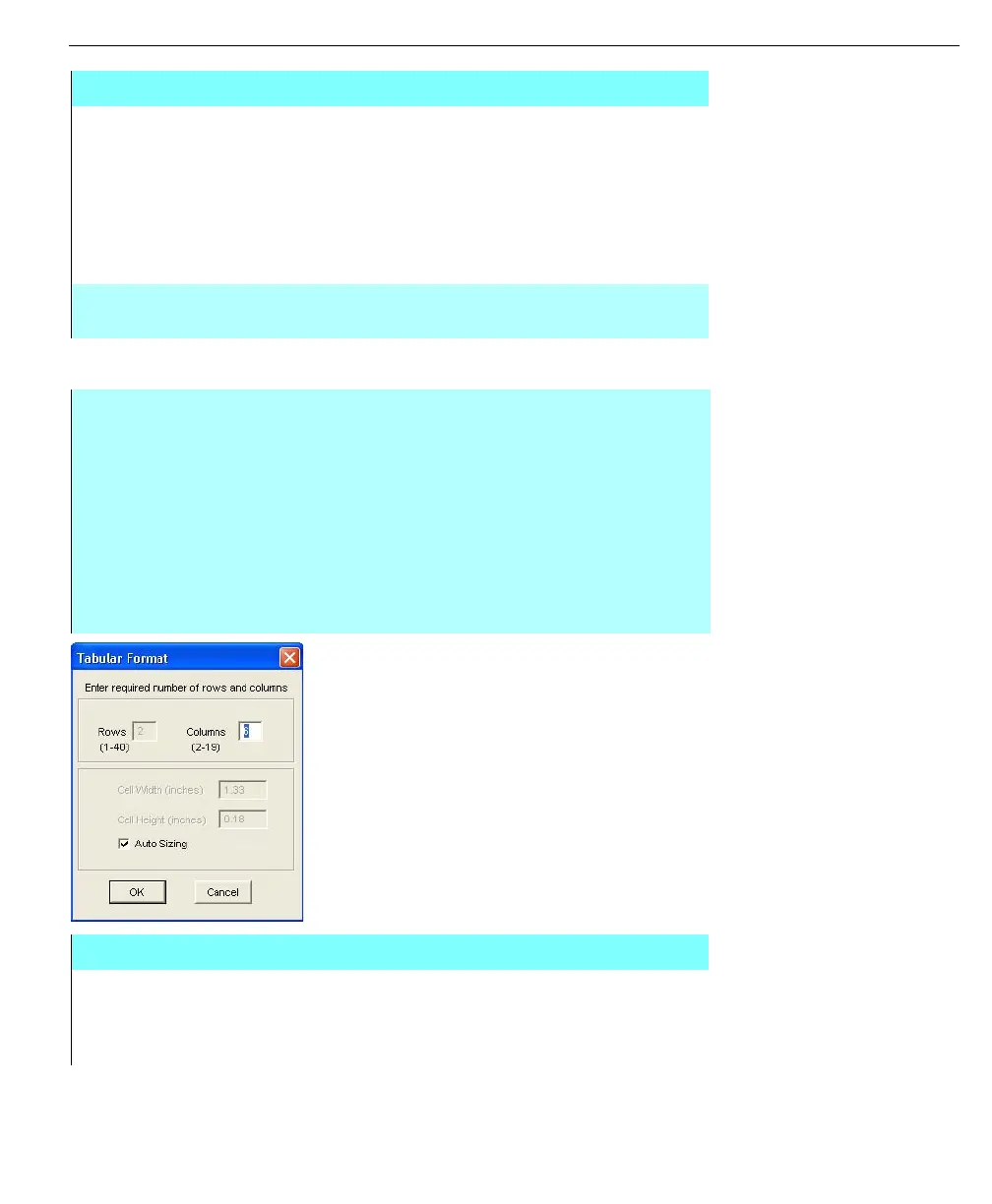
• This dialog box lets the user set the number of rows and columns in the
table, as well as the dimensions of the table cells.
• Type in the number of columns as well as the dimensions of the table cells,
select auto sizing or type in inches the cell width and height.
• Click OK
Table Format dialog box
ROWS Either a 2 or 3 appears for a Summary report. The first row is
reserved for labels, the second for values, and the optional
third for column totals. This number can only be changed in
the Summary Report Setup dialog box.



 To Next Page