Defining system resources
ADM003GVAE1005 63
Modifiers
Modifiers are a collection of Coded Variables. Modifiers are used to group
commands issued in the Operate application. For example, the “OPEN” and
“CLOSE” command combination is one type of modifier.
The FuelsManager system contains a list of predefined modifiers. FuelsManager
reserves the first 18 modifiers for standard use. Standard modifiers cannot be
edited or deleted by the user, but the user can create custom modifiers. The user
is able to define up to eight commands for a modifier. These commands appear as
selections when the operator issues a command.
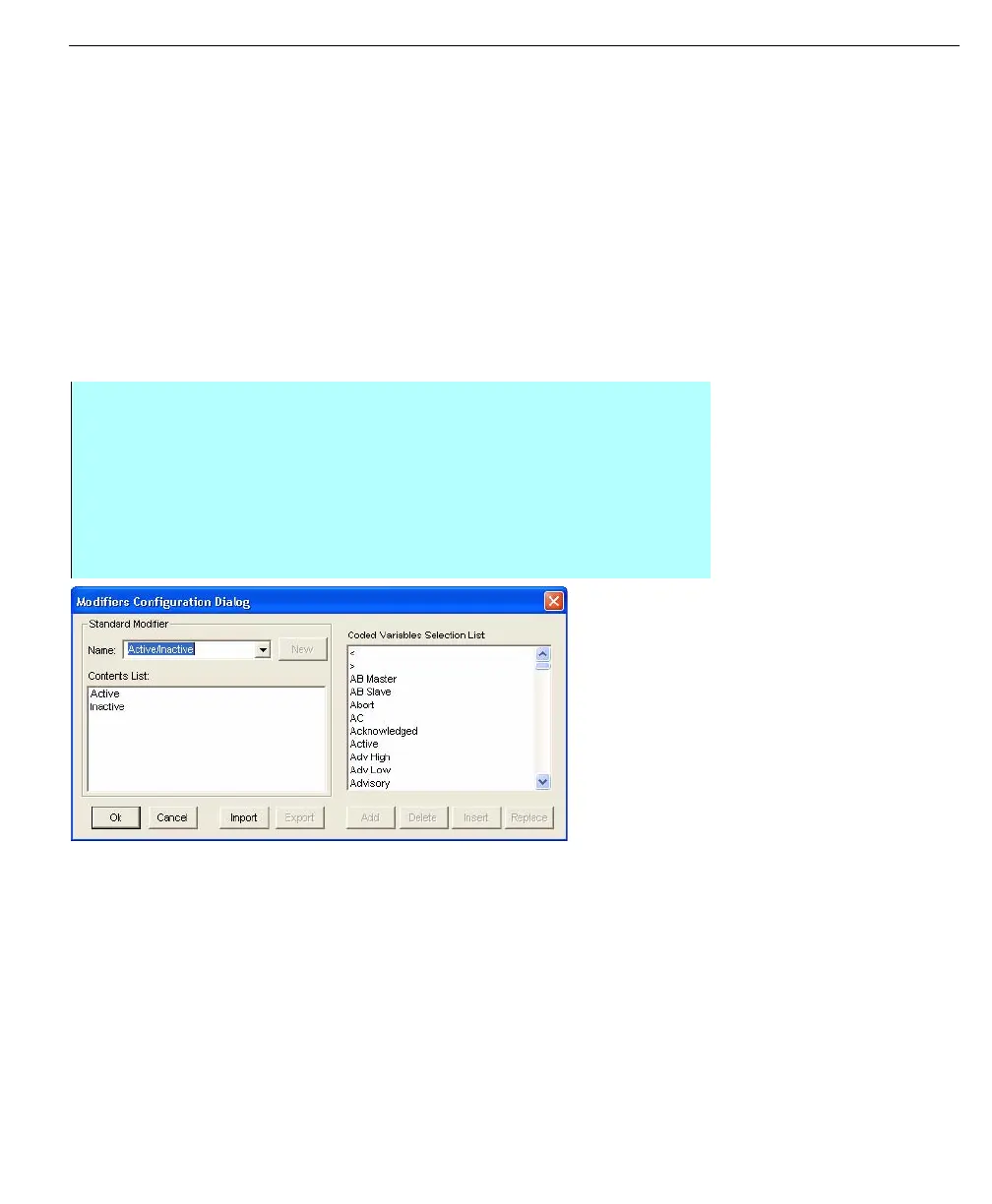
Modifiers Configuration dialog box
Modifiers can be created, edited, imported, exported, deleted inserted or replaced
using the action buttons in the Modifiers Configuration dialog box.
Creating a modifier
Modifiers Configuration
dialog box
Graphic file names
Entering a graphic file name as a system resource makes the existing graphic file
available for assignment to Input and Output points in the database. Sometimes
the user may want a particular graphic to appear when the associated database
point alarm becomes active.
In the Operate program, the operator selects the graphic button in the Alarm
toolbar or Alarm Summary to display the graphic. This graphic could be a facility
overview or a group of field devices.
Saved and generated graphic files originate from the Draw application. These
graphics are stored in the Graphic Index. The user can view the Graphic Index by
selecting Master and clicking Graphic Index in the Draw application.
Step-by-Step
• From the Resources menu in the Configuration dialog box, select the
Modifiers command, the Modifiers Configuration dialog box appears
• Type in the name of the custom modifier and click New
• Select a coded variable from the coded variables selection list and click
Add. Repeat until all coded variables for the custom modifier has been
added to the Contents List
• Click OK to save the changes



 To Next Page