FuelsManager Defense
174 Administrator Manual
Creating user defined colors
If the users need additional colors, they have the ability to create user-defined
colors.
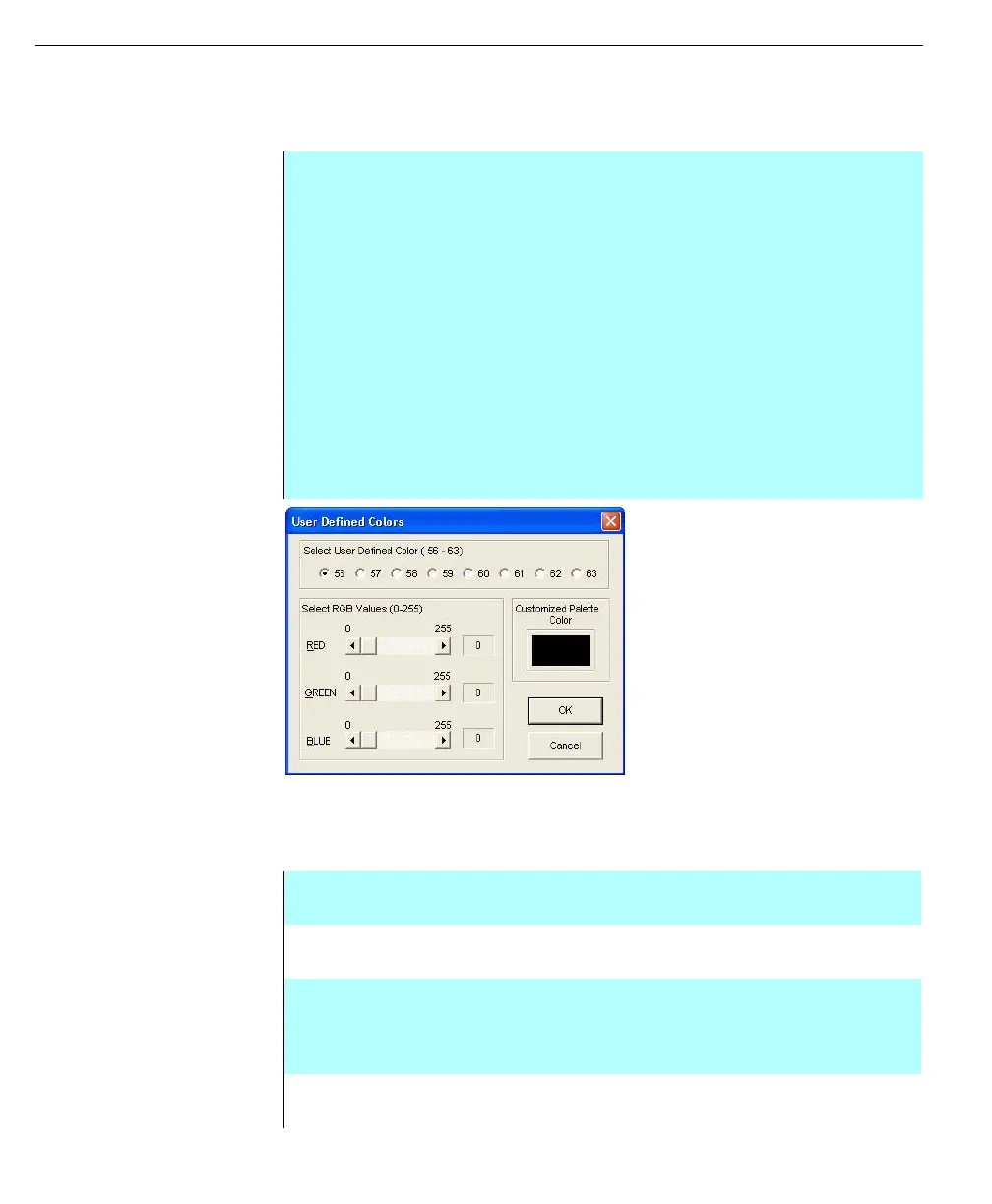
User Defined Colors
dialog box
Graphics or symbols
Before you begin creating a graphic, make yourself familiar with the following
commands or functionality.
Step-by-Step
• Select User Defined Colors from the Options menu
• A warning message appears that changing user-defined colors can affect all
graphics
• Click OK
• The User Defined Colors dialog box appears.
• The dialog box lists the numbers 56 through 63 that are available to the user
• In the Customized Palette Color box, the current color is displayed for the
selected number radio button
• To change the current color, the user can create a new color by selecting
and moving the red, green and blue scroll bars
• All changes are displayed in the palette
• When finished, click OK. The user-defined colors are saved and now appear
in the color palette
Undo To undo the last operation, select Edit and click Undo
Last
Delete If you need to erase an object, click the Edit button and
select the object. Click Delete from the Edit menu
Object color Before drawing an object, you may want to set a default
color or style. This process eliminates having to select
the object and modify the attributes from the Edit menu
item. Refer to the Setting Defaults section
Changing tools The existing tool does not change until another button is
selected



 To Next Page