FuelsManager Defense
10 Administrator Manual
Upgrading from FuelsManager 4.3
As with all previous versions of FuelsManager, upgrades are only supported from
the immediately preceding version, in this case FuelsManager version 4.3.
Install FuelsManager. Follow the steps for a new install, but select “Yes” when
offered the opportunity to back up the existing project. The install wizard will create
a folder entitled ‘c:\FMProject<CurrentDate>.
Regenerating user Graphics and Symbols
To complete the upgrade from FuelsManager v4.3 you must ‘regenerate’ all user
defined graphics and symbols from the FuelsManager Configuration application. If
you don’t do this you will not be able to view graphics created on the previous
system.
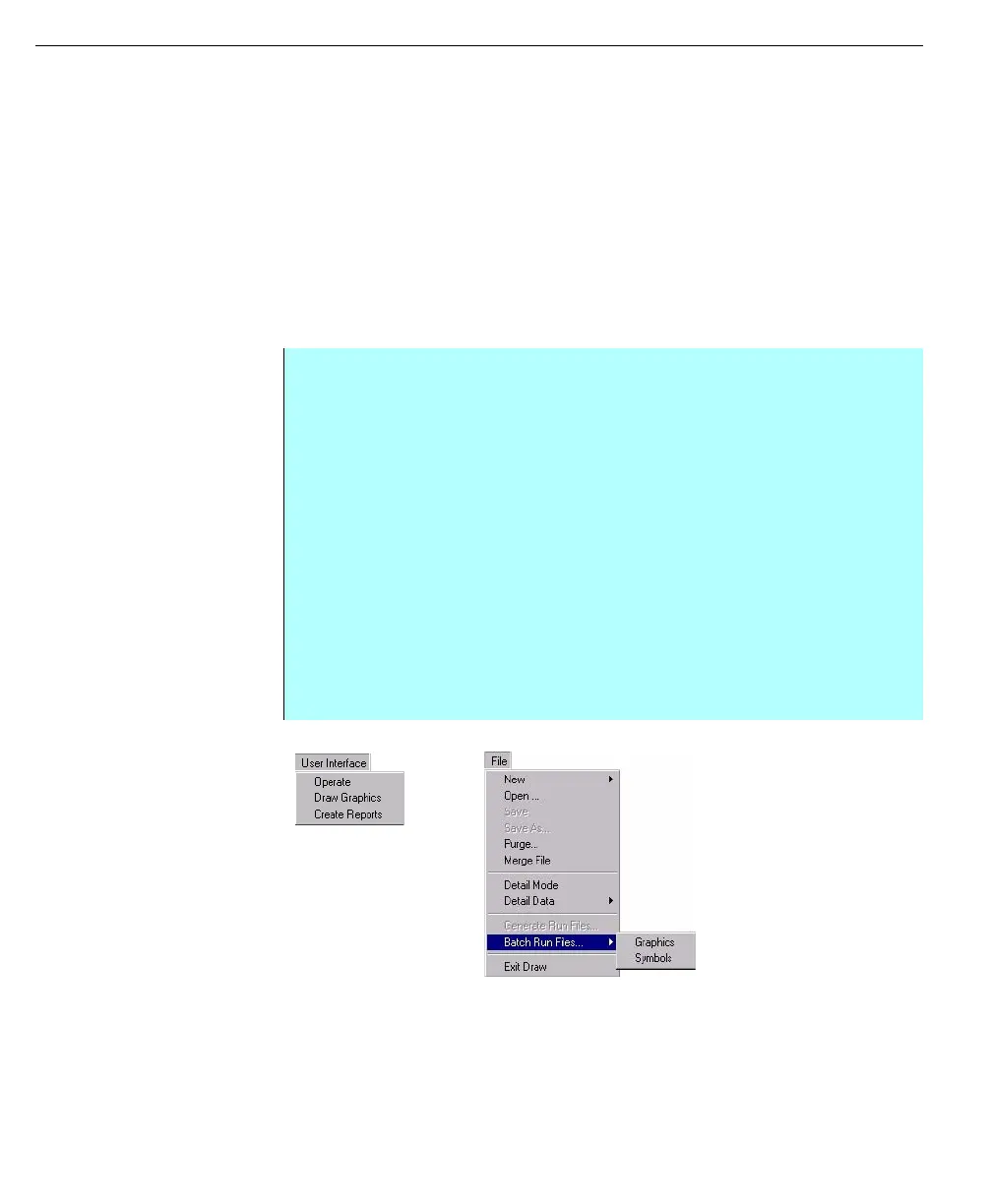
Left - User Interface
menu from the
FuelsManager
Configuration
application
Right - Draw menu,
File, Batch Run Files
sub-menu
Step-by-Step
• From the FuelsManager Configuration Menu bar, click User Interface, and
then click Draw Graphics command.
• The Draw Application opens
• Click on the File menu, and select Batch Run Files, from the sub-menu
select the Symbols command
• The Batch Compile dialog box appears (see opposite), select the Build All
option
• A confirmation dialog box appears - select OK
• When operation finishes select Cancel to close the dialog box
• To regenerate Graphics, click on the File menu, and select Batch Run Files,
from the sub-menu select the Graphics command
• The Batch Compile dialog box appears, select the Build All option
• A confirmation dialog box appears - select OK
• When operation finishes select Cancel to close the dialog box



 To Next Page