FuelsManager Defense
6 Administrator Manual
Installing the hardware key
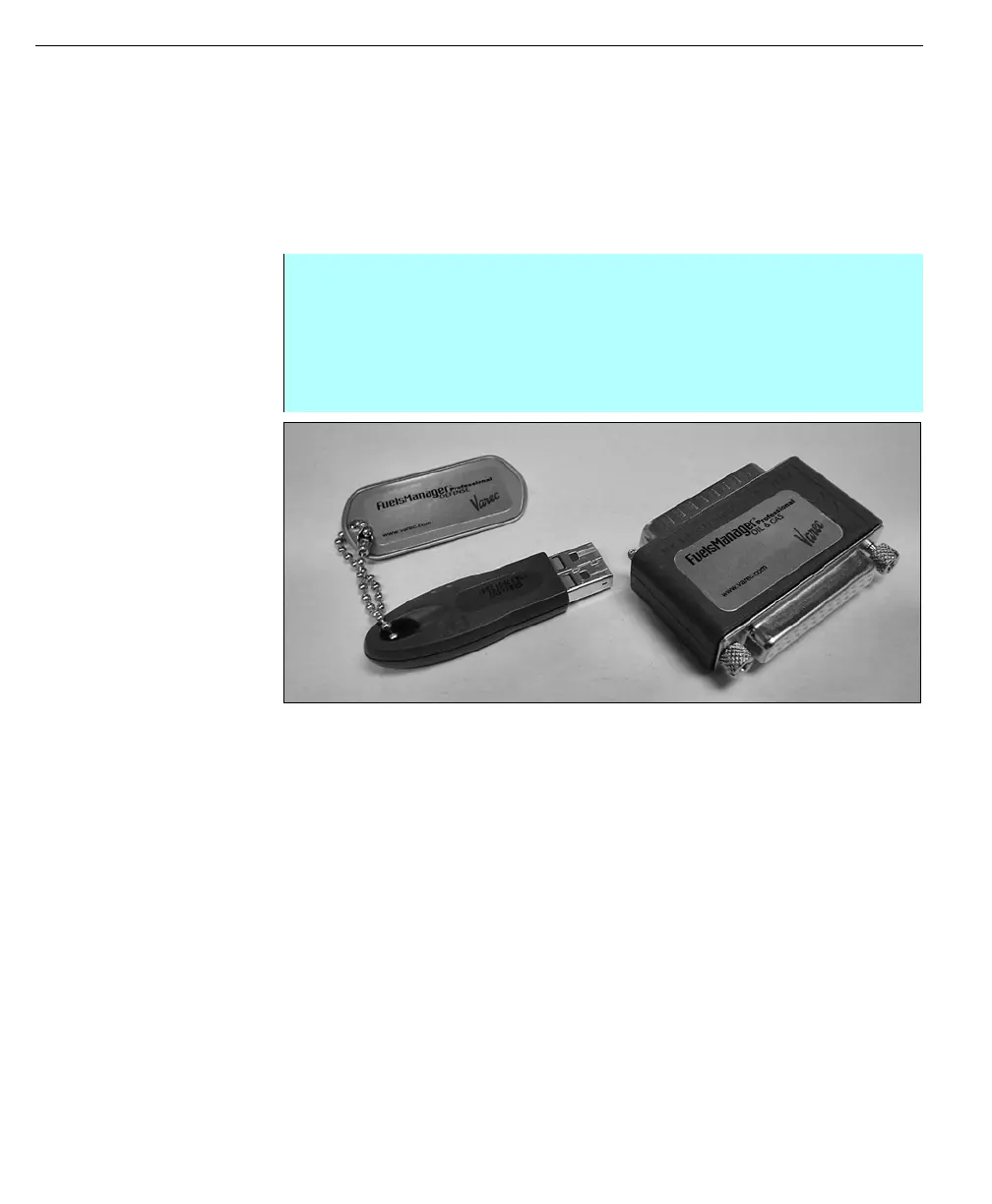
Each FuelsManager workstation requires a hardware key in order for the software
to run. This device plugs into either the parallel port or USB of the CPU without
disrupting normal operations, and should be inserted as indicated in the
installation program. Along with the physical key, there is a driver called Sentinel
that is automatically configured during the software installation.
Caution! Turn off your computer to
avoid possible shock.
To install the FuelsManager parallel hardware key, perform the following steps:
Left - USB Key
Right - Parallel Key
USB keys should not be installed until after FuelsManager has been successfully
installed. See the Installing USB Hardware Key section for instructions.
Step-by-Step
• If the computer has a local printer, detach the printer cable from the rear of
the computer.
• Attach the hardware key to the printer port.
• If the computer has a local printer, attach the printer cable to the hardware
key.



 To Next Page