Draw application
ADM003GVAE1005 177
Drawing an arc
The Arc tool draws arcs and chords (filled arcs).
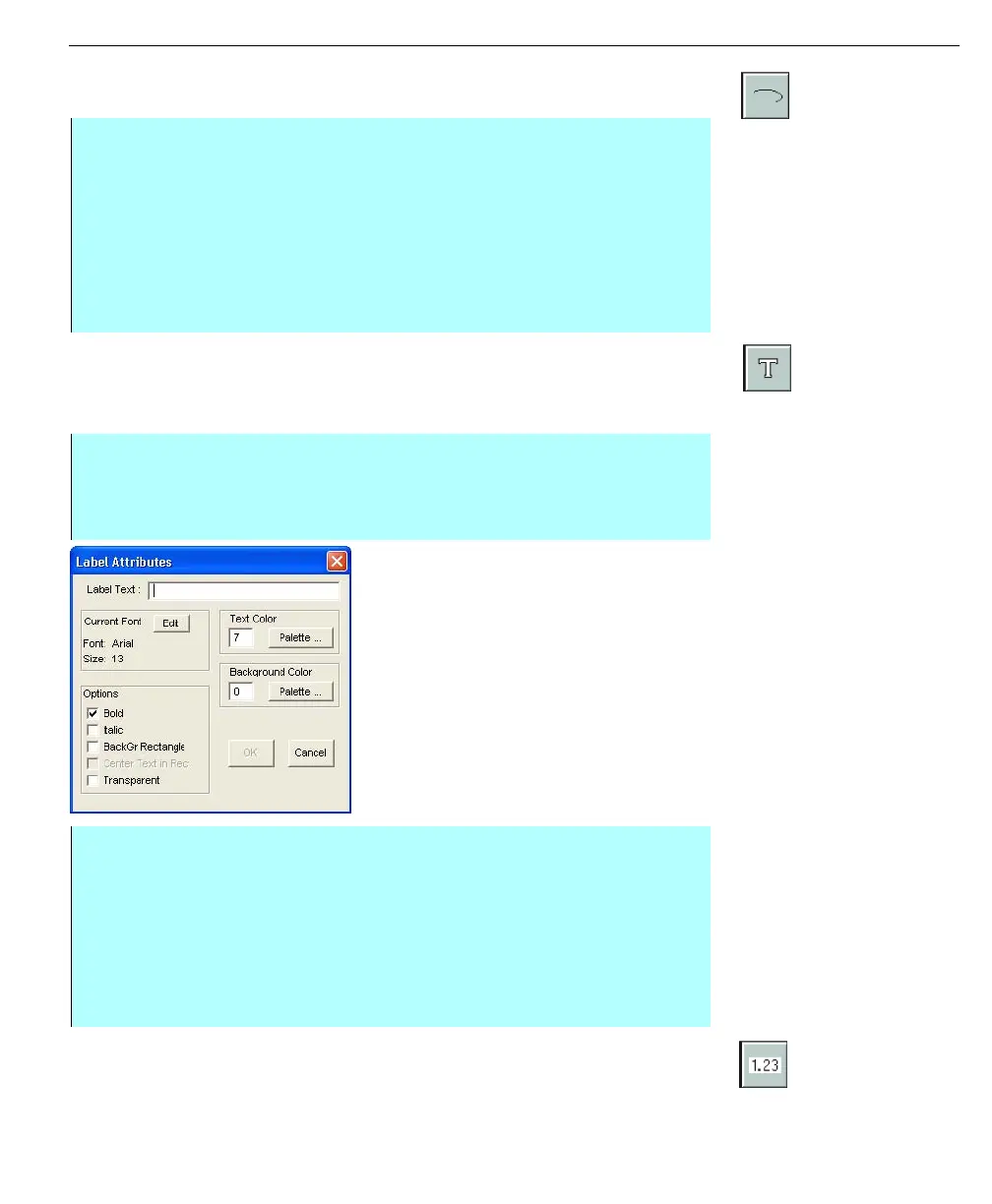
Label tool
A Label is used to place text inside the graphic. Labels may be left, center or right
justified and may include an optional background rectangle. Also, you have a
choice of fonts and various sizes.
Label Attributes dialog
box
Inserting a database value
The Value tool allows you to display data from a database. When the graphic is
opened in the Operate program, the value of the database point is displayed.
Step-by-Step
• Select the Arc tool (or select Add and click Arc/Chord). Click on area to
define center point and hold down the mouse button
• Drag the cursor to make an ellipse for the arc and then release the mouse
button at desired size and shape
• Position the cursor on the ellipse where you want the arc to start and hold
down the mouse button. The Message Window directs you to “Define Arc
End Point”. Drag cursor to point on ellipse where you want the arc to end
and release the mouse button
Step-by-Step
• Select the Label tool (or select Add and click Label)
• Click on area of insertion
• The Label Attributes dialog box appears
• Enter the Label name, format appearance of the label or set up the label
alignment
• Click Edit to format the font appearance of the label
• Center Text in Rectangle only applies when Back Ground Rectangle is used
• Select a text and text background rectangle color by clicking on Palette
button. The edit box displays the number assigned to each color in the
palette
• Click OK. A label appears in selected area



 To Next Page