FuelsManager Defense
188 Administrator Manual
Creating a tank detail
Note! DO NOT SAVE over the
default file. Save the file under a
different file name by selecting
Save As.
Editing a value
Tank Details can be edited in one of two modes, Use Parameter mode and Use
Template mode. You can switch between these modes via the Draw menu, File
sub-menu, Detail Data command.
Use parameters mode
In this mode only tank point variables can be added to the Tank Detail. This is the
default mode
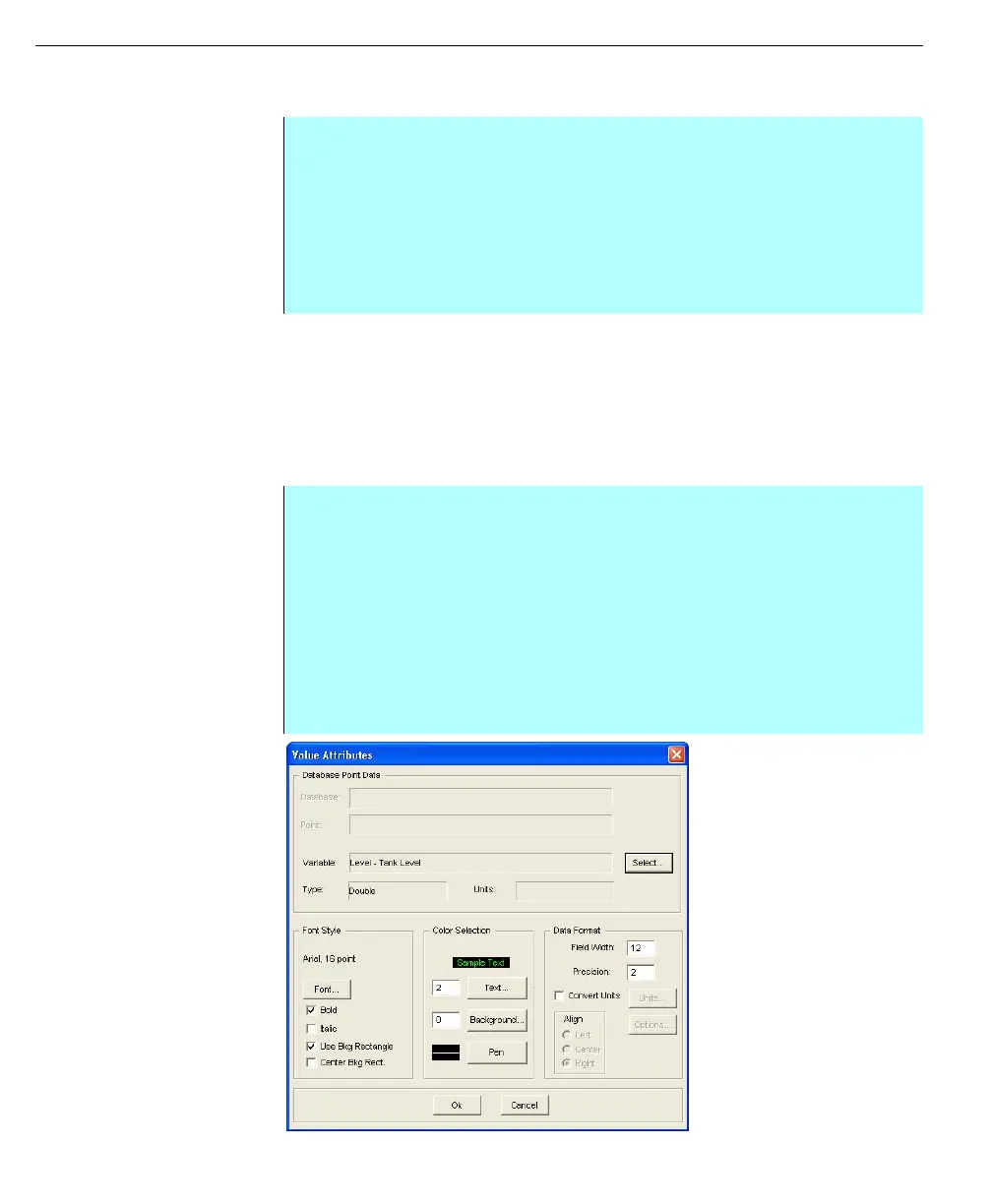
Value Attributes dialog
box
Step-by-Step
• Select File and click Detail Mode. If a graphic is presently opened, Draw will
ask if you want to save the file. A check mark appears next to the Detail
Mode menu option
• Select File and click Open. The Open Graphic File dialog box appears
• Select the desired graphic (*.grf) from the File Name list box. Make sure that
the Graphic option button is selected
• The Tank Detail graphic appears in the Draw window
Step-by-Step
• From the File menu click Detail Data, from the sub-menu select the Use
Parameters option
• Click on the Hand selector icon in the toolbar and then select the desired
value
• Select Attributes from the Edit menu
• The Value Attributes dialog box appears
• Click Select next to the Variable entry. The Select Point Variable dialog box
appears. The tank parameter can be selected in this dialog box
• Choose the tank parameter and click Select



 To Next Page