FuelsManager Defense
202 Administrator Manual
Creating a new summary report
Summary Report
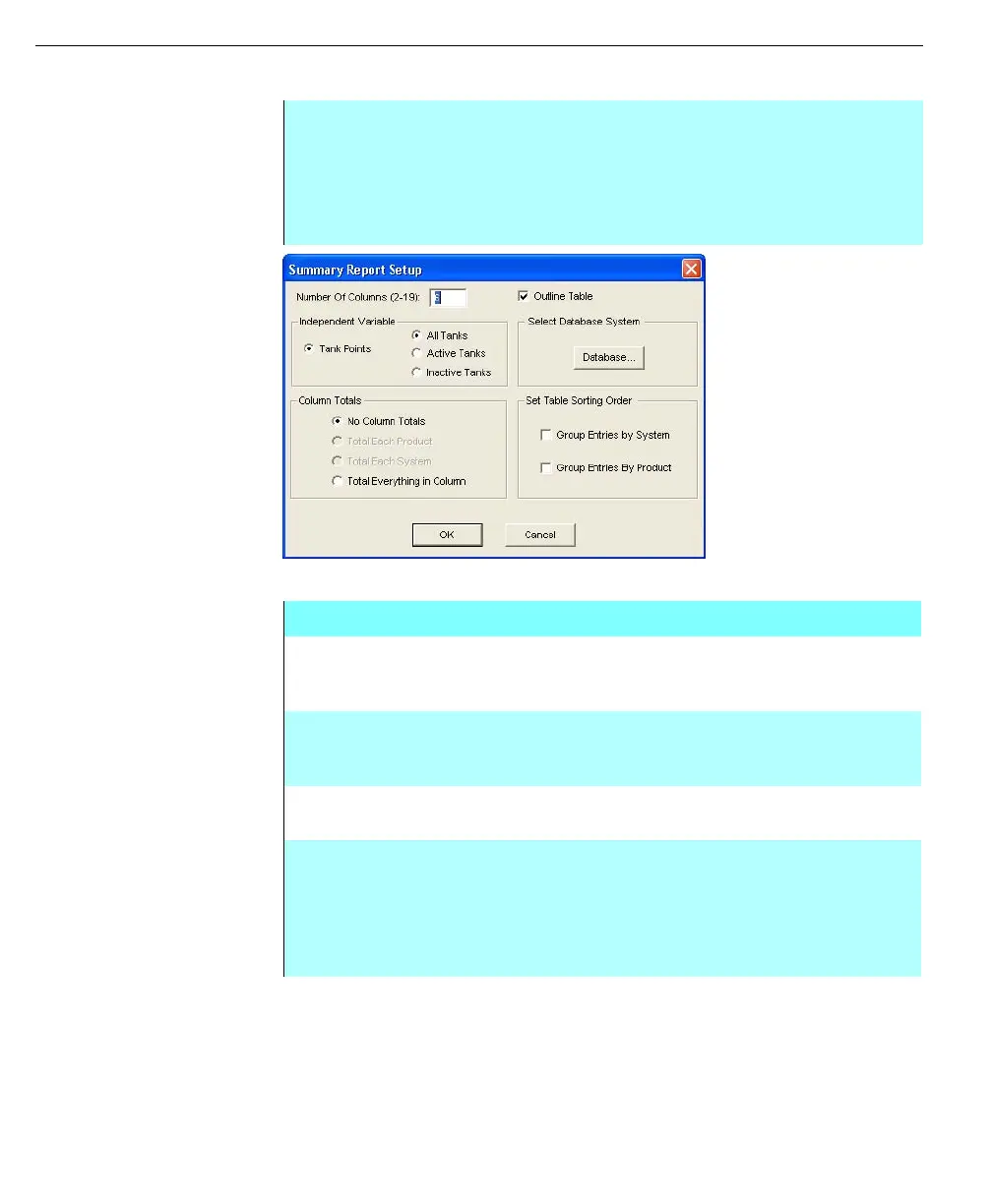
Setup dialog box
Step-by-Step
• Within the Report Editor dialog box, from the file menu, select New, and
then select the Summary Report command from the sub-menu
• The Summary Report Setup dialog box appears. In the Summary Report
Setup dialog box, the user sets the specifications of the Summary report.
The components of the dialog box are described below
Summary report Setup dialog box
In the Number of
Columns
Type in a number from 2 to 19. This option is also available
when creating a table.
The Independent
Variable
This option designates which tanks are to be displayed in
the report--All Tanks, Active Tanks (Tank Mode is not
stopped), or Inactive Tanks (Tank Mode is stopped).
Select Database
System
Click Database to select which databases are to be included
in the report. One or more databases can be selected.
Set table Sorting
Order
In the Set table Sorting Order section, the user selects an
option to group Tank point entries. The entries can be
grouped alphabetically and numerically by database
systems, by products or both. If both the system and
products are selected, the points are grouped by system
with products nested inside each system.



 To Next Page