FuelsManager Defense
62 Administrator Manual
Creating a new coded variable
Coded Variables
Configuration dialog
box
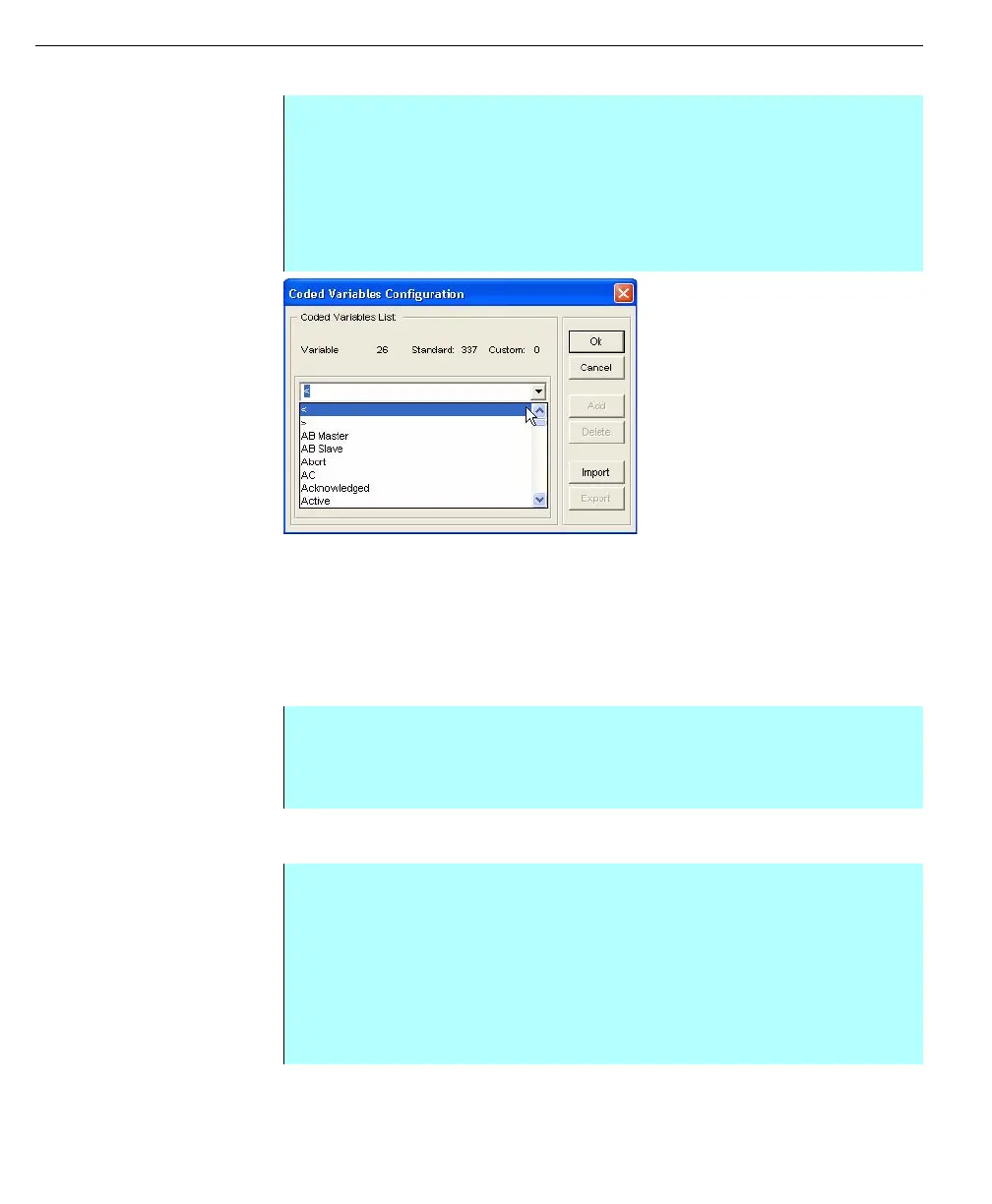
Coded Variables Configuration dialog box
The Coded Variables Configuration dialog box lists all the variables found in the
system - standard and custom Coded Variables - and the quantity of each type.
The user is able to add or delete custom Coded Variables. Each Coded Variable is
identified by a variable index number as indicated in the Coded Variables
Configuration dialog box.
Deleting a coded variable
Importing coded variables
Note! Standard Coded Variables
cannot be deleted
Custom coded variables are the only variables that can be imported or exported.
Step-by-Step
• From the Resources menu in the Configuration dialog box, select the Coded
Variables command, the Coded Variables Configuration dialog box appears
• Type in a coded variable name. The name can be up to 15 characters
including any embedded spaces entered, then click Add
• The name appears in the list, click OK
• The Coded Variable is now available for database point assignment
Step-by-Step
• In the Coded Variables Configuration dialog box, select the variable to be
deleted from the scroll box so that it appears in the edit box
• Click Delete. The coded variable is no longer a part of the list
Step-by-Step
• From the Configuration dialog box, select Resources and click Coded
Variables. The Coded Variables Configuration dialog box appears
• Click Import
• The Import Coded Variables dialog box appears
• Select the import file and click Open
• The system imports the file and returns to the Coded Variable Configuration
dialog box



 To Next Page