FuelsManager Defense
102 Administrator Manual
Entering Variable Format information for a triggered point
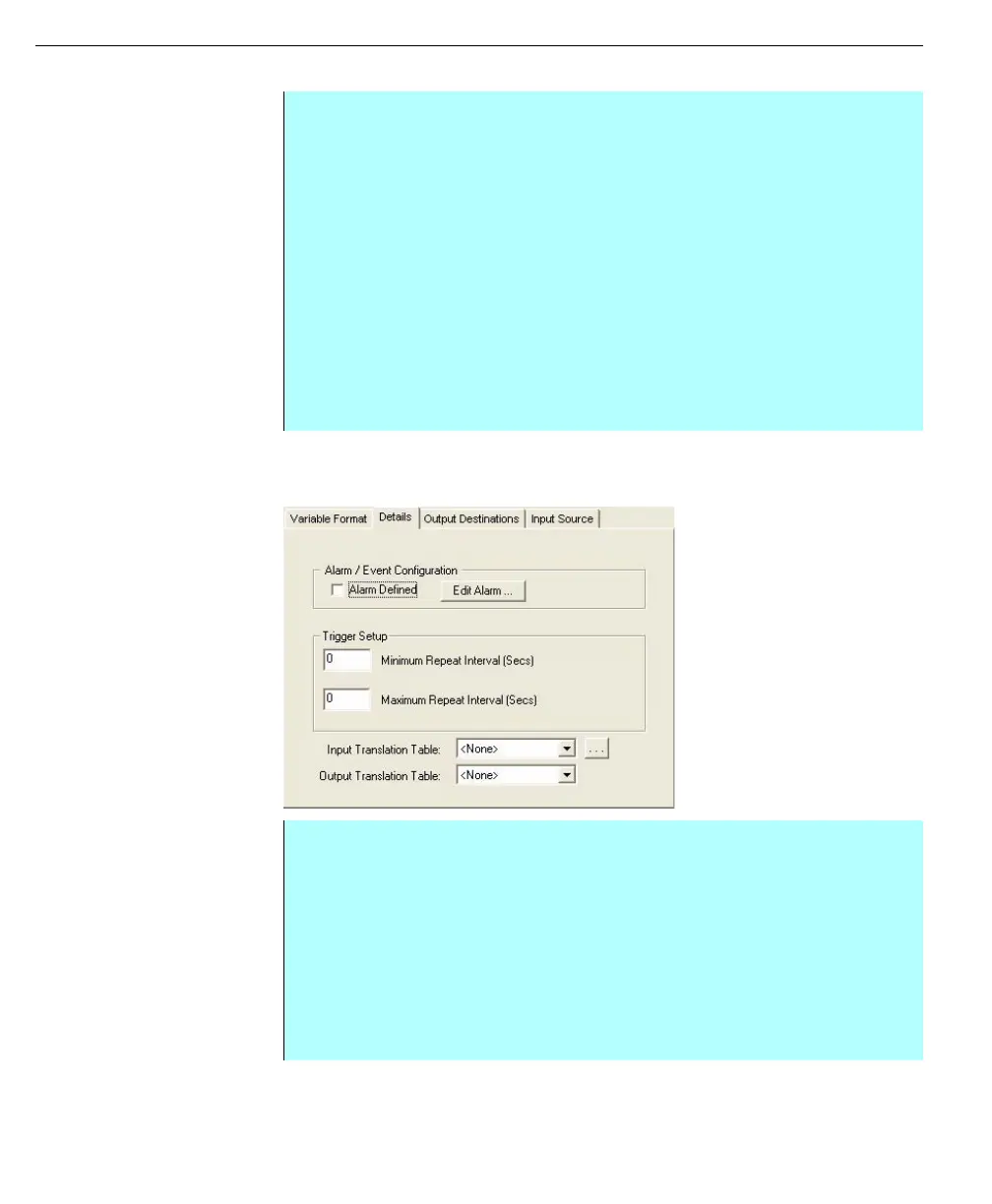
Entering Details for a triggered point
Details - triggered point
• From the Edit Point dialog box, Variable Format tab - Click Format to select
the data storage format. The Select Data Storage Format dialog box
appears
• Make the Data Storage format selection and click OK to return to the Edit
Point dialog
• The user can select to use Bitfield Data for the point
• Or click the Units button to display the Select Engineering Units dialog to
use for the point. Just select the appropriate type, unit, and click OK to
return to the Edit Point (triggered) dialog
• If needed, the user can select a modifier by clicking the Modifier button
• Select the appropriate Modifier and click OK to return to the Edit Point dialog
• If you are using a numeric format, the user can set the minimum and
maximum value by entering the parameters in the Min. Value and Max.
Value fields
• From the Edit Point dialog box, select the Details tab
• The user can make Alarm/Event configurations for the input/output point
here by clicking Edit Alarm and setting up alarms for the point. Click OK to
return to the Edit Point dialog
• In the Trigger Setup, the user can set how frequently the triggered point
checks the input source
• The input source and the output source can be set to different translation
tables. Select the Input Translation Table and the Output Translation Table
from the lists. The user can also view and edit translation tables by clicking
the browse button next to the input list



 To Next Page