Upgrading versions prior to v4.3
ADM003GVAE1005 257
Running the Utility
Step 1: Open the Utility from the Start Menu.
Click Start and select Programs, FuelsManager, FMTools, and click
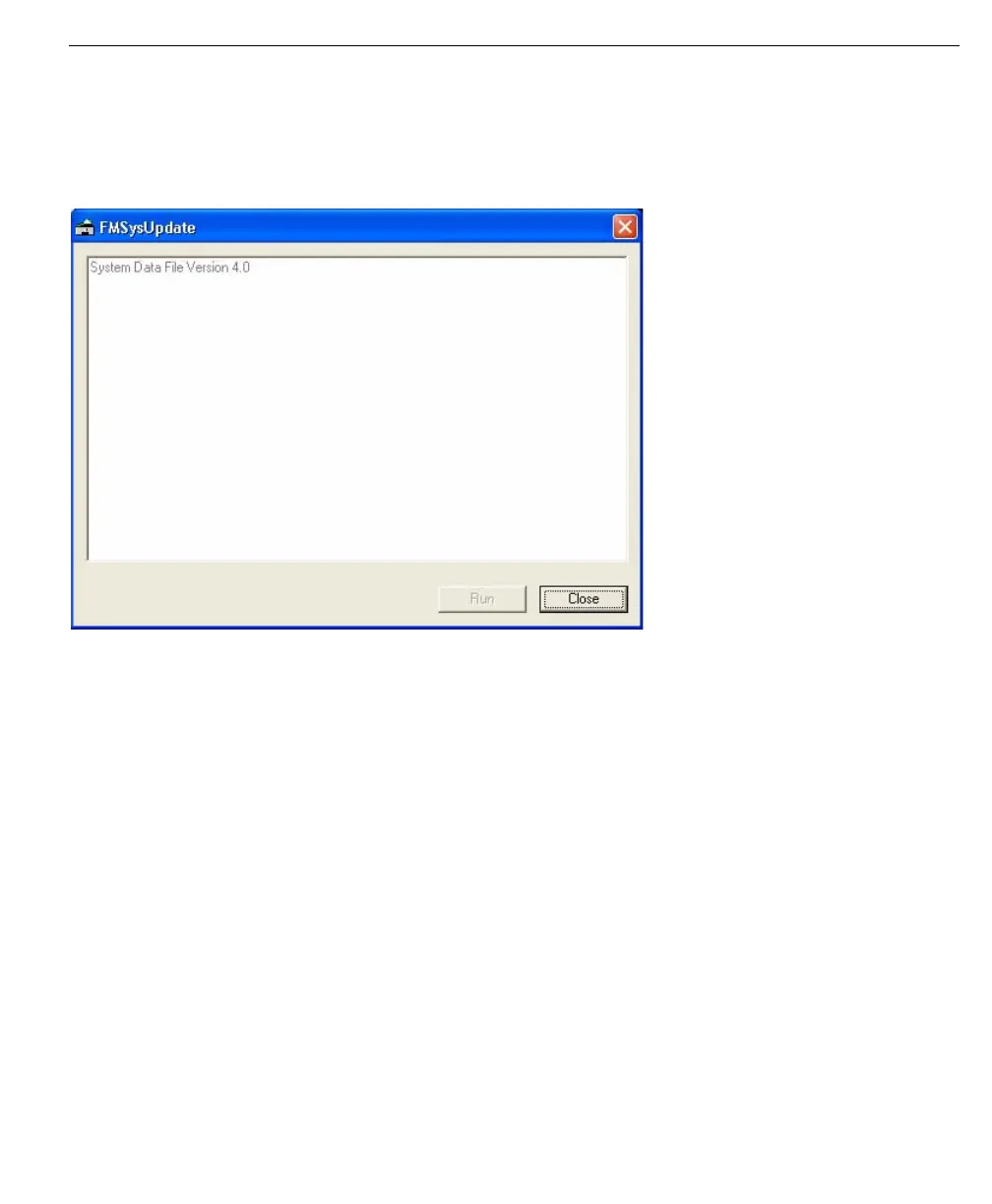
FMSystemUpdate. This opens the FuelsManager System Update Utility. The
FMSystemUpdate window appears.
The utility recognizes
versions 4.0, 4.1,
and 4.2.
This means that the utility recognizes the file version on your machine and can
update your system.
Step 2. Click Run
Click Run to begin the update process.
Step 3. Back up Files in Project
Before running the process, the system prompts you to back up your files in the
project.
Backing up these files only makes copies of the files that change during the
update--not the entire project. Click Yes to back up these files and continue.
Step 4. Finish Update
After backing up the project files, the system will automatically start the update.
The window logs the updates:
• Updating System Data
• Updating Product Data
• Updating Alarm Group Data
• Updating DataManager and Movement Data
• Updating Graphics Data



 To Next Page