Visual Dynamic Tools
ADM003GVAE1005 185
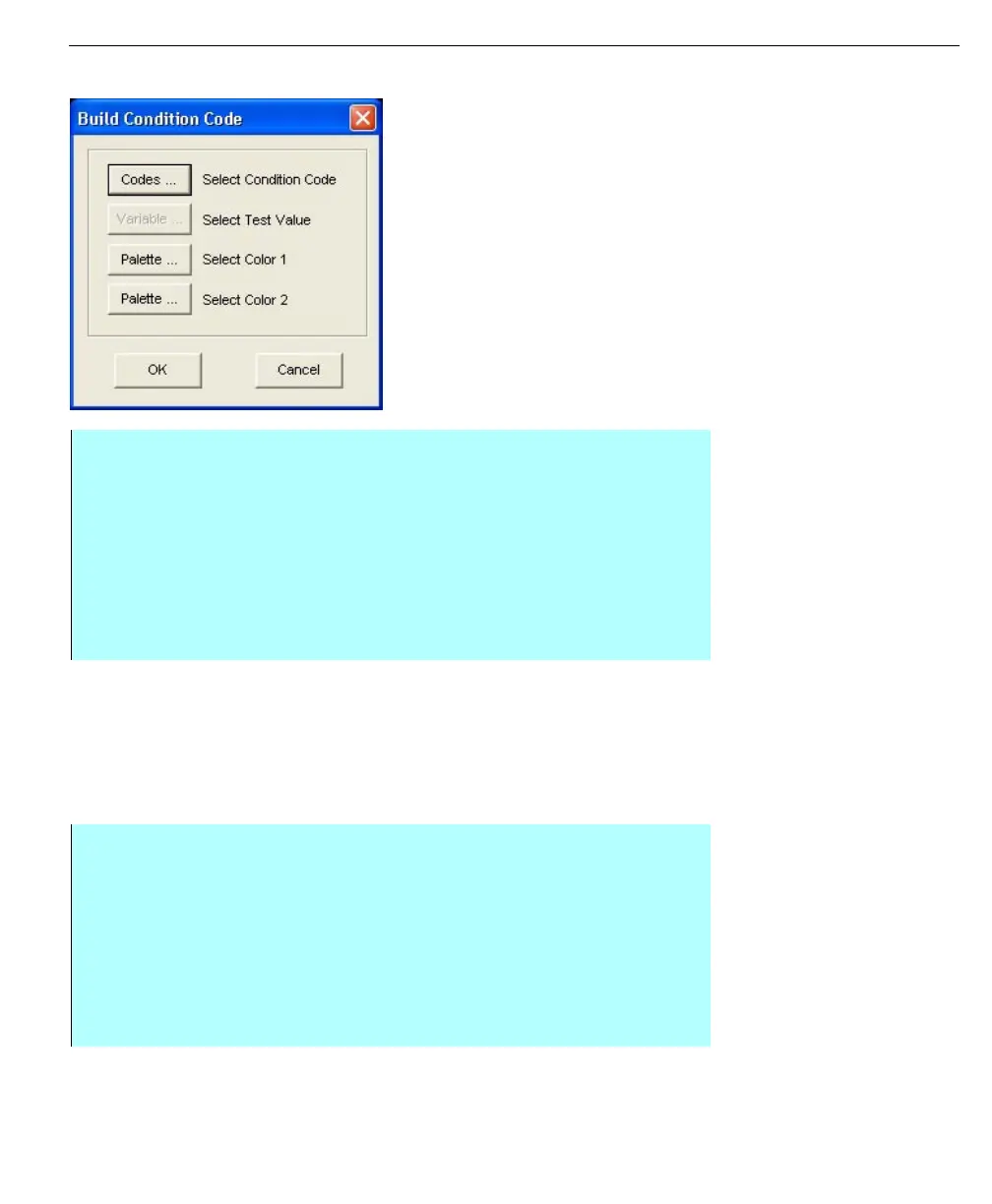
Build Condition Code
dialog
Assigning a condition
Dynamic Conditions can be assigned to a specific graphic or symbol so that it
represents those conditions. You can assign the Dynamic Conditions to an
object’s Pen & Background color, Brush color, and whether the object is Visible or
not.
• To select the Condition Code, click the Codes button and select from the list
• To select a Test Value, click the Variable button and select it from the list
• To select a color for the condition, click the Palette button next to Color 1
and select the color you want to represent the condition. If you want the
object to blink, repeat this step with Select Color 2
• Click OK to return to the Edit Dynamic Conditions dialog box
• Click Append to add your selections to the Conditions list
• Continue appending conditions until your Dynamic Condition is complete
• On the Edit Dynamic Conditions dialog box, click OK
Step-by-Step
• Select the object or symbol you wan to assign the Dynamic Condition to
• From the Edit menu, select Conditions to open the Define Object
Conditional Data dialog, or press <Ctrl+K>
• Select the checkbox to one of the available features (Pen Color,
Background Color, Brush Color, or Object Visibility)
• Click the corresponding Edit button to open the Select Global Dynamic
Conditions dialog, select the condition you want to attach, and click OK
• You can also define new conditions and edit existing ones



 To Next Page