FuelsManager Defense
60 Administrator Manual
Creating strings
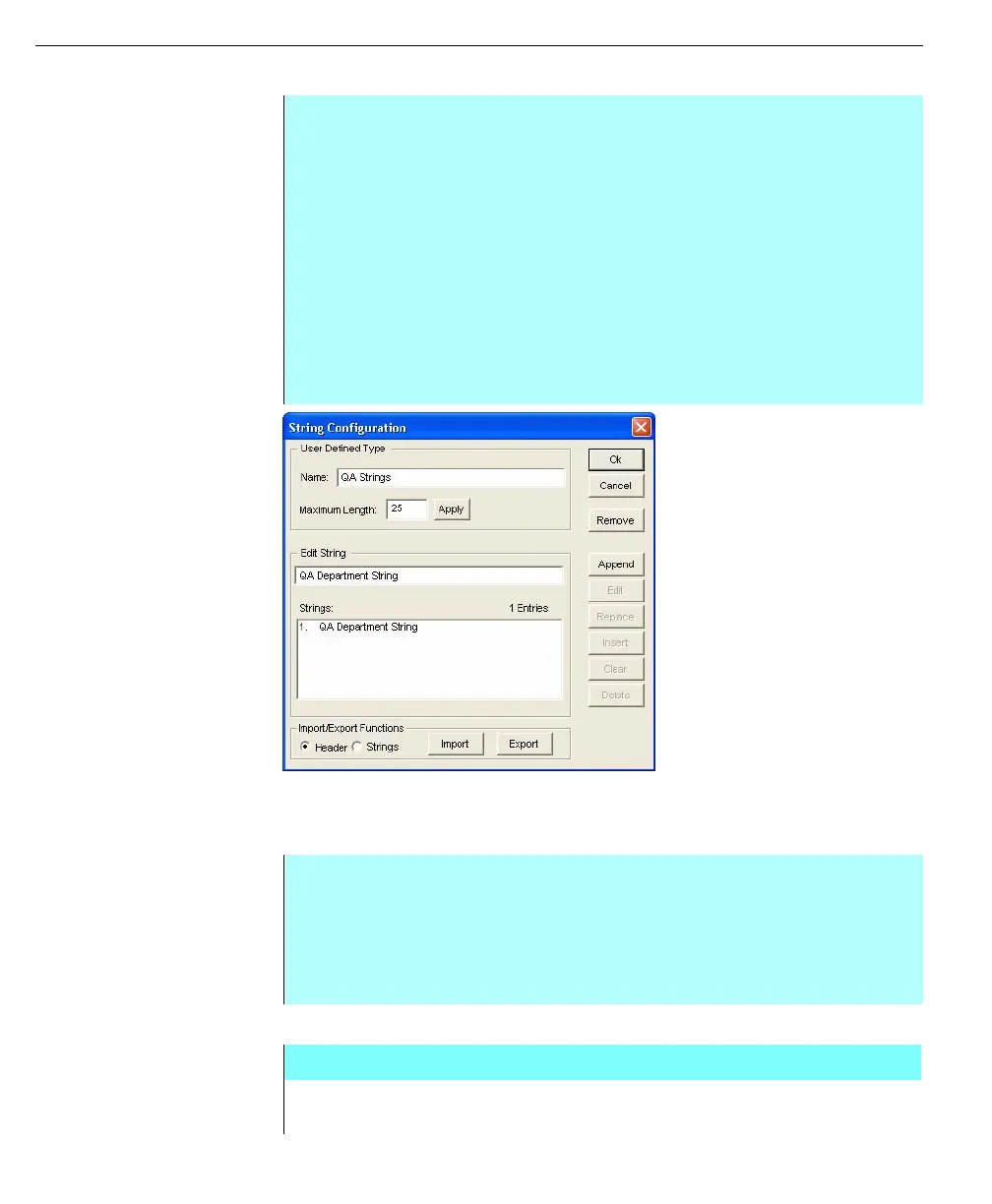
String Configuration
dialog box
Deleting or editing a string
Once a String has been defined it will appear in the Strings sub-menu under the
Add Type command.
Step-by-Step
• In the Configuration dialog box, select the Strings command from the
Resources menu. From the Strings sub-menu select Add Type. The String
Configuration dialog box appears
• Enter the name of the user-defined type. Type in the maximum length of
each string in the Maximum Length dialog box and click Apply. This sets the
maximum number of characters used in each string, which can be no
greater than 80 characters and no less than 1 character
• Type the string in the Edit String dialog box
• Click Append to add the string to the list. The string is added to the bottom of
the current list
• Repeat the above steps to add more strings to the list. When all strings have
been entered, click OK
Step-by-Step
• In the Configuration dialog box, select the Strings command from the
Resources menu. From the Strings sub-menu select the user-defined string
to be modified
• The String Configuration dialog box appears
• Use the action buttons within the dialog box to modify the string
String configuration dialog box
APPEND Adds the string in the Edit String text box to the end of the
string list.



 To Next Page