FuelsManager Defense
114 Administrator Manual
Alarm information
Note! In addition to the Level
alarms defined on the Edit Tank
Data - Alarms tab, FuelsManager
supports a Minimum and Maximum
Operating level alarm. Selecting
the 'User Defined' option for the
Minimum and Maximum fill
parameter on the Edit Tank Data -
Vessel tab, enables these alarms.
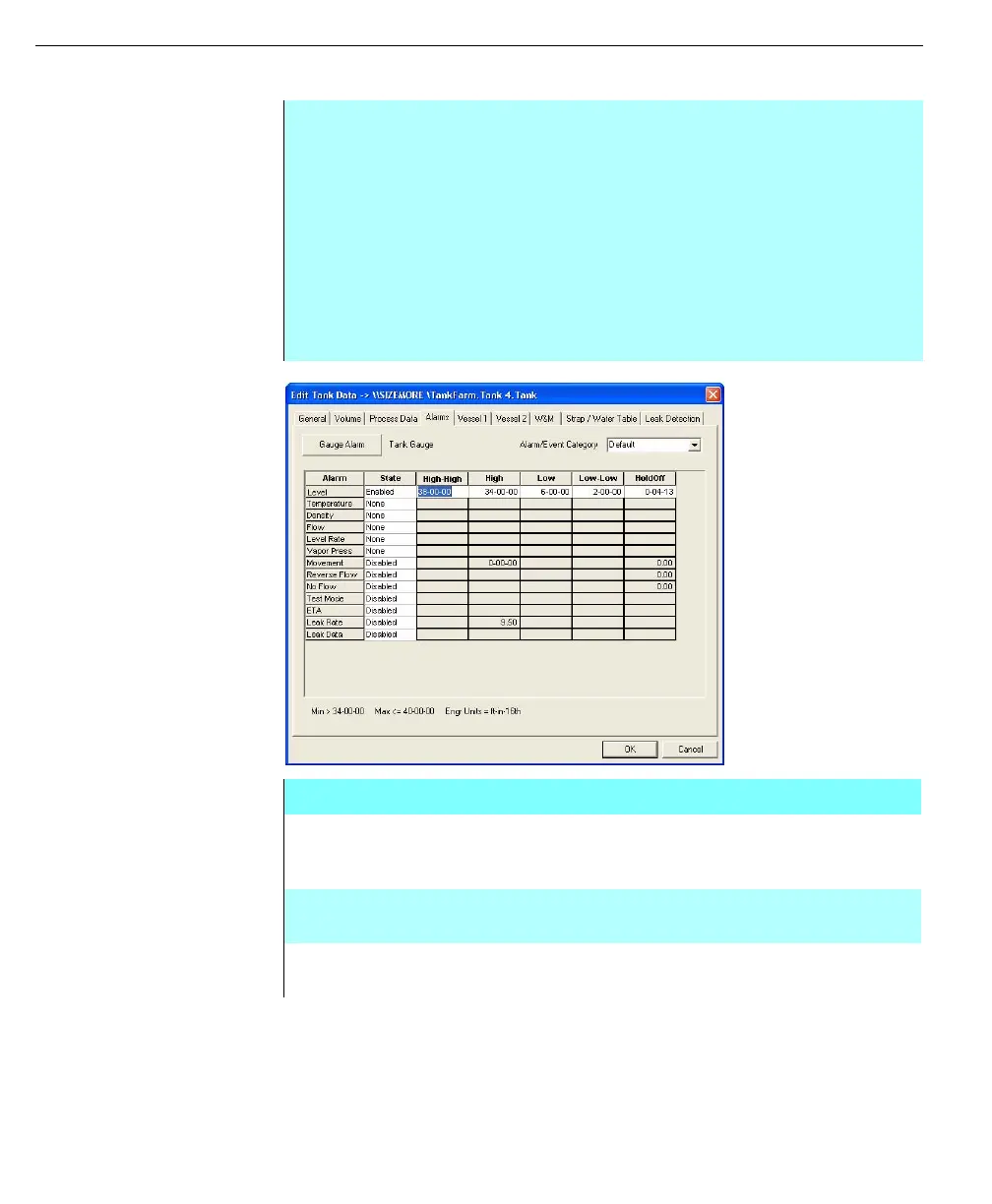
Edit Tank Data dialog
box - Alarms tab
Step-by-Step
• Click the Gauge Alarm button to set a Global Alarm Definition to be used for
the tank point
• Global Alarm Definitions dialog box appears
• In the Global Alarm Definitions dialog box either select an existing alarm
definition or click New to create a new alarm definition. Typically the
required alarm definitions have already been created - see Building an
Alarm Process for more information
• In the Edit Tank Data dialog box, enter the required alarm setpoints for the
tank point
Edit Tank Data dialog box - Alarms tab
GAUGE ALARMS This button opens the Global Alarm Definitions dialog box,
allowing selection of the alarm definition to be associated
with the tank point
ALARM/EVENT
CATEGORY
The Alarm Event category selection box allows selection of
the appropriate pre-defined alarm security category
ALARM COLUMN This column displays the available tank alarms. This
column is for display only



 To Next Page