Report
ADM003GVAE1005 205
Refer to the Summary Report Summary dialog box (displayed from the Report
Menu) to review the defined specifications, if necessary. Refer to the Values
section for an elaborate description.
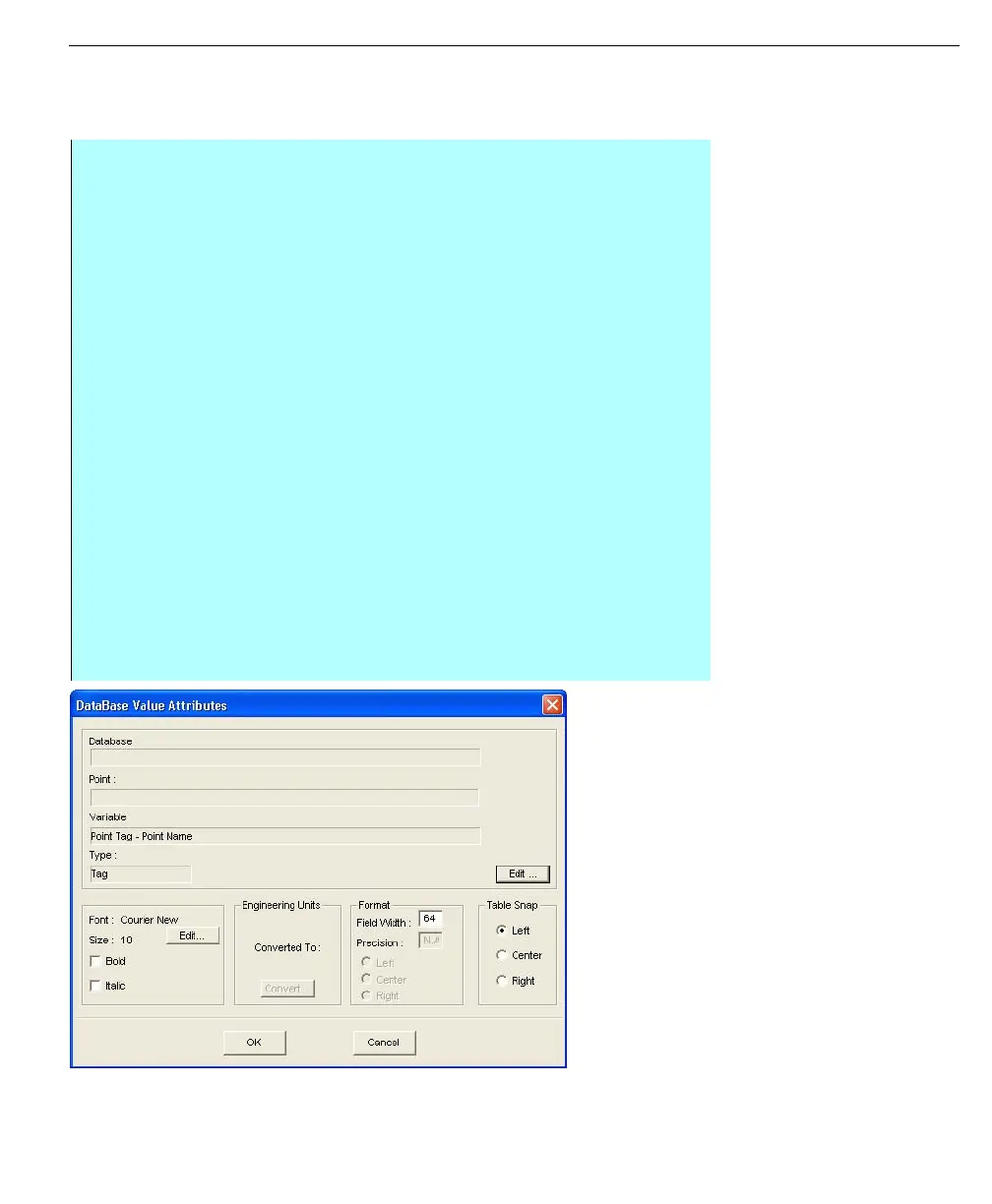
Database Value
Attributes dialog box
Step-by-Step
• Select Edit, click Add, and click Value
• Click on the first column cell in the second row
• The Database Value Attributes dialog box appears
• The Database Value Attributes dialog box allows the user to set the
appearance, field width, and positioning of the Independent Variable. The
Independent Variable, or tag, cannot be changed from this dialog box. The
databases were selected earlier in the Summary Report Setup dialog box.
In runtime, the database points assume the Independent Variable’s
appearance attributes
• Click OK when complete. “Example Database Point Tag” appears in the
selected cell. (This step only occurs once per report)
• Click on the next column cell in the second row. The Select Point Variable
dialog box appears
• Choose the desired point variable and then click Select. The Select
Engineering Units dialog box appears if the point variable is numerical. At
this time, the engineering units to be displayed are undefined. (To view a
complete list of engineering units, refer to the Shared Systems Resources
documentation)
• Select the corresponding engineering unit. Click Select. The Database
Value Attributes dialog box appears
• Select the attributes of the point and then select OK. The value appears in
the selected cell



 To Next Page