FuelsManager Defense
12 Administrator Manual
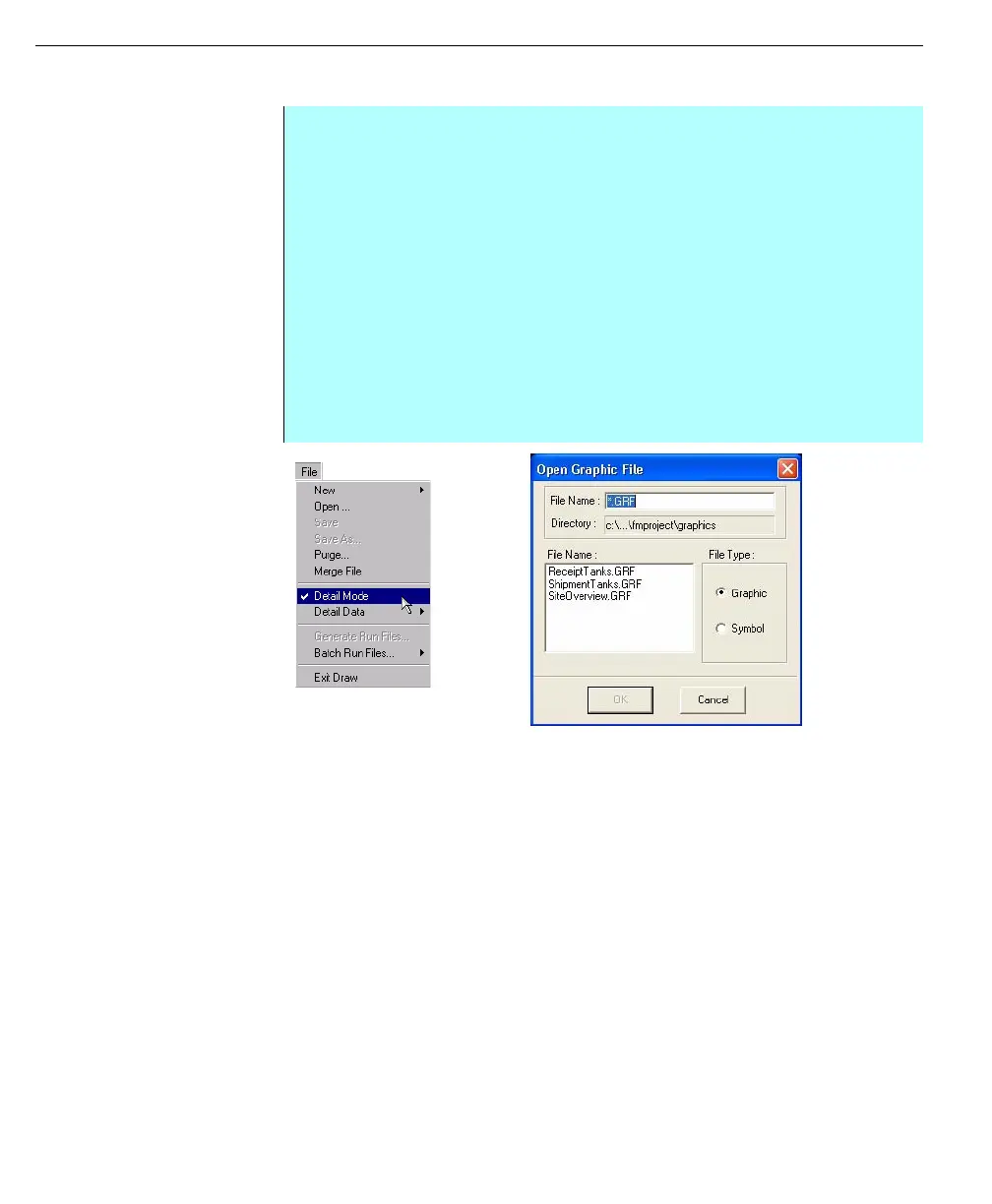
Left - Detail Mode is
‘Checked’ on the File
menu
Right - Open Graphic
File dialog box
Step-by-Step
• From the FuelsManager Configuration menu bar, click User Interface, and
then click Draw Graphics command
• The Draw Application opens
• Click on the File menu and select Open command
• The Open Graphic File dialog box appears
• Select the required Tank Detail file (*.grf) from the list
• The selected graphic file is displayed
• Click on the File menu and select Detail Mode
• Click on the File menu and select Generate Run Files
• The graphic file has now been regenerated
• Click on the File menu and select Exit to return to FuelsManager
Configuration



 To Next Page