Chapter 7: PC SOFTWARE OFFLINE SETTINGS
8. SYSTEM SETTING MODE
7-38
Step 4. After completing the equaliser settings for all outputs, click on the [Apply] button to save the settings
and click on the [OK] button to close the [EQ settings] window.
Notes
• Whenconnectedonline,characteristicscanbevariedbypressingthe[Send]button onthe[EQSettings]
window. This makes it possible to output sound and set the equalisation to adequate initial levels during
system installation. For details, refer to
p. 10-16.
• TheEQsettingsalsohaveamemoryfunctionwith2storagesettings:AandB.Optimumsettingscanbe
achieved by recalling Memory A or B and comparing its sound with the current settings.
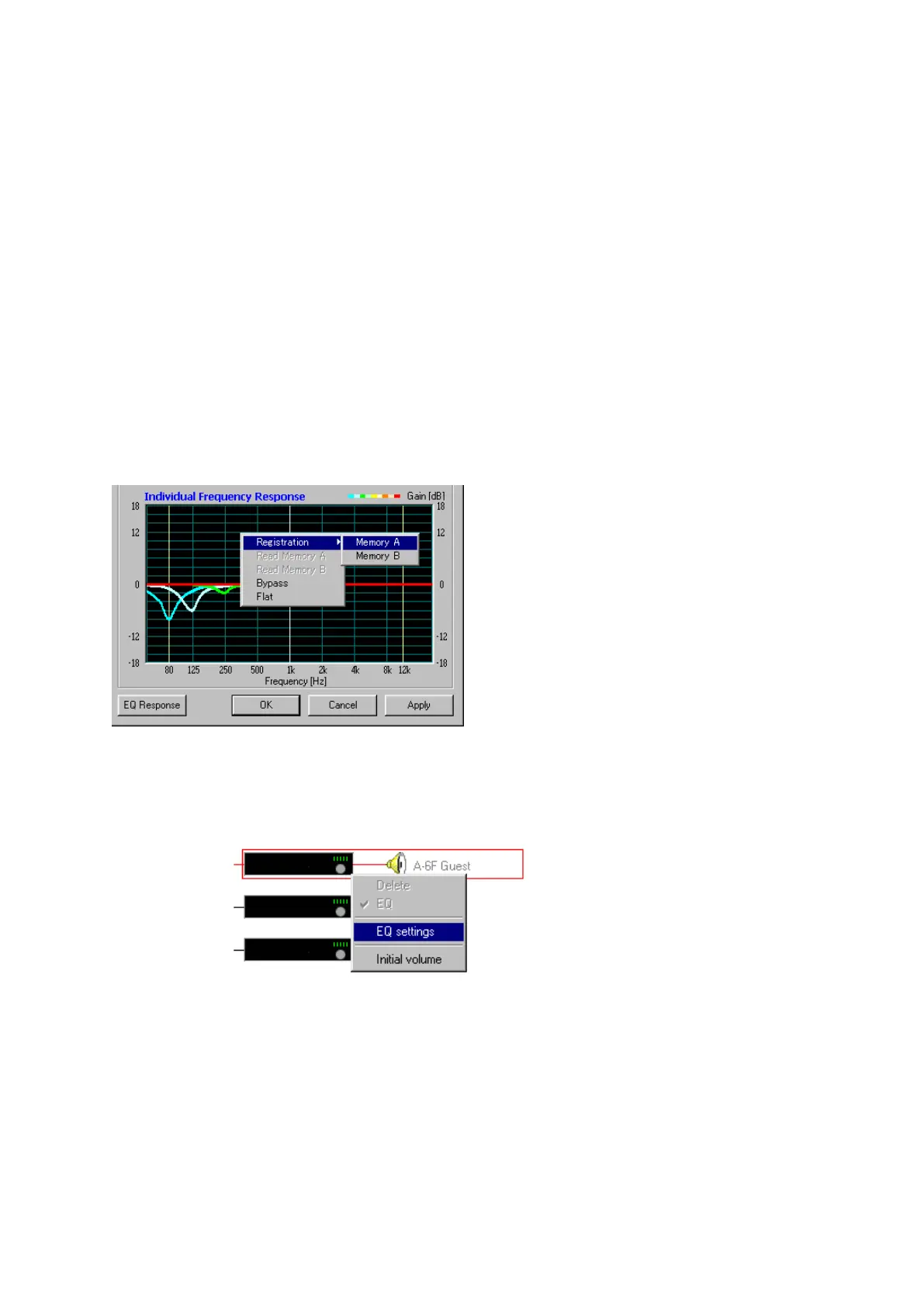
The floating menu shown superimposed over the frequency characteristics chart in the figure below is
displayed when the right mouse button is clicked on the chart.
· Registration (Memory A, Memory B): Stores settings in either Memory A or B.
· Read Memory A: Recalls settings from Memory A.
· Read Memory B: Recalls settings from Memory B.
· Bypass: Bypasses the equaliser.
· Flat: Returns the equaliser settings to flat characteristics.
[Pop-up menu operation for the EQ settings]
The [EQ settings] window can also be opened directly from the Configuration screen by clicking the right mouse
button over the corresponding equipment block and selecting [EQ settings] from the pop-up menu that appears.



 To Next Page