K117sm7e2
7-24
7. 2. 2. 9 Void of image
Check the following matters with the Test Pattern No.1 S(0) and No.7 S(0).
If necessary use other Test Patterns.
Cause Checking
order
Checking Result Treatment
1 Print out the Test Patter No.7 (halftone).
Can you find void of image on the print?
Yes Go to the step 2.
Paper 2 Can you fix the problem if you use a
newly unpacked paper?
Yes 1. If the paper was humidified,
instruct the customer of the
way store the paper.
2. If the paper was not the
specified one, explain the
customer that some image
problem may occur in that
case.
Developer Unit 3 Does the void of image appear on the
print constantly Keeping about 160mm
of interval?
Yes 1. Clean the Counter Rollers
at both sides of the
Developer Roller.
2. Wipe the Developer Roller
with a dry cloth.
3. Replace the Developer
Roller if damaged.
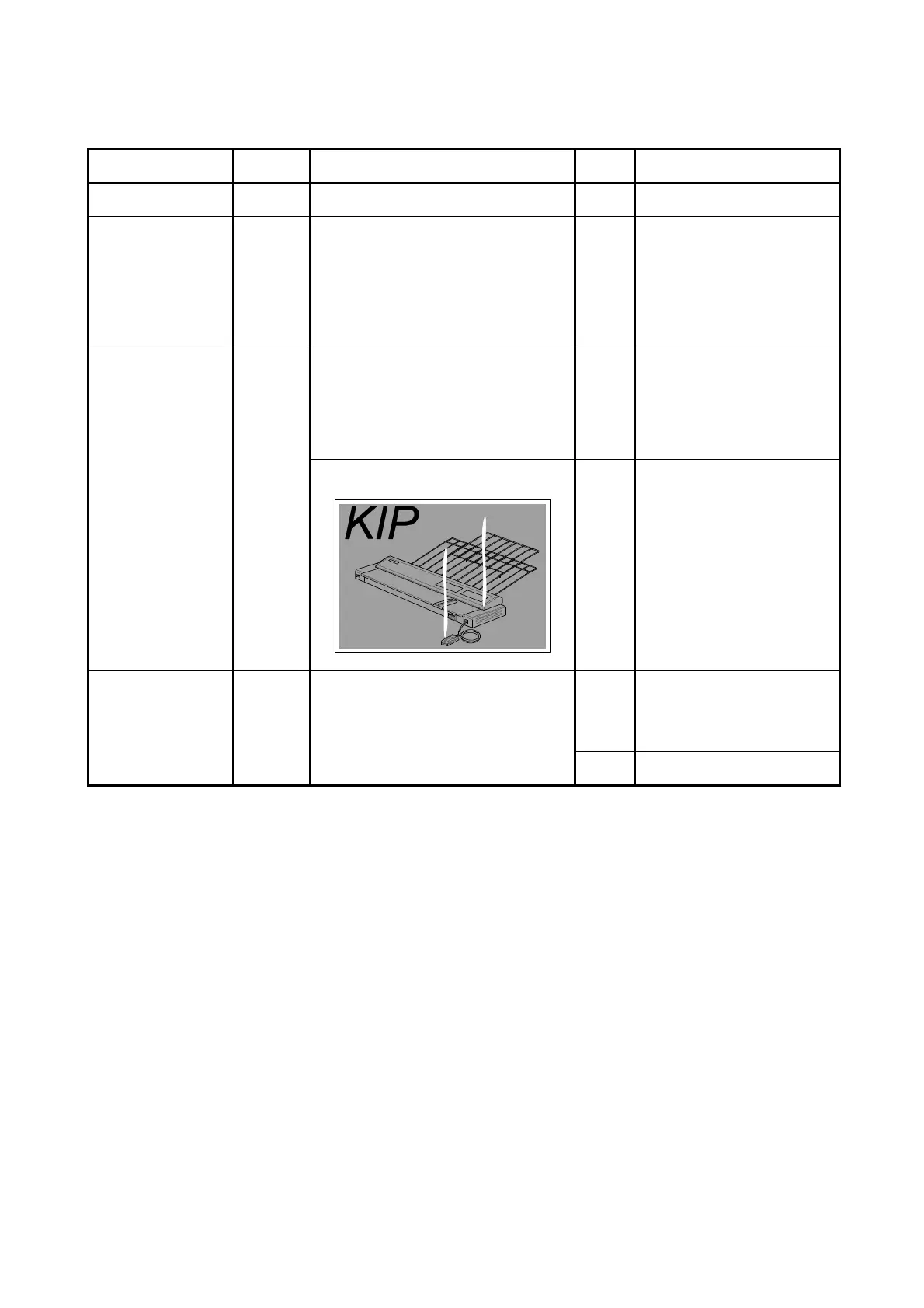
Is the void of image mainly runs
vertically as follows?
Yes 1. Check if there is enough
toner in the Developer Unit.
2. Also select the Device
Status Mode and check the
Toner Sensor Signal
(Device Code: 107).
It must be “L” when the
toner is not covering the
Toner Sensor. If not,
replace the Toner Sensor.
Photoconductive
Drum
4 Does the void of image appear on the
print constantly Keeping about 251mm
of interval?
Yes Clean the Photoconductive
Drum.
Replace Process Unit if
damaged. Be sure to find the
cause of the damage.
No Go to [7.2.2.18 Crease of
Paper]


 To Next Page