Chapter 9: Video Module, Rev. 1.2
9.5.4.2 Gain/Offset
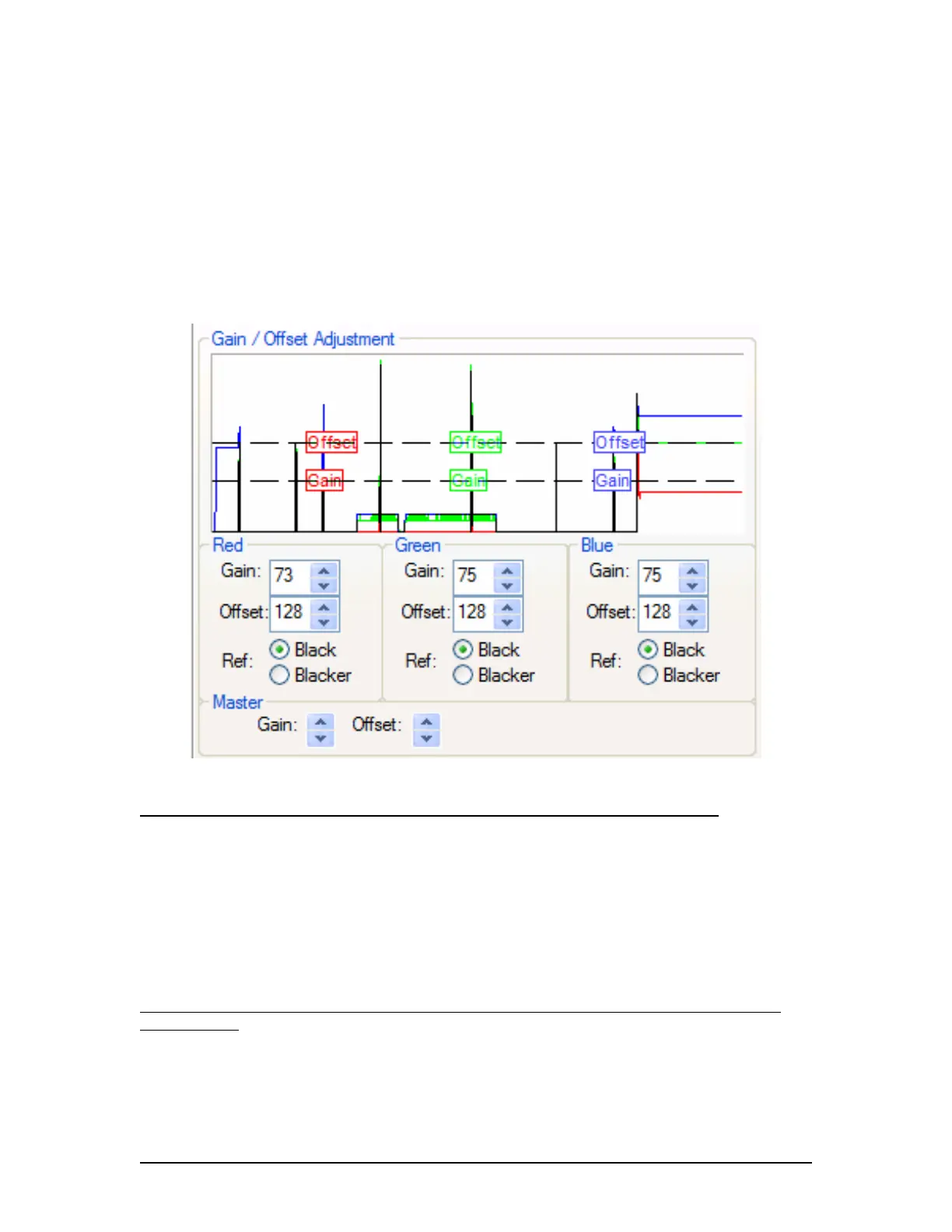
To create a more uniform image, the installer can fine-tune the gain and/or offset in the
Gain/Offset Adjustment section. This section includes:
A histogram.
Red, Green and Blue Gain and Offset controls; and
A Master Gain and Master Offset control.
These controls give the installer three different options to adjust the Gain and Offset values for
the Capture window. Adjusting Gain stretches the image vertically in the Capture window.
Adjusting Offset shifts the image up and down in the Capture window.
Figure 9-23 - Gain/Offset Adjustment
To fine tune the Gain and Offset using the histogram of Red, Green, and Blue icons:
1. Click on the histogram icon to be adjusted;
2. Drag the icon and observe changes in the Capture window image;
3. When the adjustment is finished, release the icon;
4. The new value is displayed in the corresponding scroll box beneath the histogram.
(The range is 0-255);
5. Repeat the process for each of the controls in the histogram until the captured image is
satisfactory.
For example, click the Red Offset icon in the histogram and drag it up or down to adjust the Red
Offset value.
To fine tune the Gain and Offset Red, Green, and Blue separately, using scroll boxes and the
Ref: selection:
1. Click on the scroll box for the value to be adjusted;
2. Set the Gain or Offset to the new value. (The range is 0 to 255);
3. Continue adjusting values until the image in the Capture window is fine tuned.
VDR-100G3/G3S Installation Manual 06/10/2008
9-23



 To Next Page