Appendix 4: Data Retrieval, Rev. 1.1
A4.4 Starting the Download Process
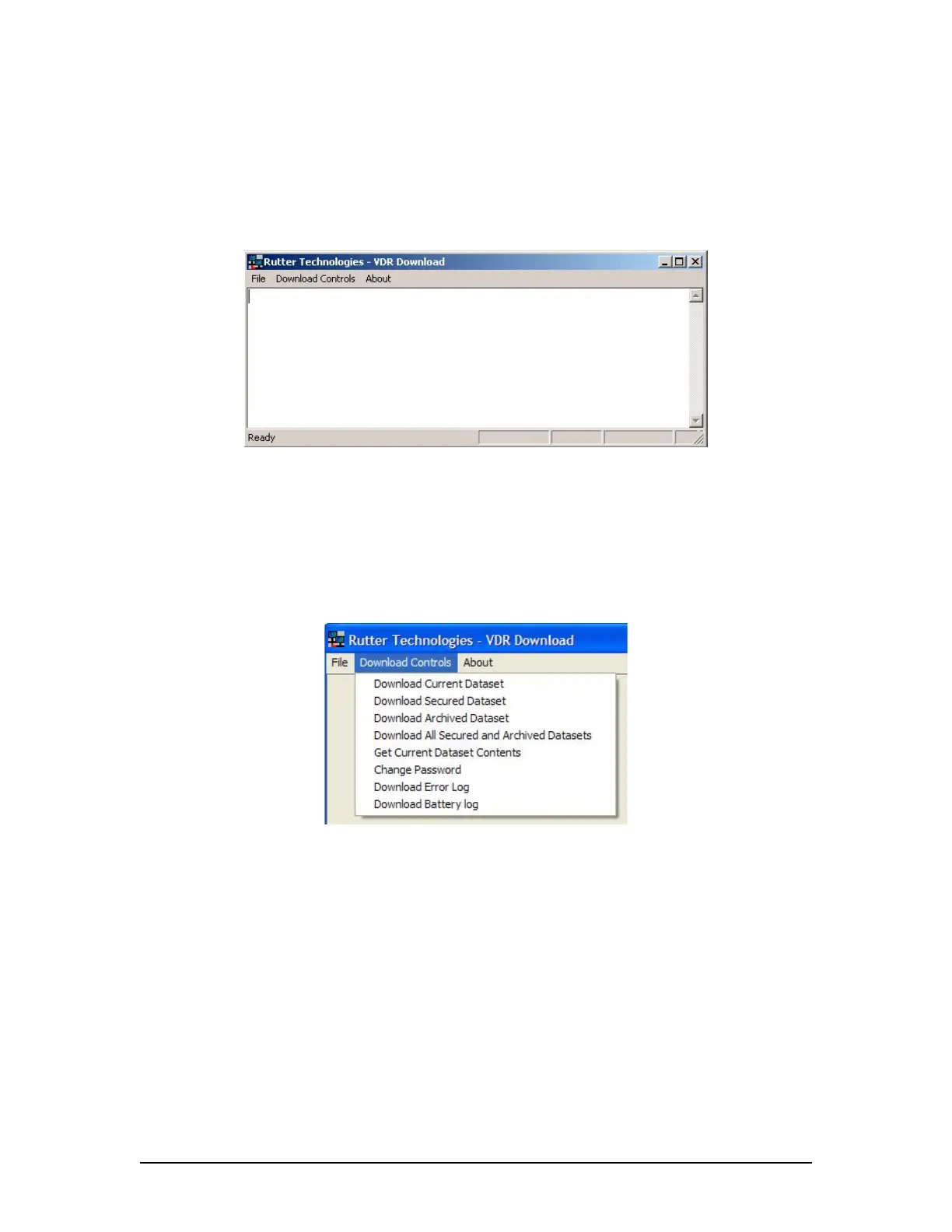
Start the download utility by double-clicking the download.exe icon located on the Windows
desktop. (See Figure A4 - 2 - Download Software Main Screen for an example of the download
utility).
Figure A4 - 2 - Download Software Main Screen
A4.4.1 Download the Current Data Set
Complete the following steps to begin the download of the current data set:
1. Select ‘Download Current Dataset’ from the ‘Download Controls’ menu.
Figure A4 - 3 - Download Controls Menu
2. Enter the password when prompted.
3. Once prompted with the ‘Download Settings’ window (See Figure A4 - 4 - Download
Settings Window ), choose from the following available settings:
‘Download complete data set’.
‘Download partial data set’ – once this option has been chosen, ‘Start’ and ‘Stop’
times become available. Using the appropriate slide-bar, set the time frame that
will begin and end the downloaded data set.
VDR-100G3/G3S Installation Manual 06/10/2008
2



 To Next Page