Chapter 12: Final Recording Medium Setup, Rev. 1.5
12.5 Using the FRM Download Application
12.5.1 Downloading Data Using the FRM Download Application
The following steps outline the procedure to use the FRM Download Application to retrieve data
from an FRM/SFRM:
1. Logon as Administrator on the VDR-100G3 and start the FRM Download Application to
download data directly from the FRM/SFRM;
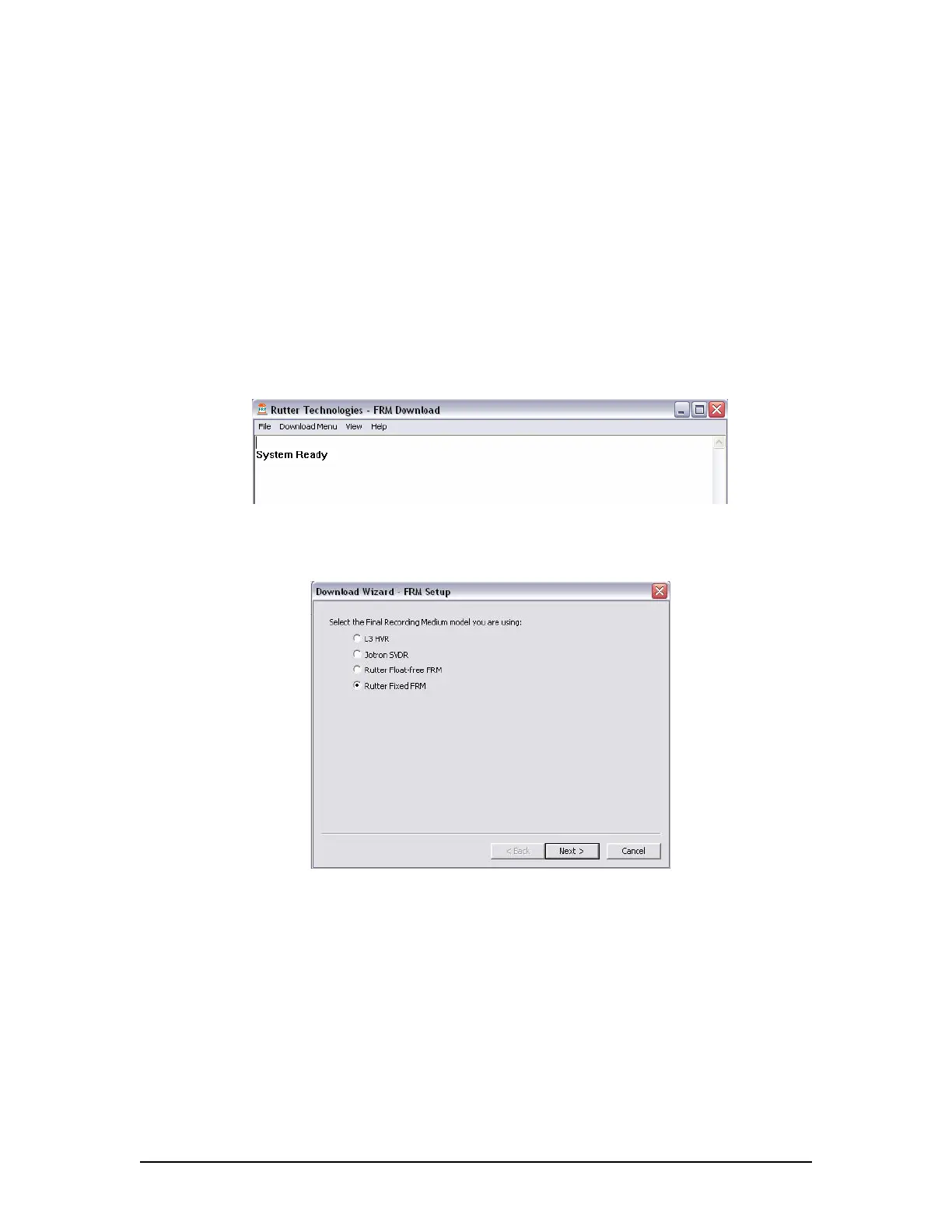
2. Start the FRM Download Application by clicking:
Start>All Programs>Rutter>VDR>FRM Download
(OR locate the FRM <Download.exe> file in the VDR-100G3 <C:\VDRApps\> folder, and
double-click to start the application.)
Figure 12–22 – VDR FRM Download Application
3. Select Download Menu>Download Wizard>FRM/SFRM type;
Figure 12–23 – Download Wizard FRM Setup Page
4. Select “Use default settings to connect to FRM” and click next.
VDR-100G3/G3S Installation Manual 10/12/2008
12 - 38



 To Next Page