Chapter 9: Video Module, Rev. 1.2
9.5.3.1 Horizontal/Vertical Offset
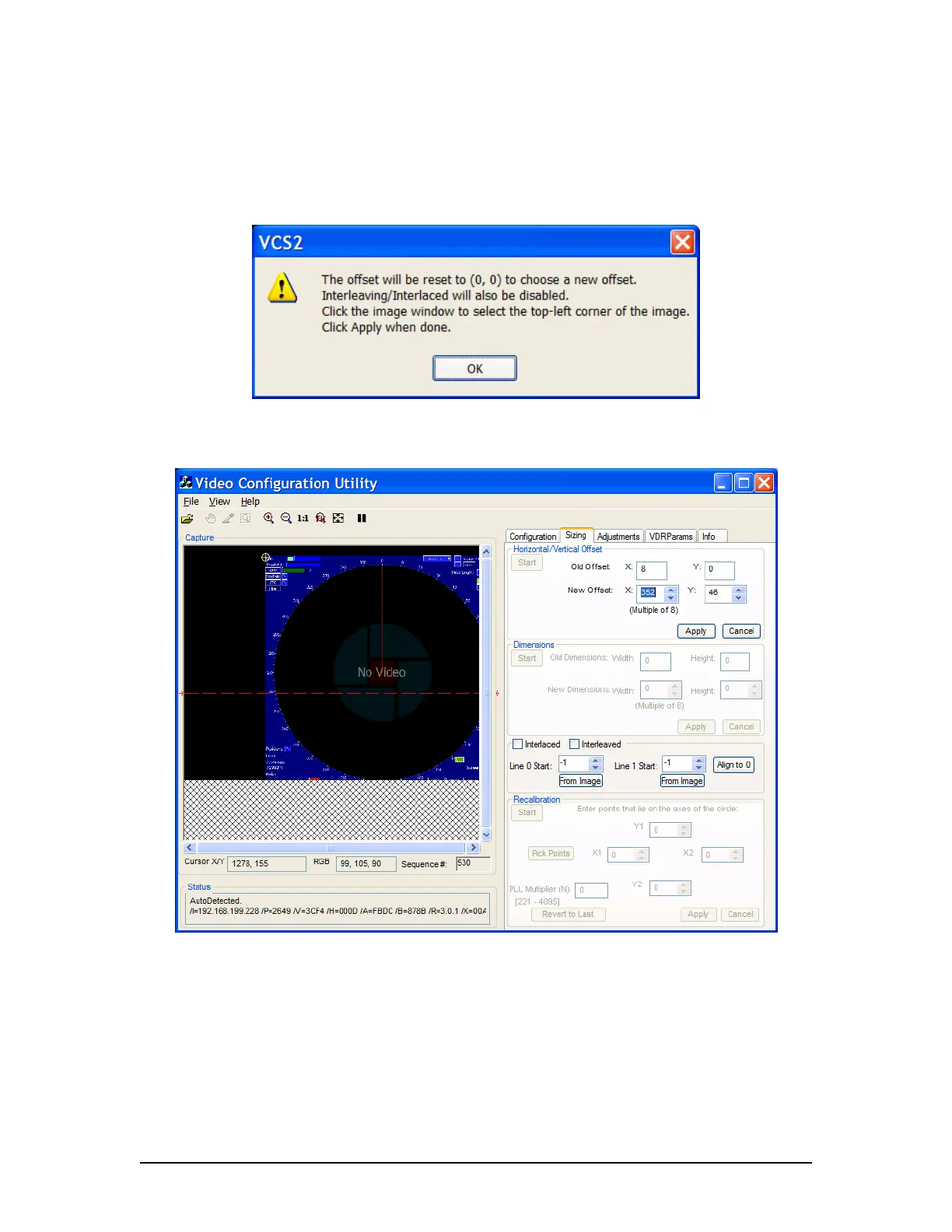
First, adjust the Horizontal and Vertical offset:
1. Press the “Start” button in the Horizontal/Vertical Offset section on the Sizing tab page.
2. This will display the following warning:
Figure 9-7 - Offset Adjustment Warning
3. Click OK, and follow the instructions below to select the offset position;
Figure 9-8 - Selecting the image offset
4. Position the cross-hair on the top-left corner of the image by clicking on the top-left corner
of the image in the Capture window. Horizontal and vertical values (co-ordinates will
display in the Capture window.
5. You may also adjust the position of the cross-hair by changing the New Offset text entry
boxes for the X and Y values in the Horizontal/Vertical Offset section of the Sizing page;
NOTE 1: Horizontal X Offset must be a multiple of 8. It is recommended to leave a small amount
of black space to help determine RGB settings.
VDR-100G3/G3S Installation Manual 06/10/2008
9-10



 To Next Page