Appendix 4: Data Retrieval, Rev. 1.1
sets commences. The download of the Archived data sets also occurs in order of date and
time archived, beginning with the oldest and ending with the most recent.
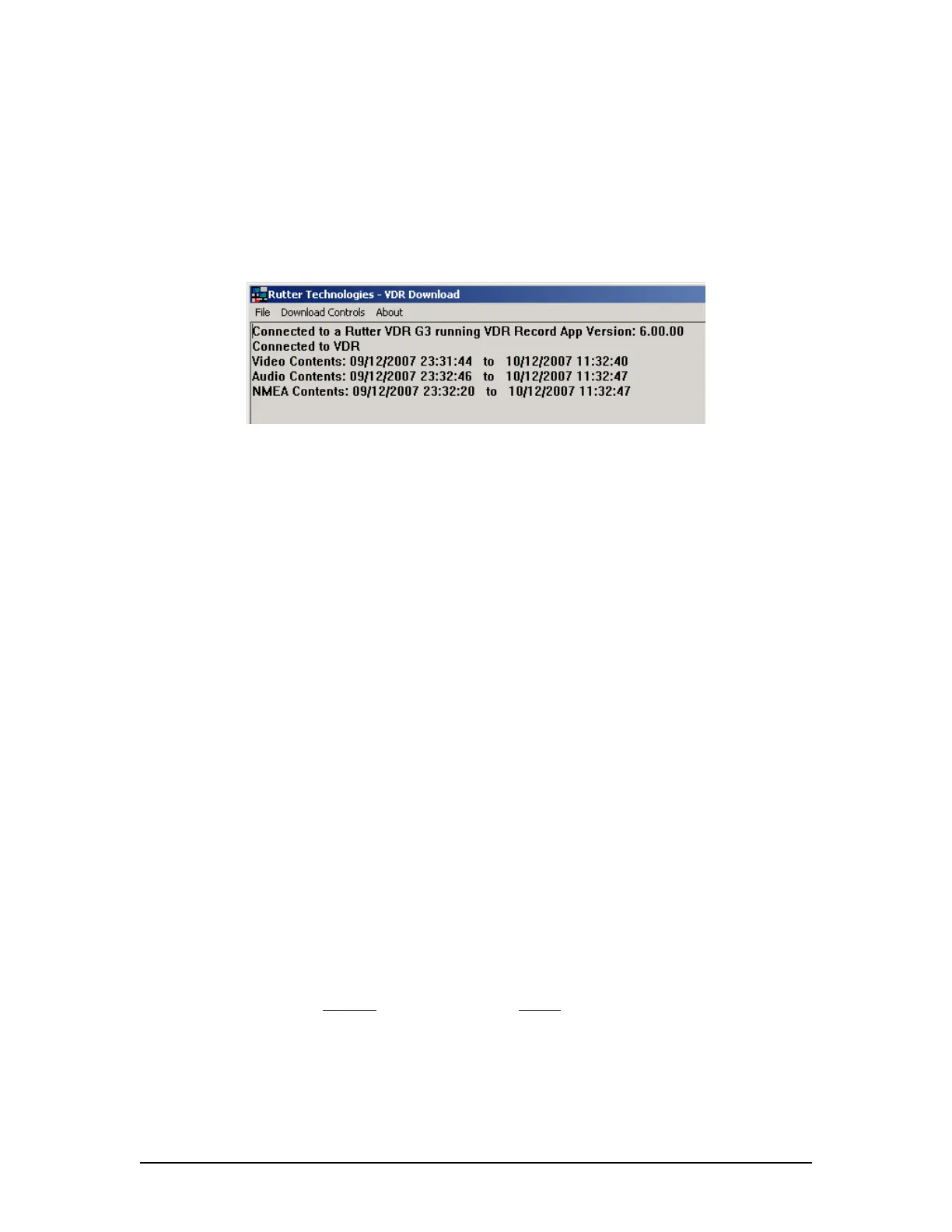
A4.4.5 Get Current Data Set Contents
This option allows the user to verify the contents of the current data on the VDR internal Hard
Drive. It displays the time range of the Video, Audio and NMEA data contained in the VDR_DATA
folder.
Figure A4 - 14 - Current Data Set Contents
A4.4.6 Error Log and Battery Log
To download the error log or battery log file, select the applicable item (‘Download Error Log’ or
‘Download Battery Log’) from the ‘Download Controls’ menu. The system will prompt the user to
select a location to save the log file.
A4.5 Disconnecting from the VDR
To disconnect, simply choose ‘Exit’ from the ‘File’ menu.
A4.6 Retrieving Secured or Archived Data via Download
Port
To retrieve data from the secured or archived directories, the retrieval PC must, as a minimum,
conform to the following features/settings:
1. XP Professional Operating System or higher
2. Computer name must not be “VDR”
3. Within the IP range of 200.200.200.x (where ‘x’ can be any IP EXCEPT 200)
4. Workgroup name must be WORKGROUP
Once the above listed conditions have been met, the data download can begin:
1. Connect a crossover Ethernet cable from the PC to the download port of the VDR.
2. Click Start > Run… on the Windows desktop of the retrieval PC, type \\VDR, and click
‘OK’
3. If prompted, enter MyUser
as a username and Rutter as a password.
4. Double-click the “Secured Data” or the “Archived Data” directory icon which appears in
the “VDR” window.
VDR-100G3/G3S Installation Manual 06/10/2008
8



 To Next Page