Appendix 4: Data Retrieval, Rev. 1.1
Once a download is complete, “MainAudio”, “MainNMEA”, and “MainVideo” folders are visible.
The vdrparams.ini and vdr-cfg.txt files are also downloaded and saved to the specified download
directory. See Figure A4 - 6 - Sample Download Directory for an example of a typical download
directory.
A4.4.2 Download a Secured Data Set
Complete the following steps to download 1 of multiple secured data sets from the DMM’s internal
hard drive:
1. Select ‘Download Secured Dataset’ from the ‘Download Controls’ menu.
2. A download progress window will appear indicating that the application is receiving
information from the DMM.
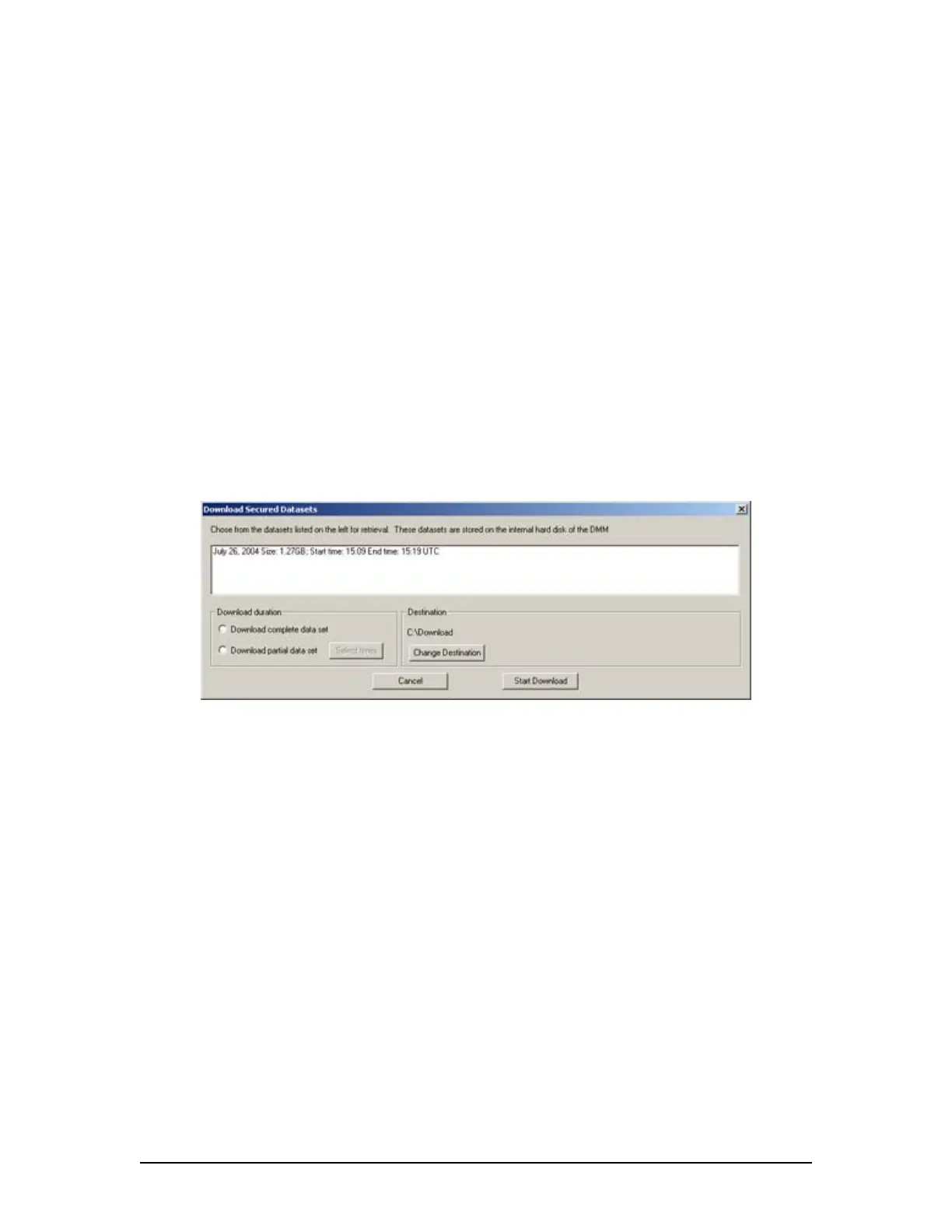
3. In the subsequent ‘Download Secured Datasets’ window, all available secured data sets
will be visible. Each data set shows the date it was initially secured, file size, and start
and end time.
Figure A4 - 7 - Download Secured Data Sets
4. Select the appropriate data set from the list.
5. To download a complete data set, choose the “Download complete data set” radio button
under ‘Download duration’. To download a partial data set, choose “Download partial
data set”.
6. If choosing to download a partial data set, a window will appear from which the time
range to be downloaded must be chosen. The associated scroll bar is used to select a
start and/or end time (the exact time may also be entered directly in to the time fields.)
VDR-100G3/G3S Installation Manual 06/10/2008
4



 To Next Page