Chapter 6: Initial Power-up, Rev 1.1
6.3.2 Using Remote Desktop
To utilize a remote desktop when accessing the DMM’s operating system, a technician
must ensure that the connecting PC has, at minimum, the following features/settings:
XP Professional Operating System or later.
Computer name must not be “VDR”.
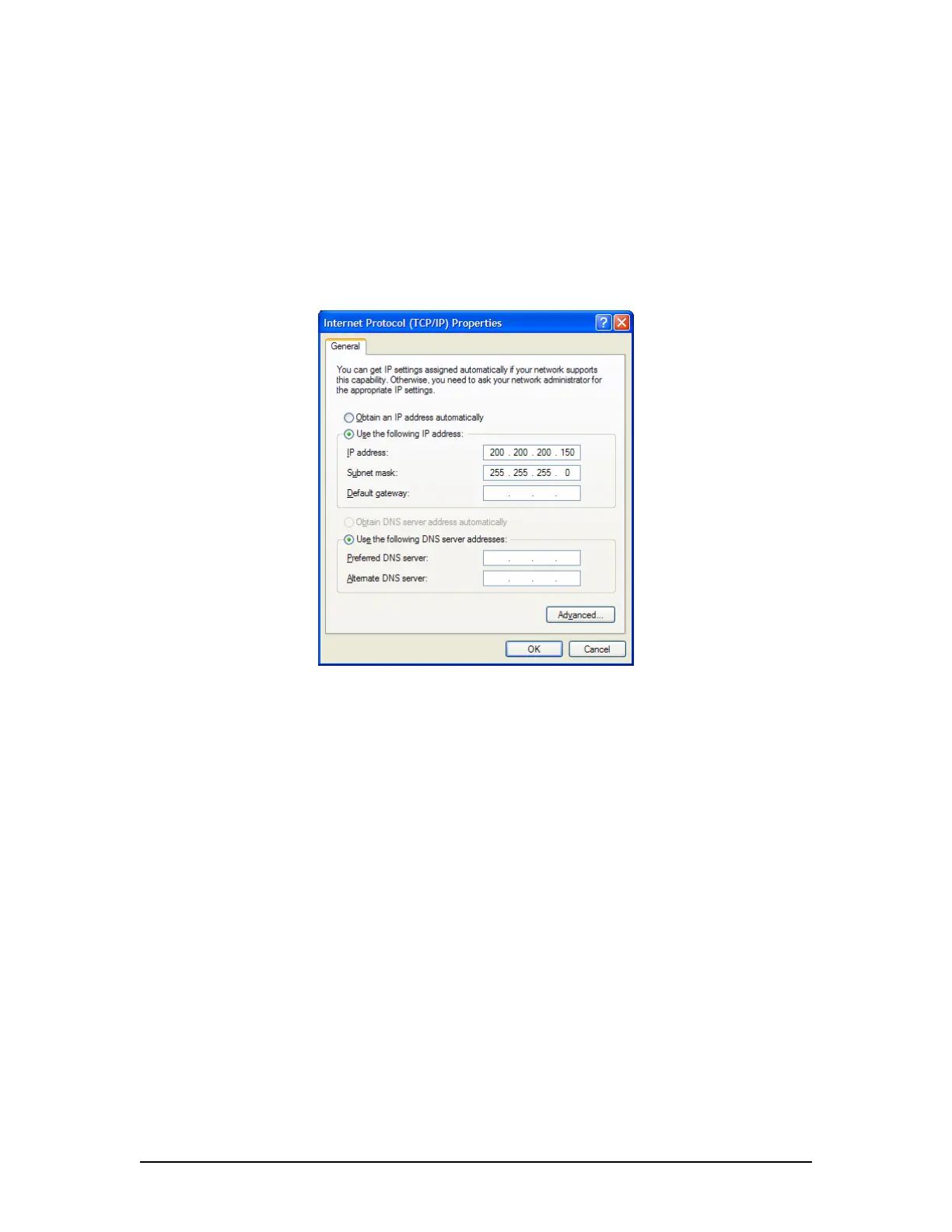
Within the IP range of 200.200.200.x (where ‘x’ can be any IP other than
200.)
Figure 6.2 - IP Range
To connect via remote desktop
1. Unscrew the cover on the Ethernet download port located on the right side of the
DPU. Connect the Remote Desktop PC to the VDR via the download port. Refer
to Chapter 4 in the section on Ethernet data connections for information on the
type of connections.
2. At client PC go to:
Start > All Programs > Accessories > Communications > Remote Desktop Connection.
3.
In the “Remote Desktop Connection” dialog window, click “Options >>” and
enter the following settings:
Computer: 200.200.200.200
User name: MyUser
Password: Rutter
Domain: WORKGROUP
VDR-100G3/G3S Installation Manual 09/12/2008
6-4



 To Next Page