Chapter 6: Initial Power-up, Rev 1.1
6.3 Connecting to the DPU
When accessing the internal operating software (O/S) of the DMM, it will be first
necessary to connect either a keyboard/mouse/monitor, or use a remote desktop
connection established from a maintenance computer. Follow the applicable procedures
provided below to access the DMM’s O/S.
6.3.1 Using a Keyboard, Mouse, and Monitor
1. Remove the Cover of the DPU.
2. Connect the USB keyboard, USB mouse, and monitor to the DMM front panel
located under the OAU.
3. Once the monitor has been turned on, the record application (VDR_Record_G3)
should be visible.
4. Observe log window for potential problems.
5. Shut down the Watchdog Application.
6. Shut down VDR_Record_G3 to terminate the recording process (a password is
required).
7. When the record application has been terminated, log off the current user account
8. Log in as an Administrator (an Administrator password is required).
9. In administrative mode, configure VDR or make necessary changes.
10. Software can be loaded to the DMM via USB memory sticks.
All changes to DMM software and/or operating system MUST be committed
to the flash memory of the DMM to take effect. See directions below.
To save changes to DMM software and/or operating system to the DMM flash memory:
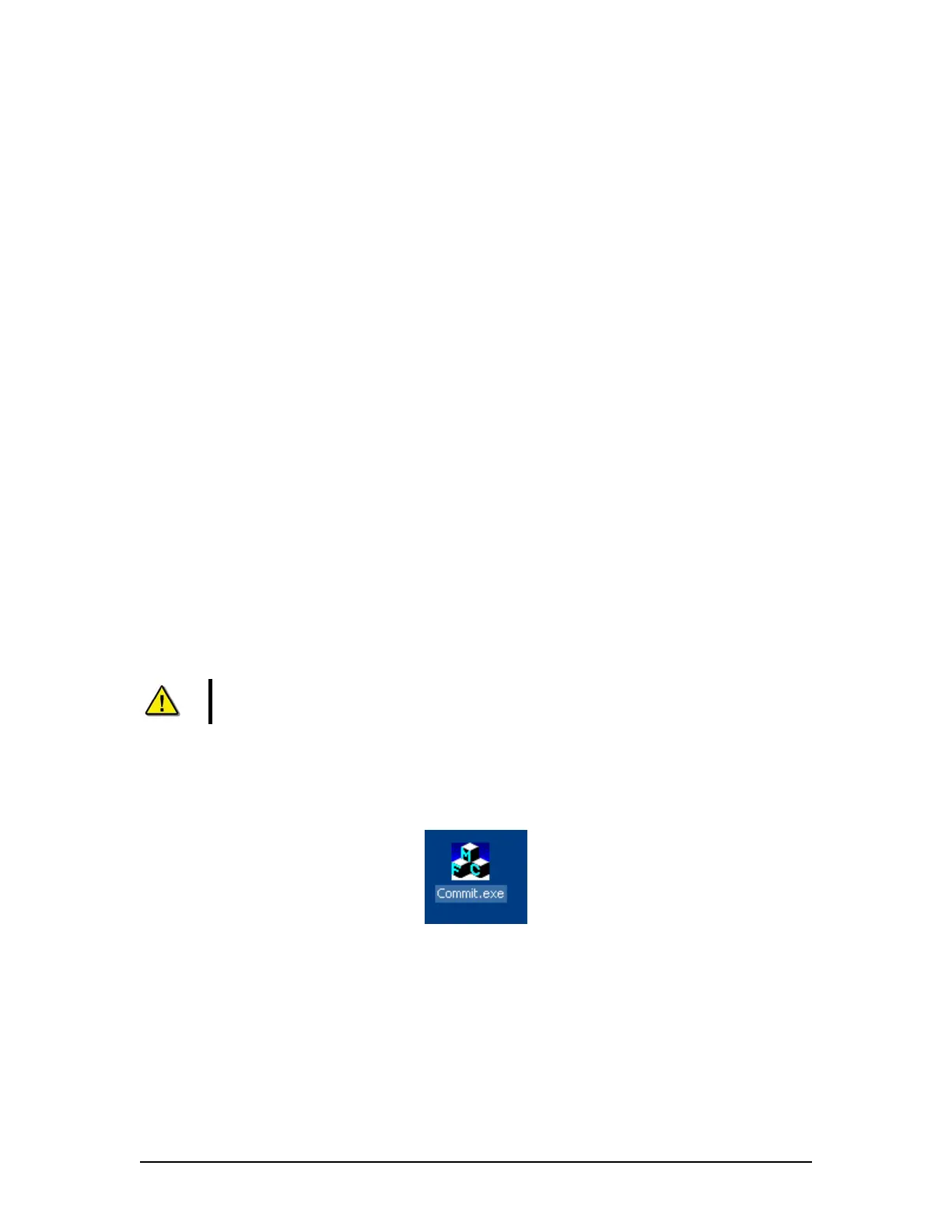
1. Locate and double-click the commit.exe icon on the desktop.
Figure 6.1 - commit.exe Icon
2. Restart the DMM via Start > Shut Down.
3. The DMM will reboot and all record application software will restart.
4. Verify that all applicable applications have restarted and are performing correctly.
5. Unplug the keyboard, mouse, and monitor.
6. Secure the cover of the DPU.
VDR-100G3/G3S Installation Manual 09/12/2008
6-3



 To Next Page