Chapter 12: Final Recording Medium Setup, Rev. 1.5
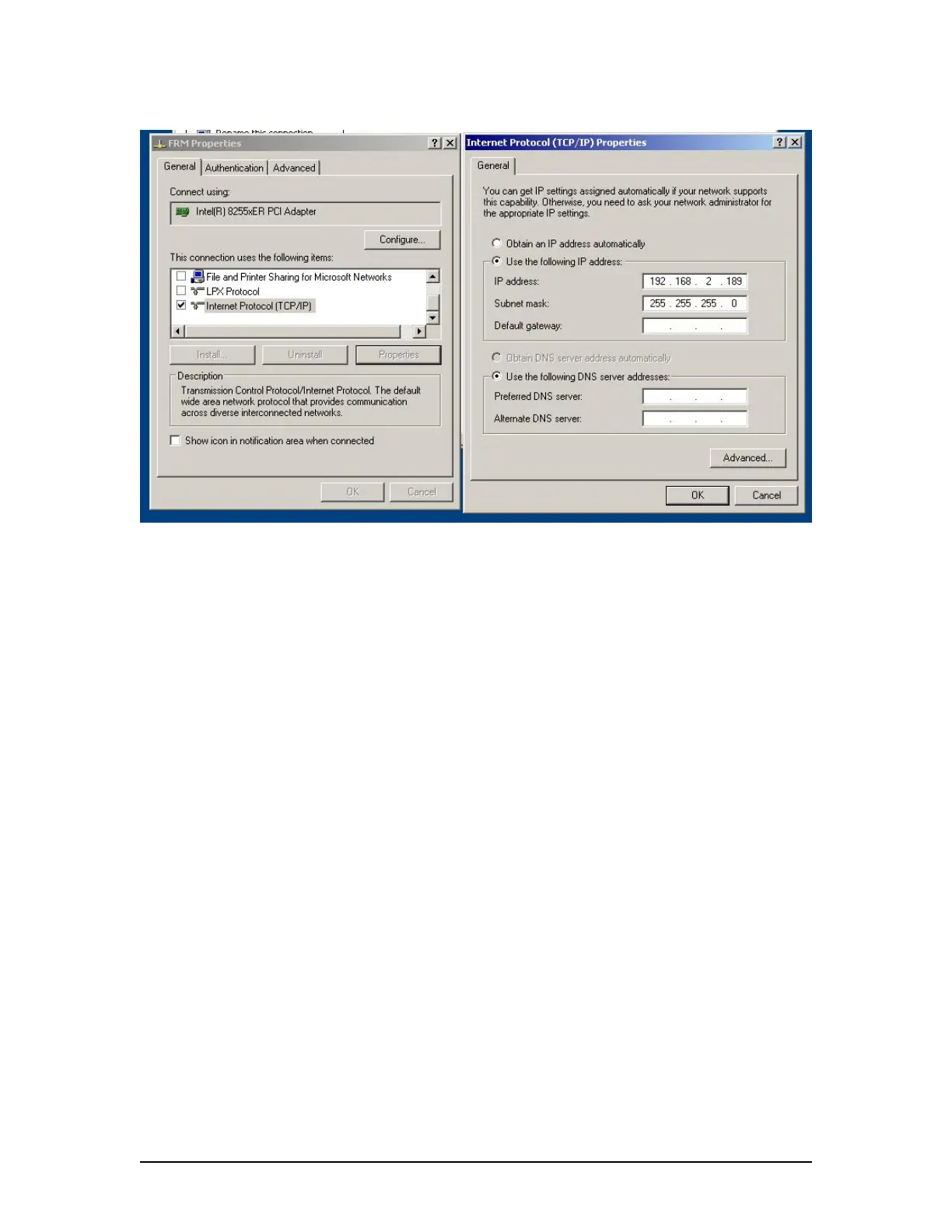
Figure 12–15 - Establishing TCP/IP Address
12.3.1.7 Configuring the Rutter-ACR Float-free SFRM Capsule
The Rutter ACR Float-free capsule arrives from the factory configured for the ship on which it is
being installed. The software uses the IP address to automatically locate and stream data to the
capsule.
4 GB (8 GB capacity optional); and
No partitions
To begin setting up the Rutter-ACR Float-free SFRM Capsule support:
1. Open Notepad;
2. Locate the file <C:\Windows\vdrparams.ini>;
3. Open the file using Notepad;
4. Locate the [STORAGE] section of the open file; and
5. Set the entries that must be set as shown below:
[STORAGE]
hardenedStorage = 1 // 0=disable, 1=enable, 2 = Dual FRM, default is 0
hardenedFormat = 4 // 1=L3 HVR, 2= PMC, 3 = Jotron, 4 = ACR
secondaryHardenedFormat = 4 // 1=L3 HVR, 2= PMC, 3 = Jotron, 4 = ACR
12.3.1.8 Start Recording to the Rutter-ACR Float-free SFRM Capsule
1. Start the VDR_Record application from the desktop;
2. Observe the following messages are presented in the Log Window:
a. Hardened Storage module ready,
b. Configuration saved to the hardened storage.
3. Minimize the VDR_Record application and open the error log;
4. Observe the following messages are written in the error log:
Stream audio (type AUDIO) connected,
Stream nmea (type NMEA) connected,
Stream video (type VIDEO) connected,
VDR-100G3/G3S Installation Manual 10/12/2008
12 - 25



 To Next Page