Chapter 12: Final Recording Medium Setup, Rev. 1.5
12.4.4.1 Configuring the VDR For Dual FRM Operation
To begin setting up Dual FRM Capsule support:
1. Open Notepad;
2. Locate the file <C:\Windows\vdrparams.ini>;
3. Open the file using Notepad;
4. Locate the [STORAGE] section of the open file; and
5. Set the entries that must be set as shown below:
To configure an L3 HVR-02 Fixed FRM Capsule as primary with a Rutter-ACR Float-free SFRM
Capsule as secondary, use:
[STORAGE]
hardenedStorage = 2 // 0=disable, 1=enable, 2 = Dual FRM, default is 0
hardenedFormat = 1 // 1=L3 HVR/SVR, 2=PMC, 3=Jotron, 4=Rutter-ACR Float-free, 5=Rutter Fixed
s
econdaryHardenedFormat = 4 // 1=L3 HVR/SVR, 2=PMC, 3=Jotron, 4=Rutter-ACR Float-free, 5=Rutter Fixed
To configure a Rutter FRM (RUT-02447) Fixed Capsule with a Rutter-ACR Float-free SFRM
Capsule, use:
[STORAGE]
hardenedStorage = 2 // 0=disable, 1=enable, 2 = Dual FRM, default is 0
hardenedFormat = 5 // 1=L3 HVR/SVR, 2=PMC, 3=Jotron, 4=Rutter-ACR Float-free, 5=Rutter Fixed
secondaryHardenedFormat = 4 // 1=L3 HVR/SVR, 2=PMC, 3=Jotron, 4=Rutter-ACR Float-free, 5=Rutter Fixed
NOTE:
A fixed capsule is ALWAYS connected as the primary FRM on the FRM port.
A second hub must be installed and connected to download port.
The Secondary FRM must be in 200.200.200.x IP segment and connected to download
hub.
12.4.4.2
Changing the IP of the Rutter-ACR Float-free SFRM Capsule
The secondary FRM is installed on the download hub. The IP address on the Rutter-ACR Float-
free SFRM Capsule must be changed to be in the same IP segment as the download port of the
VDR. To change the IP address of the Rutter-ACR Float-free SFRM Capsule:
1. Disconnect the primary capsule from the FRM port—this will be replaced later.
2. Confirm the IP of the FRM Ethernet port on the DMM to be in the same segment as the
default IP address of the Rutter-ACR Float-free SFRM Capsule (i.e. 192.168.0.189). The
last number can be any number from 2 to 254 except 100.
3. Connect the Rutter-ACR Float-free SFRM Capsule to the FRM Ethernet port and confirm
that communication is available via the ping command in a DOS prompt window
(Start>All Programs>Accessories>Command Prompt) – ping 192.168.0.100;
4. Press Enter on the keyboard;.
5. Ensure communication is established;
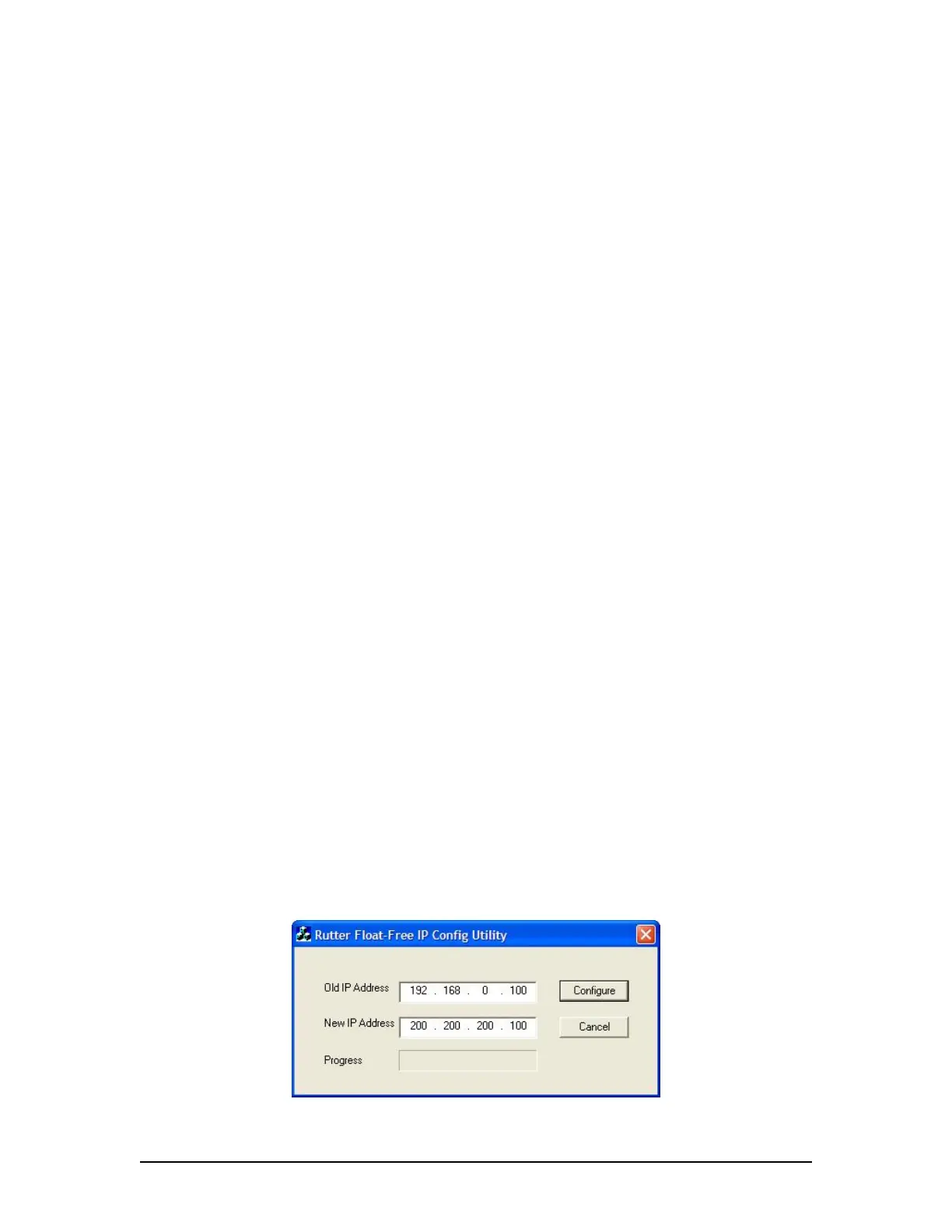
6. Open the Rutter Float-free IP Config Utility via the Start-Utilities menu or by double
clicking the utility file in the VDRApps folder.
7. Set the New IP Address to 200.200.200.100 for the Rutter-ACR Float-free SFRM;
8. Once the IP is changed, communication is no longer be possible from the FRM port;
9. Recycle the power on the Rutter-ACR Float-free SFRM Capsule.
Figure 12–20 - Rutter Float-free IP Config Utility
VDR-100G3/G3S Installation Manual 10/12/2008
12 - 35



 To Next Page