Appendix 5: Playback Software, Rev. 1.1
Configuring the Client to Receive Real Time Data for details.
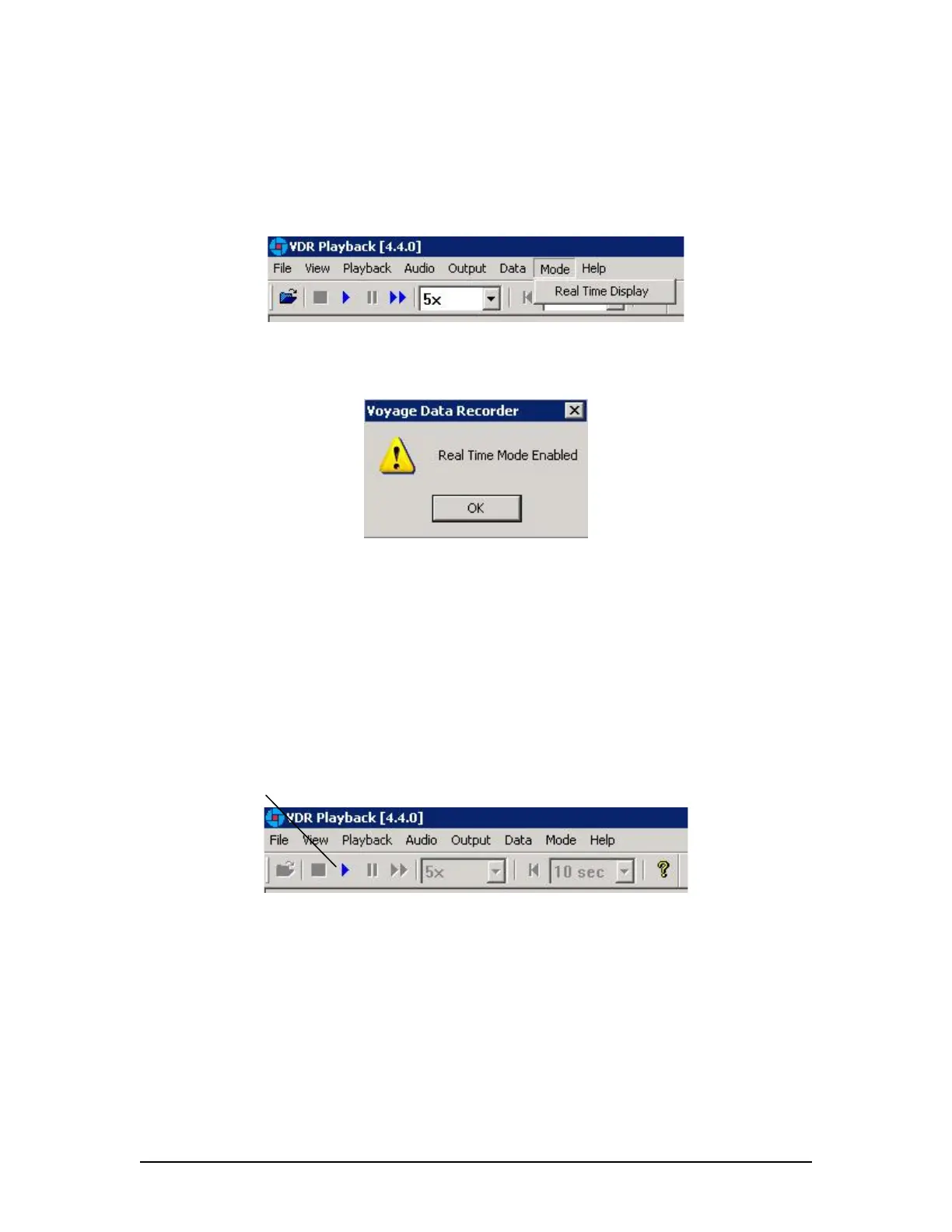
To activate the Real Time Display mode of the Playback Application, select Mode | Real Time
Display from the main menu. If a checkmark appears adjacent to this option, Real Time Display
mode is currently enabled. To disable this option, ensure no checkmark appears adjacent to this
selection.
Figure 16 - Enabling Real Time Display Mode
When Real Time Display mode is enabled, a pop-up window will appear indicating that Real Time
Display has been enabled.
Figure 17 - Real Time Display Mode Confirmation
Many of the normal Playback mode options are disabled when operating in Real Time Display
mode, as they are not applicable. All disabled options will be gray in colour, such that they are still
visible but not available for selection.
A5.8 Starting the Playback in Real Time Display Mode
To start the playback of real time data, complete the following steps:
1. Refer to Section A5.2.1 Configuration File to select a valid configuration file.
2. Choose Playback | Start from the main menu or press the ‘Play’ button located on the
‘Controls’ toolbar.
Play
Figure 18 - Controls Toolbar
3. A dialog box will appear asking for a password. The default password is “VDR”. The
password is case sensitive. Type the password in the text box provided and click OK.
Upon entering the correct password Real Time Display playback will begin.
A5.9 Passwords
There are 2 passwords required to playback data. The first password is necessary to playback a
selected data set or to playback real time data. The default password is “VDR” (case sensitive).
VDR-100G3/G3S Installation Manual 06/10/2008
9



 To Next Page