Appendix 4: Data Retrieval, Rev. 1.1
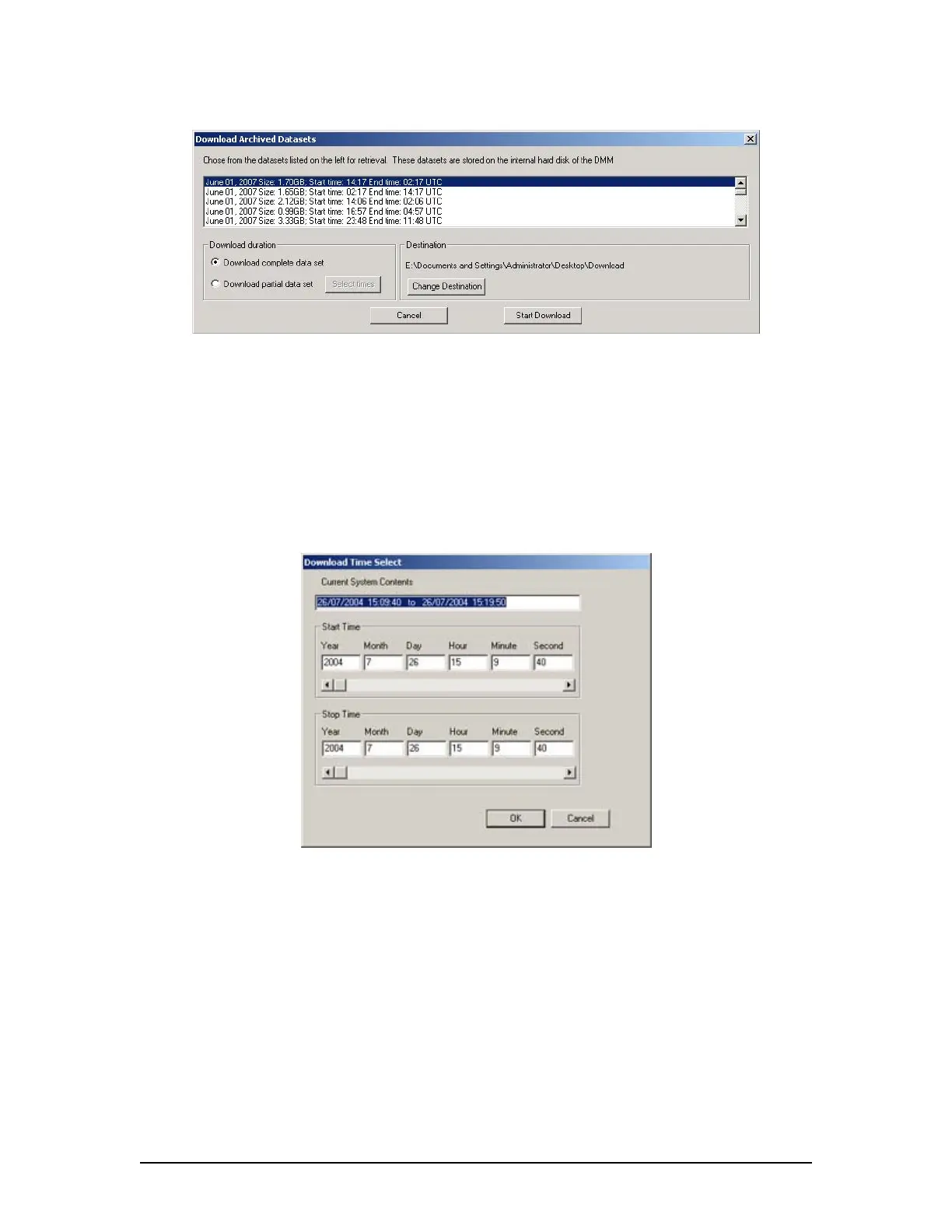
Figure A4 - 10 - Download Archived Data Sets
4. Select the appropriate data set from the list.
5. To download a complete data set, choose the “Download complete data set” radio button
under ‘Download duration’. To download a partial data set, choose “Download partial
data set”.
6. If choosing to download a partial data set, a window will appear from which the time
range to be downloaded must be chosen. The associated scroll bar is used to select a
start and/or end time (the exact time may also be entered directly in to the time fields.)
Figure A4 - 11 - Partial Download Window
7. To choose a directory to which the data sets will be downloaded, other than the one listed
under ‘Destination’, press the “Change Destination” button and follow standard Windows
procedure for selecting a desired directory.
8. Once the duration and destination are correct, press ‘Start Download’.
9. Enter a password and press ‘OK’.
10. A “Download Settings” dialog will appear providing confirmation information for the data
set to be downloaded. If all information is correct, press ‘OK’ to begin the download.
VDR-100G3/G3S Installation Manual 06/10/2008
6



 To Next Page